How to Create a Line Chart
Line graph (text -> height) shapes.
- Drag and drop chart shape from the library to your document.
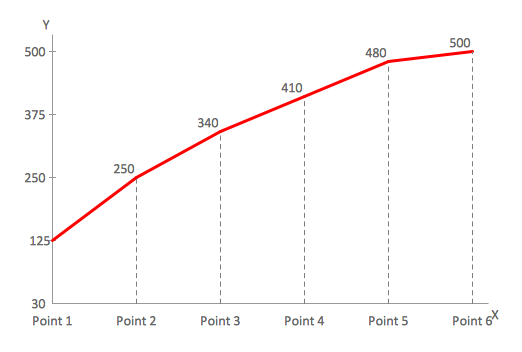
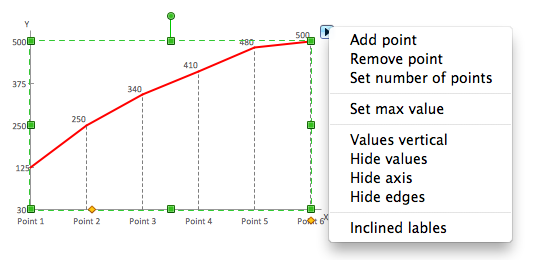
- Select the chart by mouse click. The Action menu icon appears.
- Click on the icon to open Action menu.
- To change point number use Action menu commands Add point, Remove point, Set number of points.
- To set maximum value for vertical axis use Action menu command Set max value.
- To change orientation of point labels use Action menu command Values vertical/horizontal.
- To hide or show point values use Action menu command Hide/Show values.
- To hide or show axises use Action menu command Hide/Show axis.
- To hide or show edges in the line graph use Action menu command Hide/Show edges.
- To change value select the chart, then select point and type new value.
- To add or change chart caption select the chart and simply start typing.
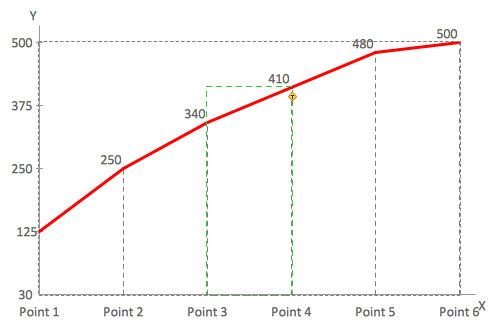
- To change orientation of category labels under horizontal axis use Action menu command Inclined/Horizontal labels.
- To move category labels up and down select the chart and use control dot in the bottom right corner of the shape.
- To change space between points select the chart and use control dot on the horizontal axis.
Line graph (control dots) shapes.
- Drag and drop chart shape from the library to your document.
- Select the chart by mouse click. The Action menu icon appears.
- Click on the icon to open Action menu.
- To change point number use Action menu commands Add point, Remove point, Set number of points.
- To set maximum value for vertical axis use Action menu command Set max value.
- To change orientation of point labels use Action menu command Values vertical/horizontal.
- To hide or show point values use Action menu command Hide/Show values.
- To hide or show axises use Action menu command Hide/Show axis.
- To hide or show edges in the line graph use Action menu command Hide/Show edges.
- To change point value select the chart, then move control dot of the point vertically.
- To add or change chart caption select the chart and simply start typing.
- To change orientation of category labels under horizontal axis use Action menu command Inclined/Horizontal labels.
- To move category labels up and down select the chart and use control dot in the bottom right corner of the shape.
- To change space between points select the chart and use control dot on the horizontal axis.
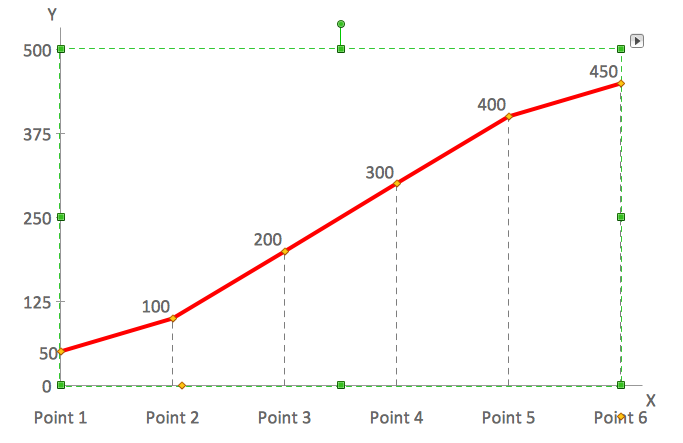
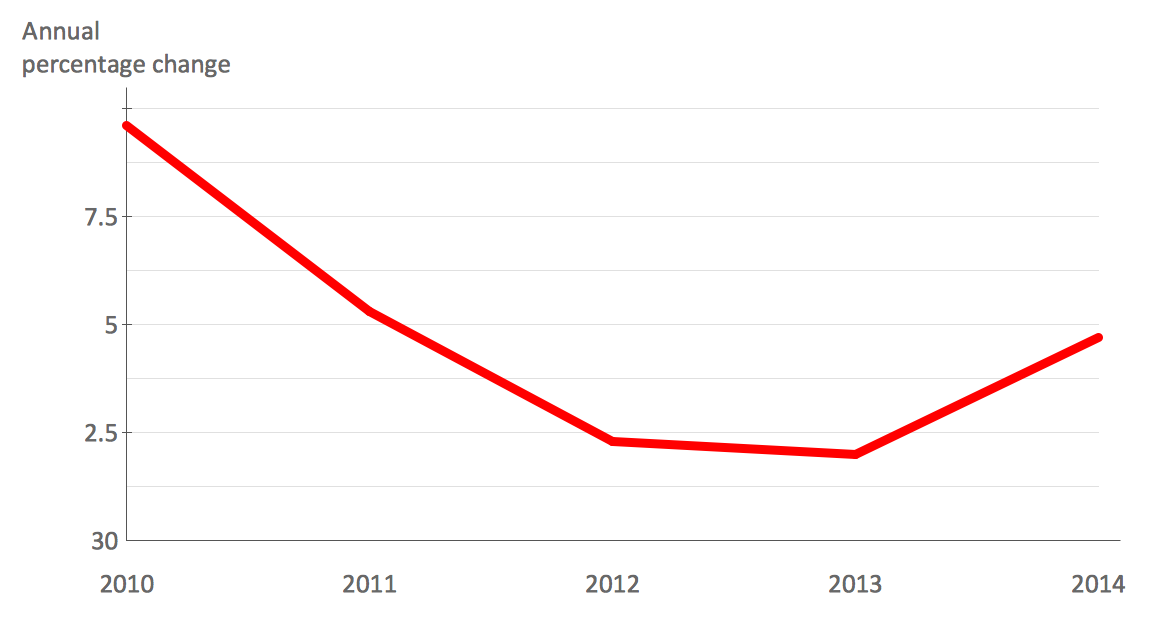
Example 1. Line chart example — France exports of goods and services.
See Also:
- How to Create a Bar Chart
- How to Create a Pie Chart
- How to Create a Pyramid Chart
- How to Create a Scatter Chart
- How to Create a Column Chart
TEN RELATED HOW TO's:
Having the already previously created samples of the Venn diagrams can help any ConceptDraw DIAGRAM user make it possible to make the needed drawing within only a few minutes by editing the existing ones.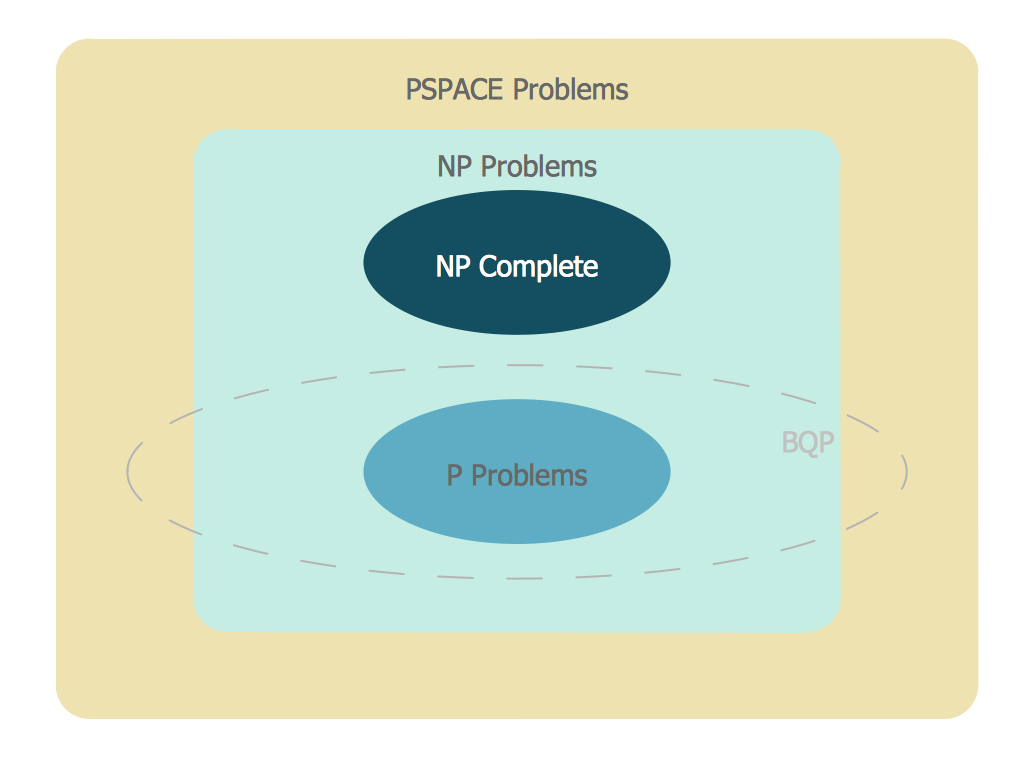
Picture: Venn Diagram Examples for Problem Solving
Related Solution:
Risk Diagram (PDPC) - ConceptDraw OFFICE suite is a software for Risks Diagram making. This diagram identifies possible risks in accomplishing corrective actions. With the Risks Diagram, one analyzes each action separately in a tree of all actions and develops a preventive action in response of each potential obstacles or circumstances which may be a risk.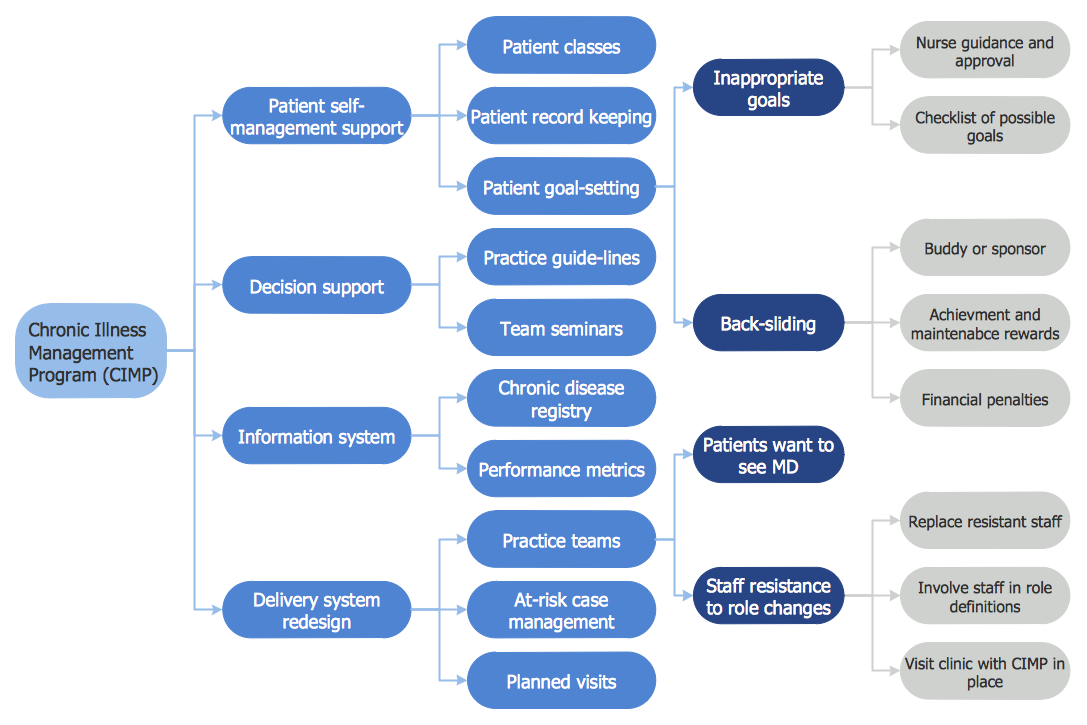
Picture: CORRECTIVE ACTIONS PLANNING. Risk Diagram (PDPC)
No need for any special drawing skills to create professional looking diagrams outside of your knowledge base. ConceptDraw DIAGRAM takes care of the technical details, allowing you to focus on your job, not the drawing.
ConceptDraw DIAGRAM delivers full-functioned alternative to MS Visio. ConceptDraw DIAGRAM supports import of Visio files. ConceptDraw DIAGRAM supports flowcharting, swimlane, orgchart, project chart, mind map, decision tree, cause and effect, charts and graphs, and many other diagram types.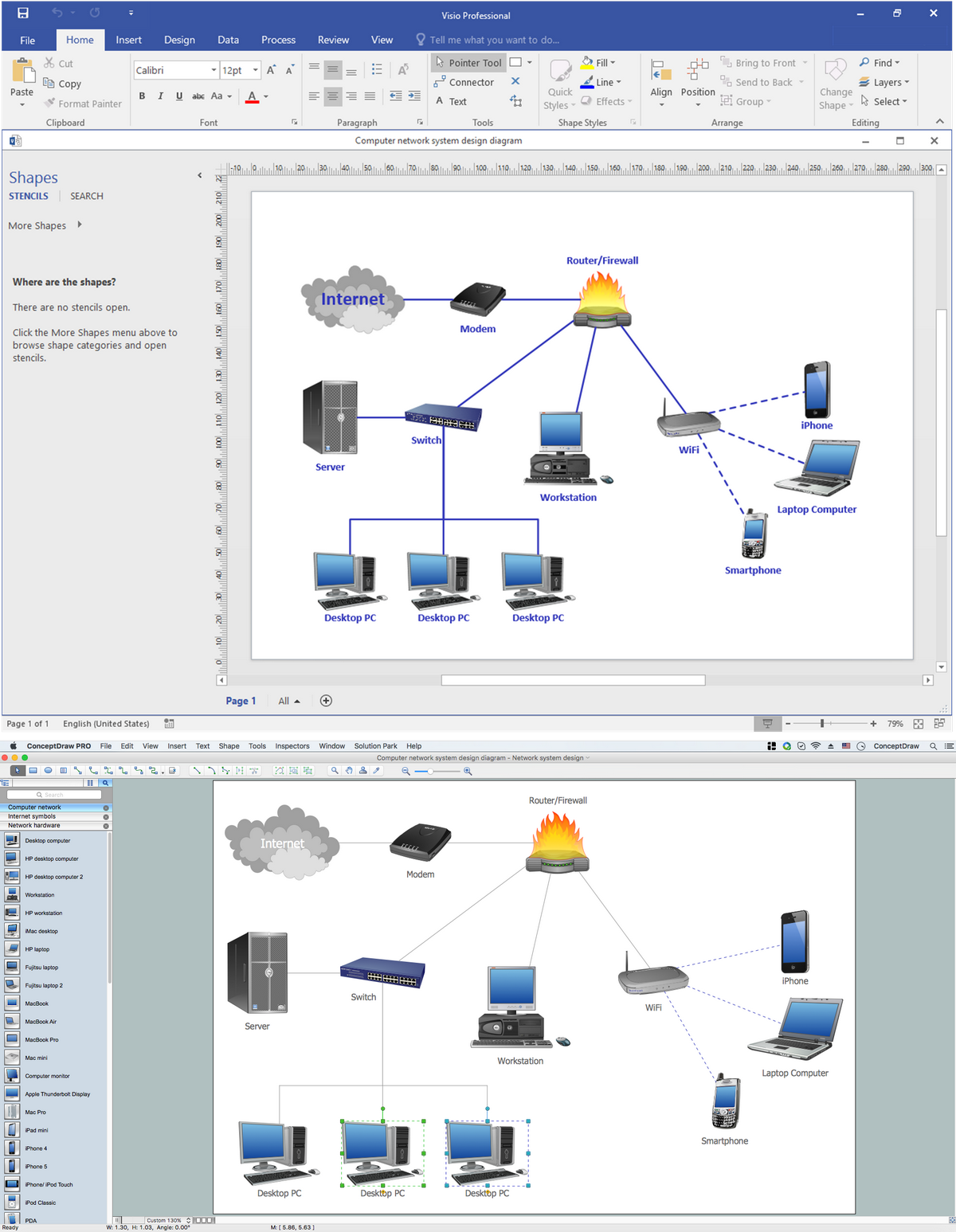
Picture: MS Visio Look a Like Diagrams
The Value stream is a totality of all actions on the projection, order composition and production: starting from creation a product project to launching this product, from order to delivery, from extraction of raw materials to ready product manufacturing. Value stream mapping is a process of visualization of these actions and creation of a detailed and graphical map.
Picture: Value stream with ConceptDraw DIAGRAM
Related Solution:
Chemical and Process Engineering solution contains variety predesigned process flow diagram elements relating to instrumentation, containers, piping and distribution necessary for chemical engineering, and can be used to map out chemical processes or easy creating various Chemical and Process Flow Diagrams in ConceptDraw DIAGRAM.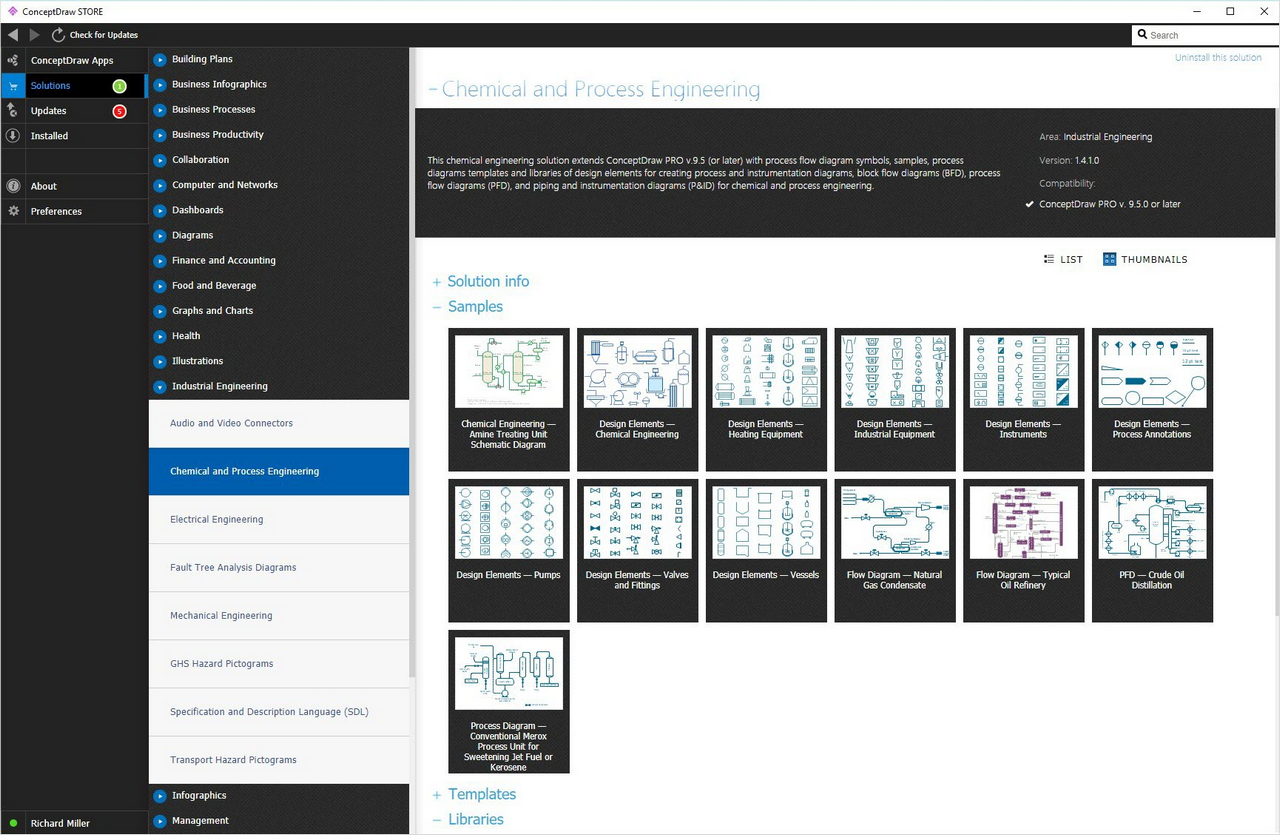
Picture: Process Flow Diagram Symbols
Related Solution:
Decision Making - ConceptDraw OFFICE suite provides visual tools that are given support on the stage of the decision making.
The Seven Management and Planning Tools is a set for such diagrams: Affinity Diagram, Relations Diagram, Prioritization Matrix, Root Cause Tree Diagram, Involvement Matrix, PERT Chart, Risk Diagram (PDPC).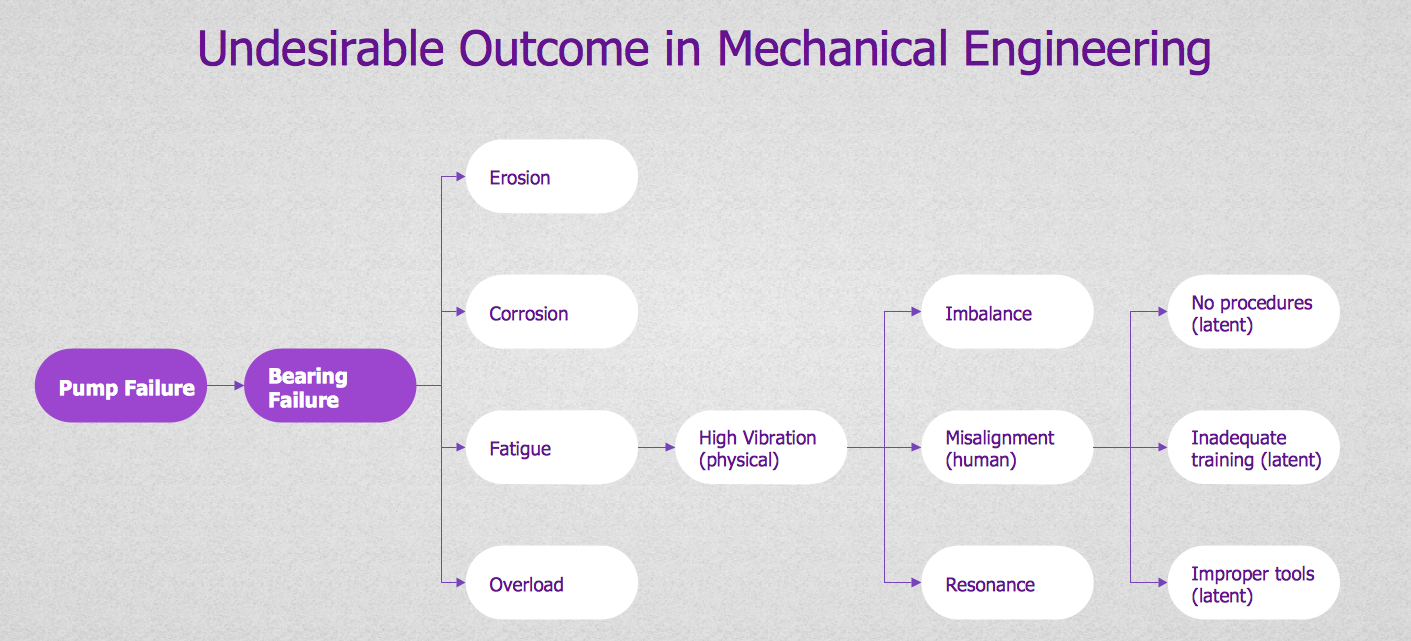
Picture: Decision Making
Apply Electrical Engineering solution for ConceptDraw DIAGRAM and numerous electric circuit symbols to 🔸 develop and illustrate all types of electrical circuits as ✔️ electrical circuit diagrams, ✔️ electrical schematics, ✔️ electrical diagram drawings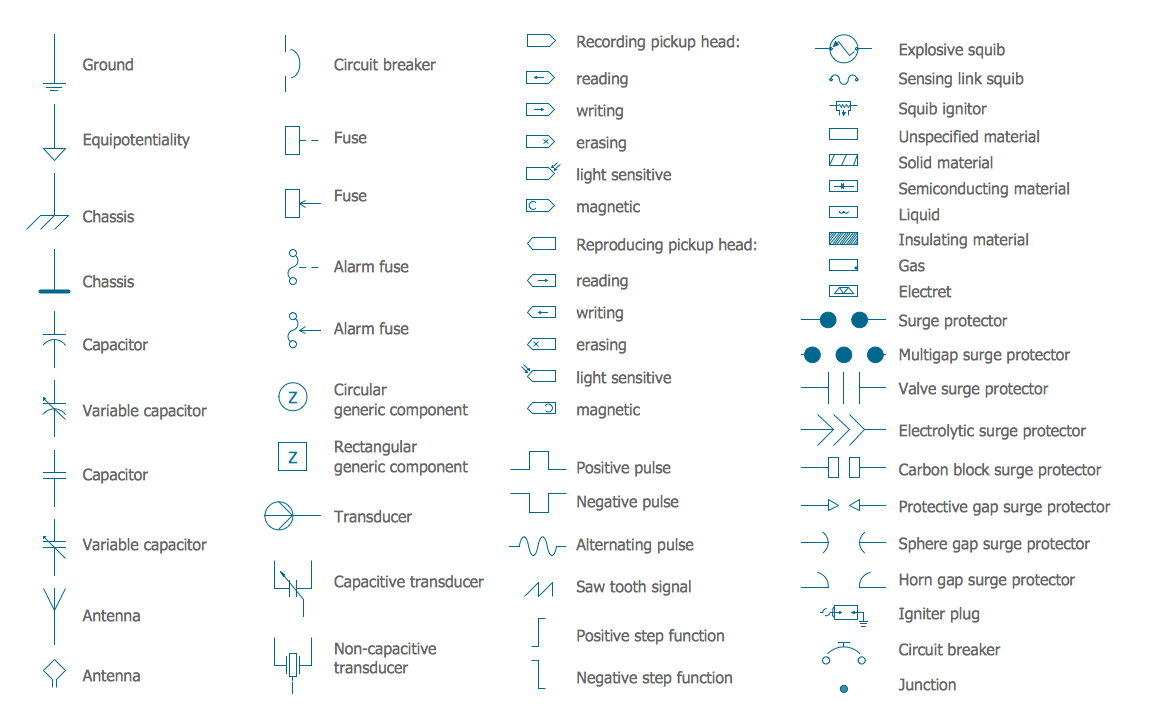
Picture: Electrical Circuits — Electrical Symbols
Related Solution:
Montana is a state in the Western United States.
The vector stencils library Montana contains contours for ConceptDraw DIAGRAM diagramming and vector drawing software. This library is contained in the Continent Maps solution from Maps area of ConceptDraw Solution Park.
Picture: Geo Map — USA — Montana
Related Solution:
This sample shows the Purchasing Flow Chart Diagram that displays the money flow in the carbon offset sphere. The carbon offsets are the compensatory measures that the companies make for the carbon emissions. You can see on this sample the groups that have interests in the carbon offsets and the money flow after the carbon offset vendors sold the carbon offsets.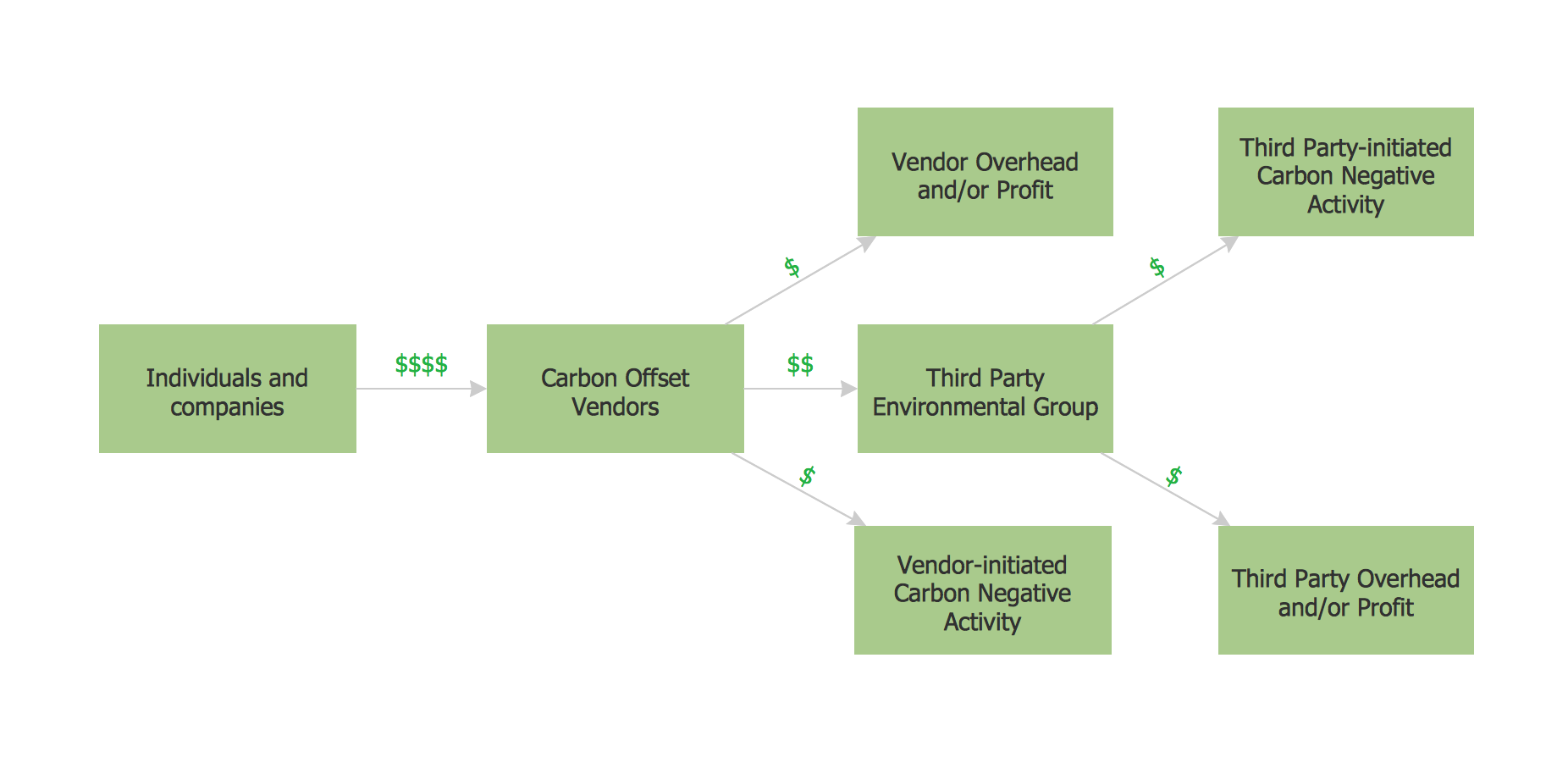
Picture: Purchasing Flow Chart.Purchasing Flowchart Example
Related Solution:
ConceptDraw DIAGRAM software extended with Picture Graphs solution is the best choice for making professional looking pictures of graphs and colorful picture graphs.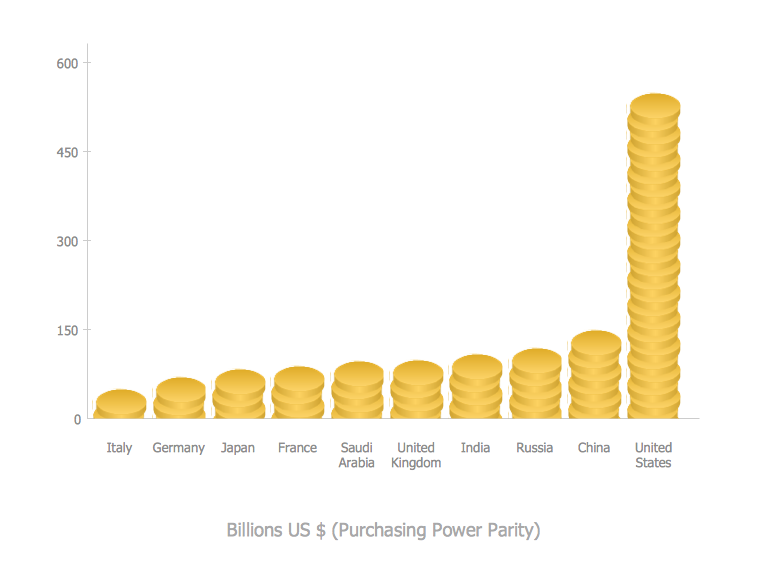
Picture: Pictures of Graphs
Related Solution:
ConceptDraw
DIAGRAM 18