HelpDesk
How to Plan and Allocate Resources in Your Project with ConceptDraw PROJECT for Windows
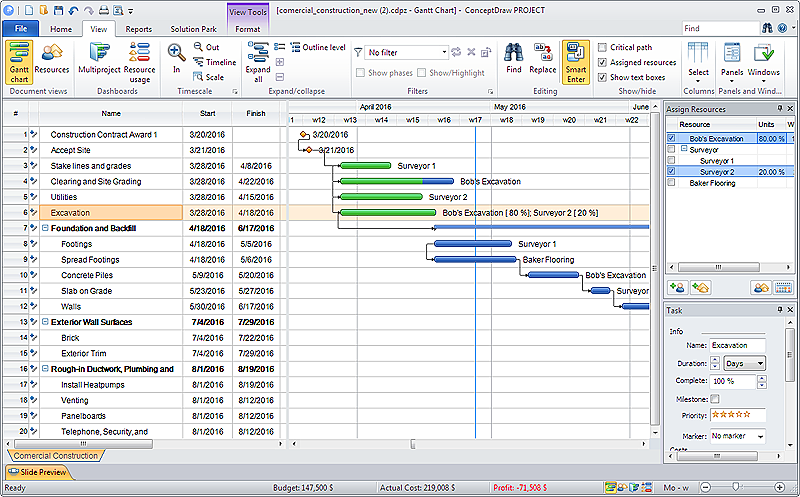
Effective resource management is a key factor in the successful project implementation. The common types of resources for which the project manager has an impact, include material resources (materials, energy), staff (work) and equipment. CoceptDraw PROJECT provides easy ways to project Resources Management: Create a list of project resources and assign the right human resource, as well as the necessary material, or equipment to be used.HelpDesk
ConceptDraw PROJECT: Filter Tasks and Resources on Mac

Filtering project data offers two important possibilities: to find out a required task quickly and to group tasks by various parameters to aid gathering information regarding the project status. Filtering allows you to focus on working with specific tasks, projects or resources. With ConceptDraw Project, you can filter project data on Mac OS X so that you only see the information that’s most important to you.Project — Assigning Resources
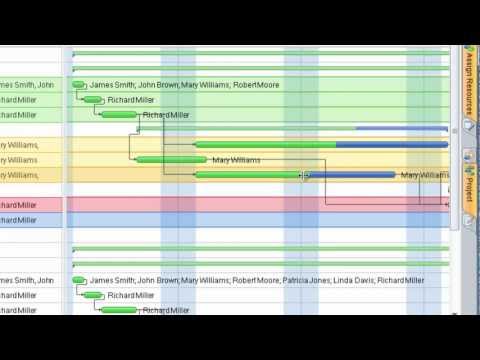
Users new to ConceptDraw PROJECT will find the Basic lessons an essential platform for familiarizing themselves with the program′s functions. Learn how to assign resources to tasks in ConceptDraw PROJECT with this comprehensive video lesson.
HelpDesk
How to Plan and Allocate Resources in Your Project on Mac
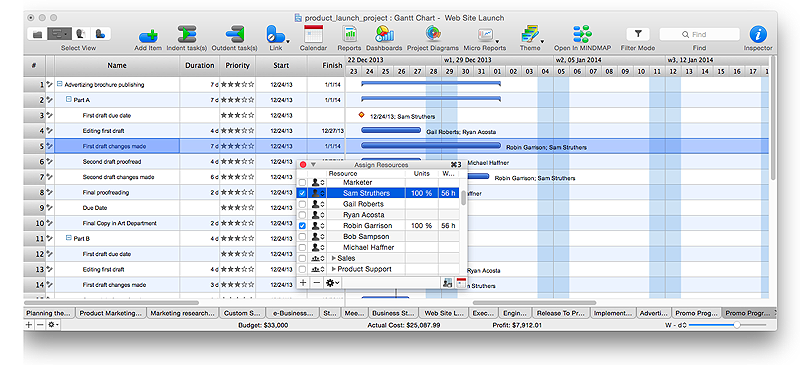
CoceptDraw PROJECT provides easy ways to project Resources Management: Create a list of project resources and assign the right people to tasks, as well as the necessary materials to be used.HelpDesk
How to Use the Effort-Driven Scheduling Method
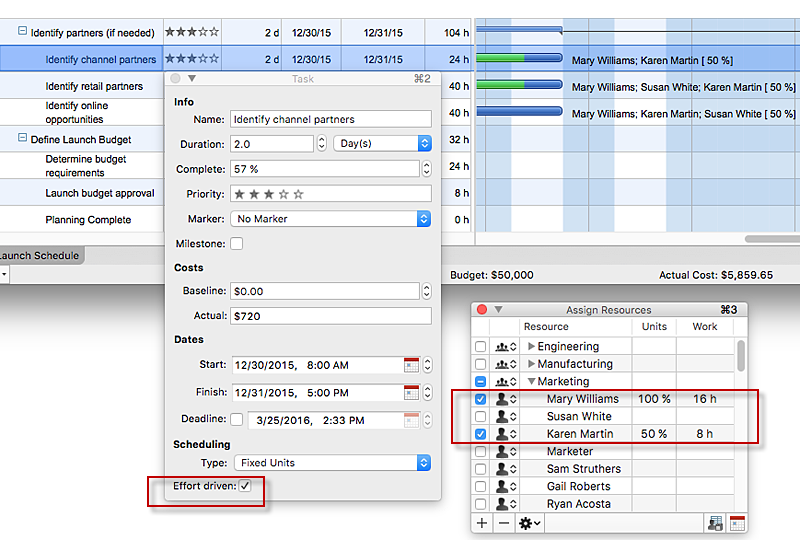
Effort-driven scheduling is the default method of project scheduling in ConceptDraw PROJECT.HelpDesk
How to View Resource Tasks Scheduled on a Specific Time in Different Projects
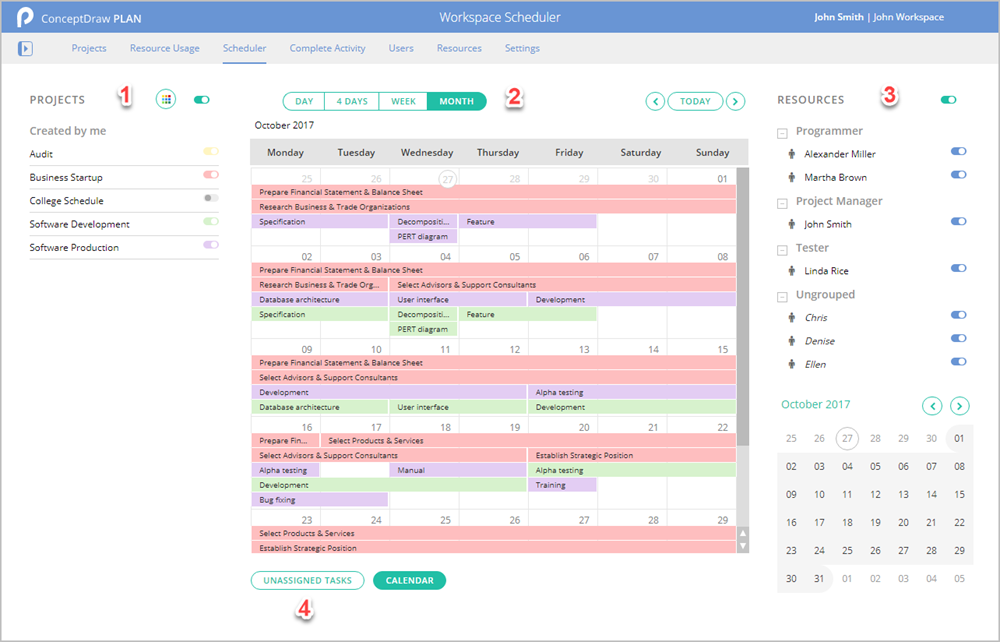
One of the most important role of project manager is tracking the assignments for project resources in order to effectively organize their work loads. You can preview how efficiently your resources are planned to be used in the current project through calendar. You will see whether you need to make any improvements, by viewing all tasks scheduled for certain resources at a certain time in ConceptDraw PLAN.HelpDesk
How to Customize a Task’s Duration
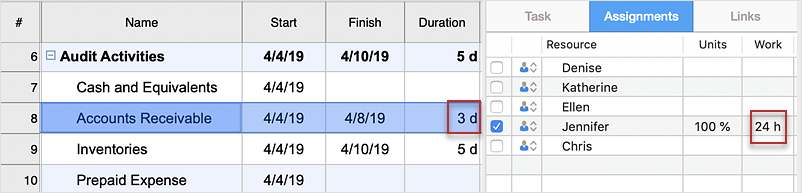
When you create an automatically scheduled task, ConceptDraw PROJECT assigns it duration of one day by default. You need modify that duration to reflect the real amount of time that the task requires.How to Create Gantt Chart
To begin managing a new project, you will need to define the individual Tasks that must be completed to deliver it. The default view for a new project in ConceptDraw PROJECT is the Gantt Chart.HelpDesk
How to View Tasks of Multiple Projects Using Scheduler
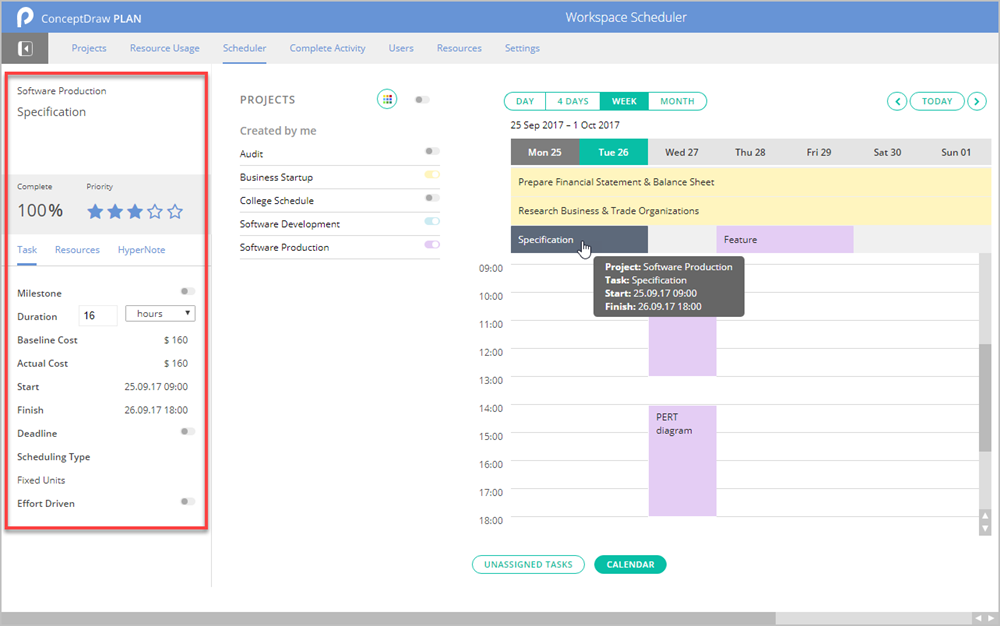
The Scheduler page of ConceptDraw PLAN displays the tasks of multiple projects in calendar format. It allows for the simultaneous viewing of multiple project tasks. Here you can see tasks of particular projects that need to be completed at the same time. Project manager can monitor the complete process, in terms of projects, tasks and resources, required to complete the multiple projects successfully.How to Report Task's Execution with Gantt Chart
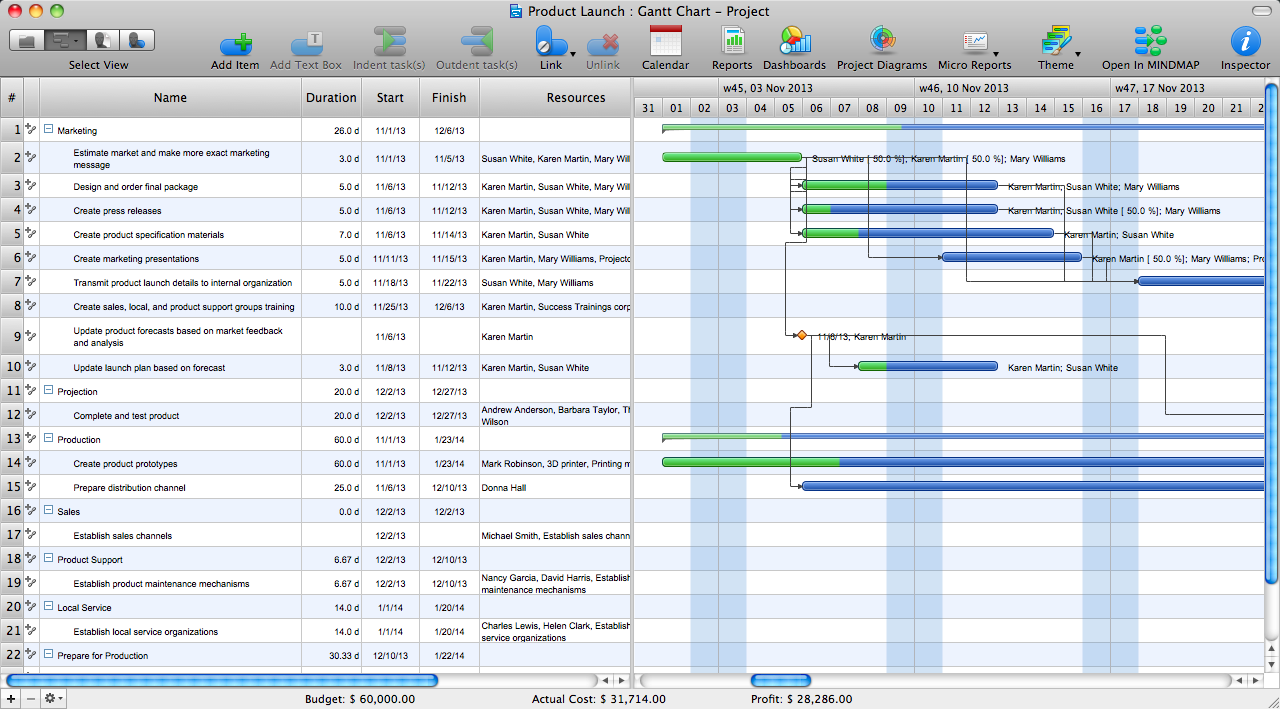
ConceptDraw PROJECT’s powerful reporting engine lets you generate a set of tabular reports with just one click, or visualize your project as Radial Tasks Structures, Work Breakdown Structures and Resource Calendars. It also provides you with dynamic Project Dashboards.- Gantt Chart For Project Scheduling And Resource Allocation
- Project — Assigning Resources | Project planning process ...
- Project — Assigning Resources | How to Report Task's Execution ...
- How to Plan and Allocate Resources in Your Project on Mac | Gant ...
- How to Plan and Allocate Resources in Your Project with ...
- Project — Assigning Resources | Construction Project Chart ...
- Project — Task Trees and Dependencies | Project — Working With ...
- Gravity filtration of liquids | ConceptDraw PROJECT: Filter Tasks and ...
- Project tasks dashboard | Project — Assigning Resources | Project ...
- ConceptDraw PROJECT Project Management Software Tool ...