Electrical Diagram Software
ConceptDraw DIAGRAM is a powerful software for creating professional looking electrical diagram quick and easy. For this purpose you can use the Electrical Engineering solution from the "Engineering" area of ConceptDraw Solution Park.
Electrical Engineering Solution for ConceptDraw DIAGRAM provides the stencils libraries of ready-to-use predesigned 926 vector symbols, templates and samples that make your electrical drawing quick, easy and effective.
26 libraries of the Electrical Engineering Solution of ConceptDraw DIAGRAM make your electrical diagramming simple, efficient, and effective. You can simply and quickly drop the ready-to-use objects from libraries into your document to create the electrical diagram.

Pic. 1. Electrical Engineering libraries
Electrical Diagram Software will assist you in drawing your electrical diagrams with minimal effort and makes it very easy for beginners. Electrical symbols and smart connectors help present your electrical drawings, electrical schematic, wiring diagrams and blue prints.
Create an Electrical Diagram
- Launch ConceptDraw DIAGRAM
- Set a page orientation: File menu – Page Setup – Horizontal Orientation – Ok.
- From the Electrical Engineering Solution open the libraries containing the necessary shapes:
- Electrical circuits
- Lamps, acoustics, readouts
- Resistors
- Transistors
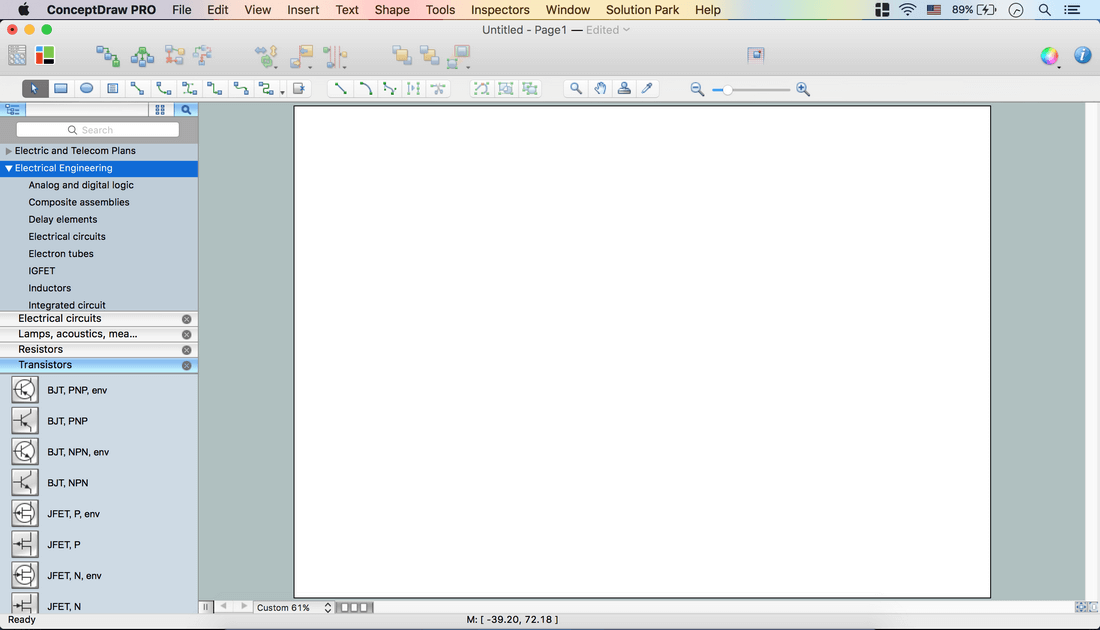
- From Lamps, acoustics, readouts library take out Galvanometer object. Place it on the page.
- Zoom in the page to resize object using control dots.
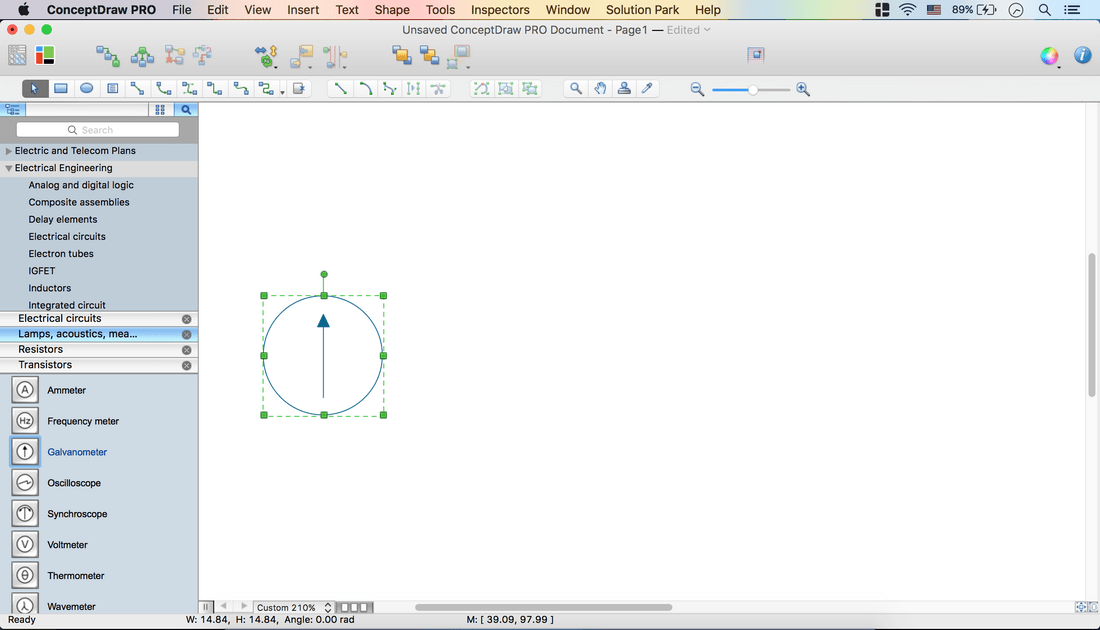
- Holding down Option button (ALT) copy the object. Place it on the page.
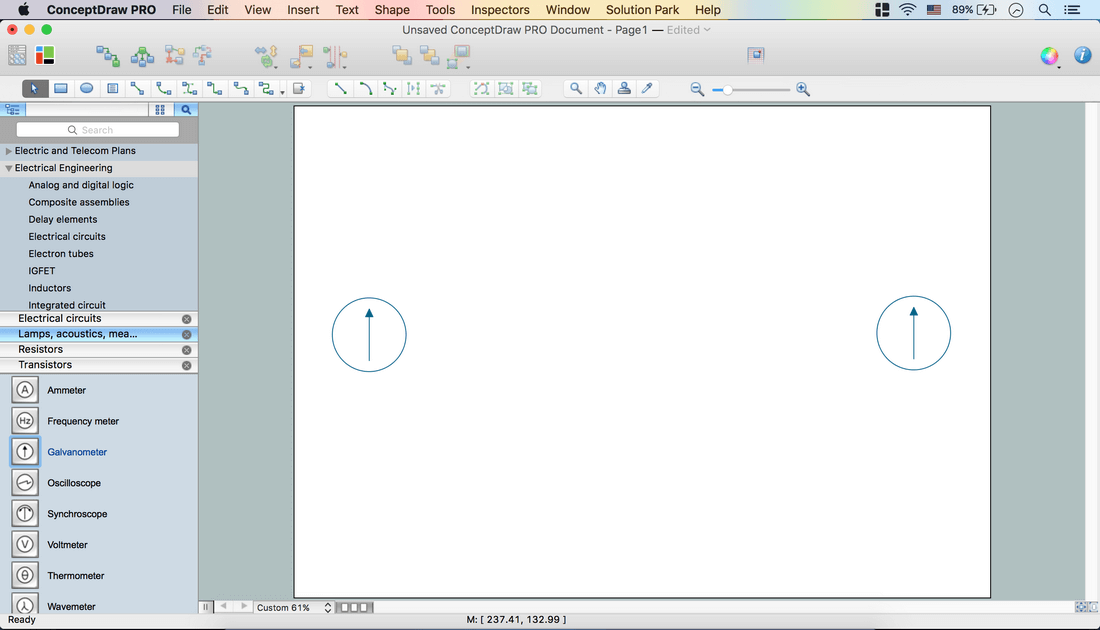
- From Transistors library take out BJT, NPN, env object. Place it on the page.
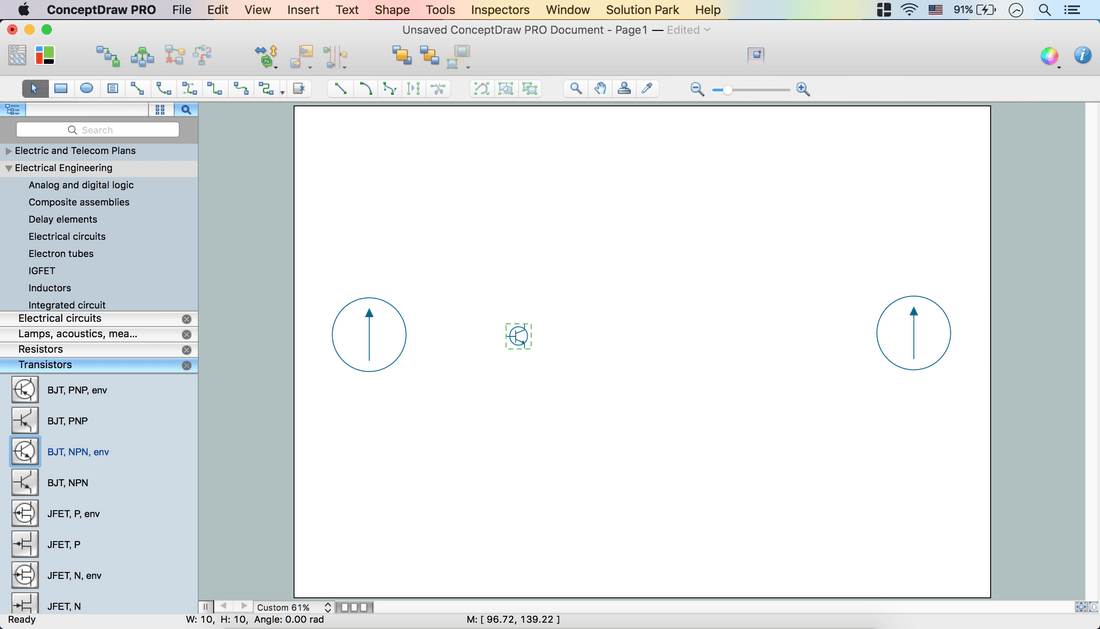
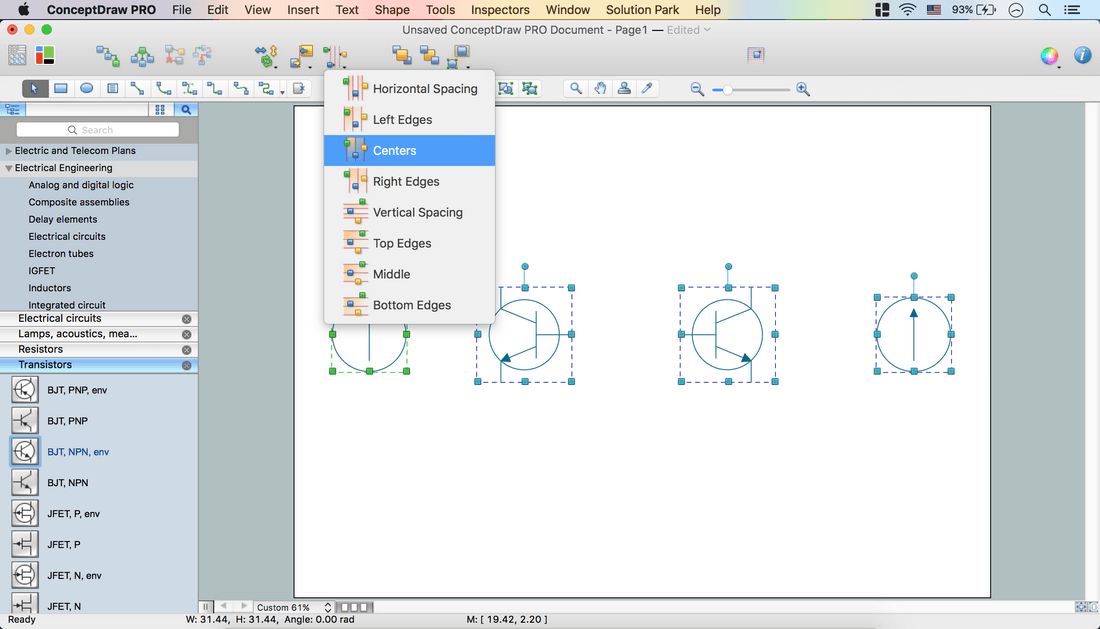
- Select all objects. Shape menu – Make Same – Size.
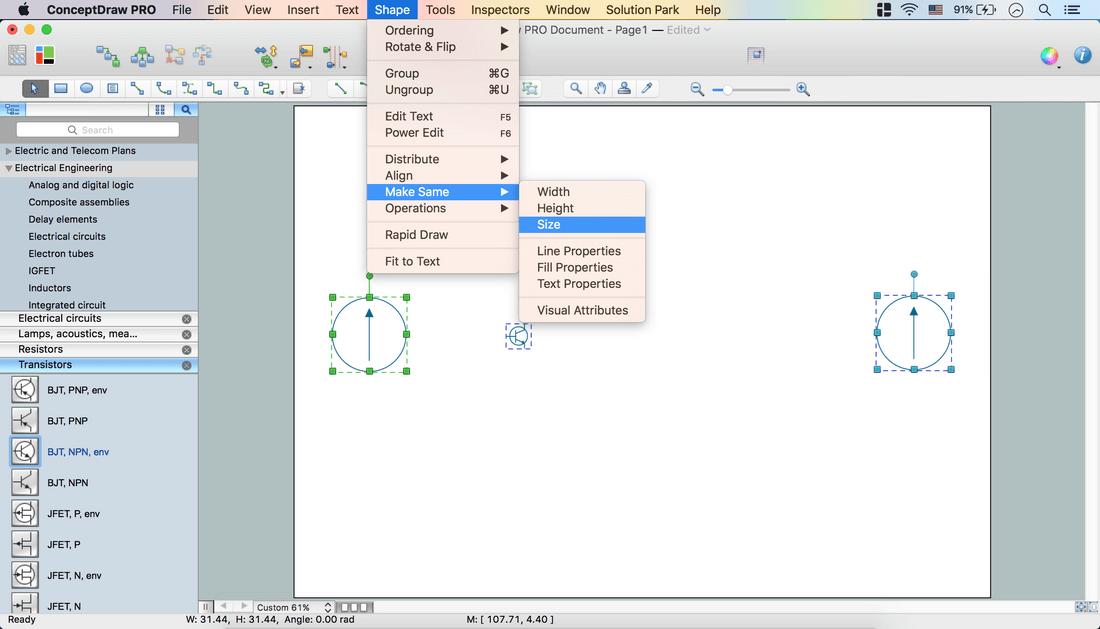
- Holding down Option button (ALT) copy BJT, NPN, env object. Place it on the page.
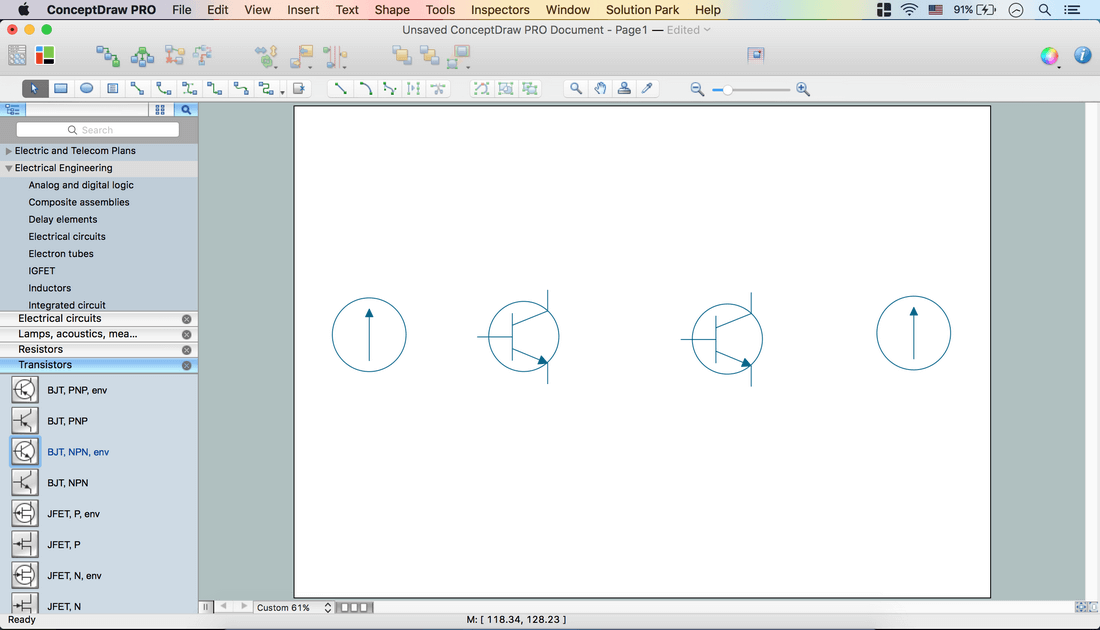
- Select the BJT, NPN, env object – Shape menu – Rotate & Flip – Flip Horizontal.
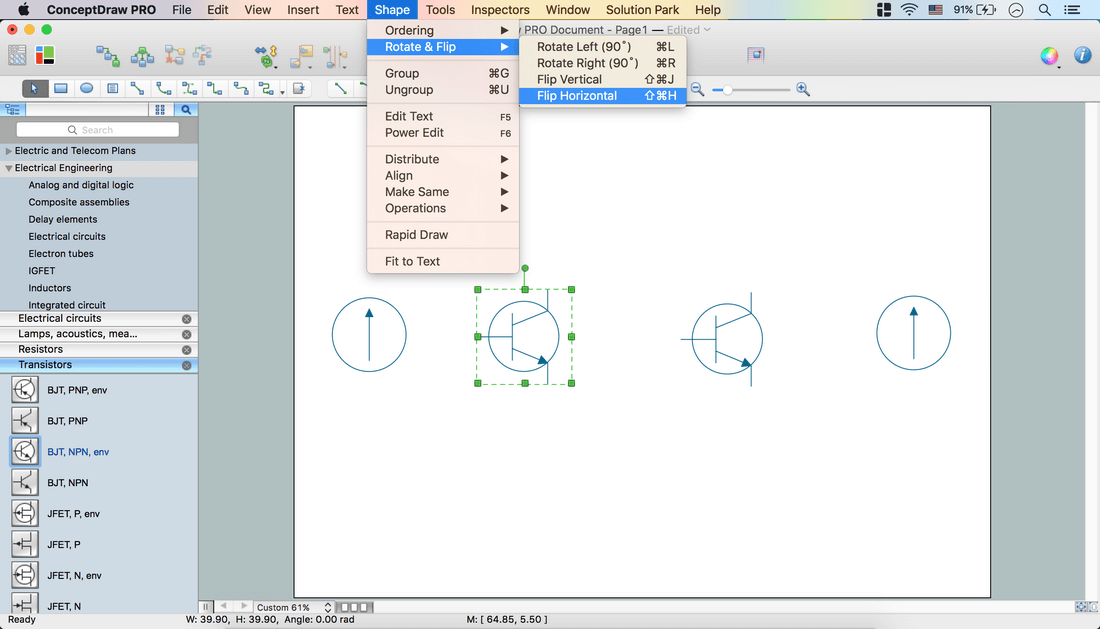
- Select all objects. Use Align option from the Toolbar – Align Middle.
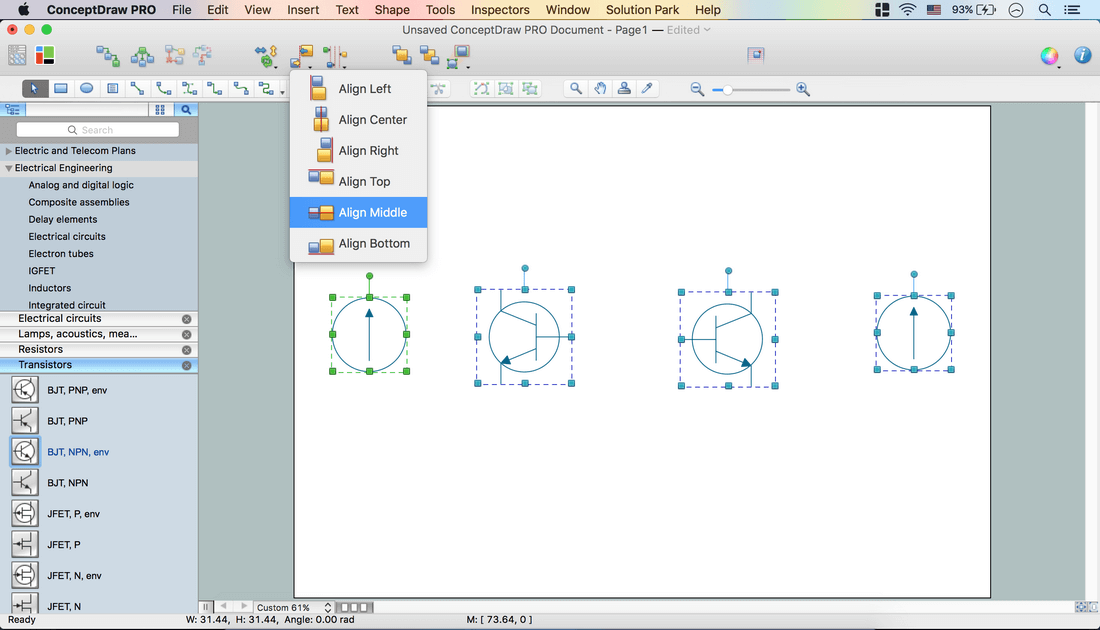
- Select all objects. Use Align option from the Toolbar – Align Middle.
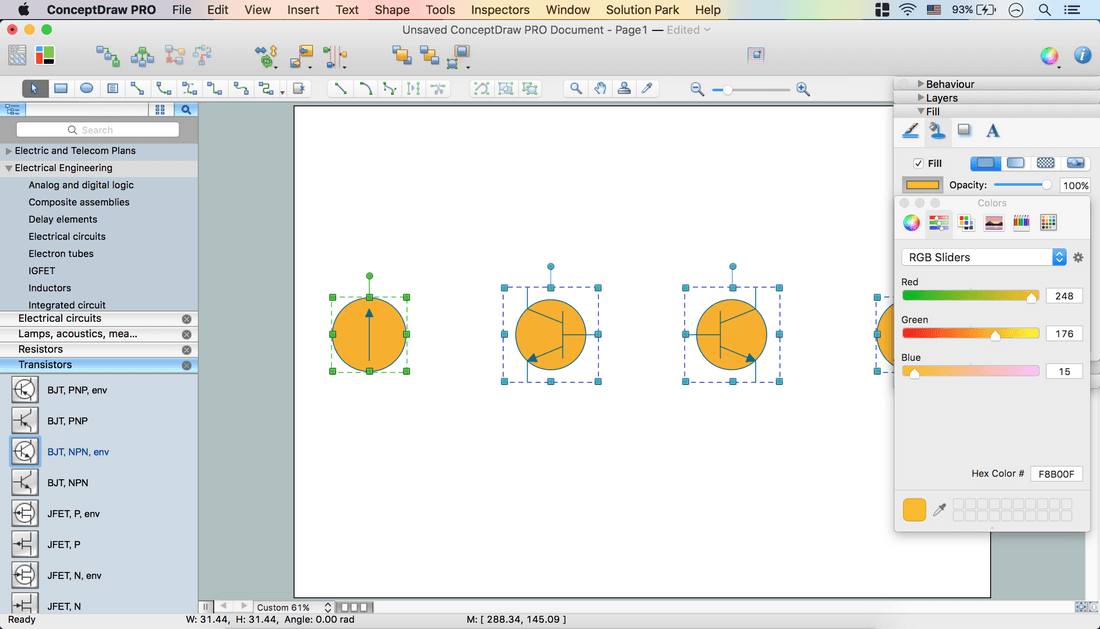
- Open Inspectors – Fill tab – Change color.
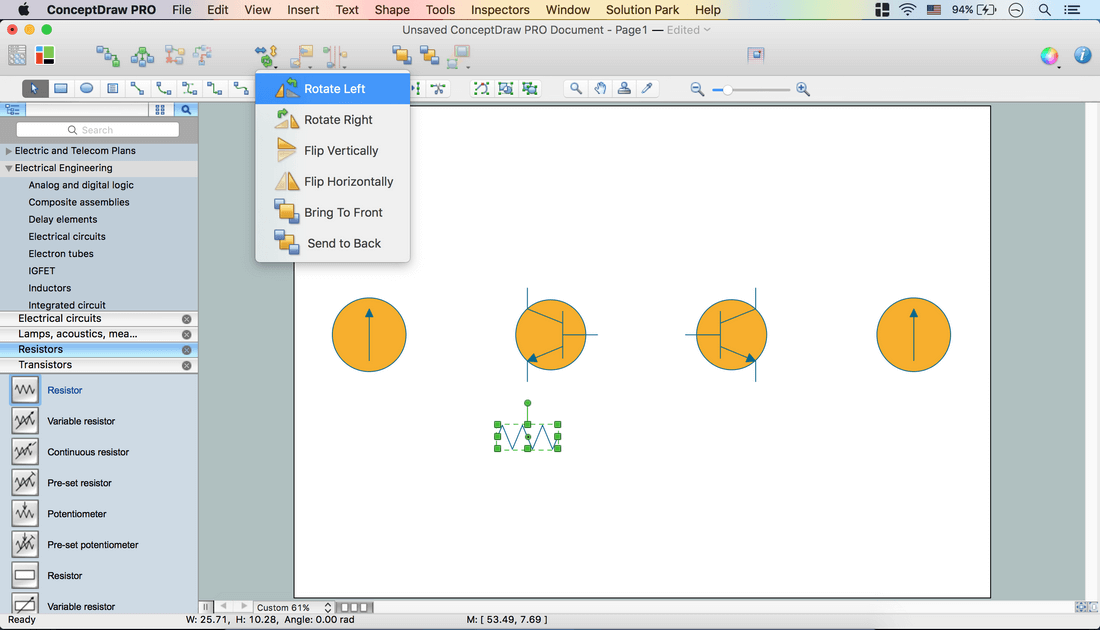
- From Resistors library take out Resistor object. Place it on the page.
- Using Control dots adjust size. Rotate & Flip option from the Toolbar – Rotate left.
- Holding down Option button (ALT) copy the object. Place it on the page.
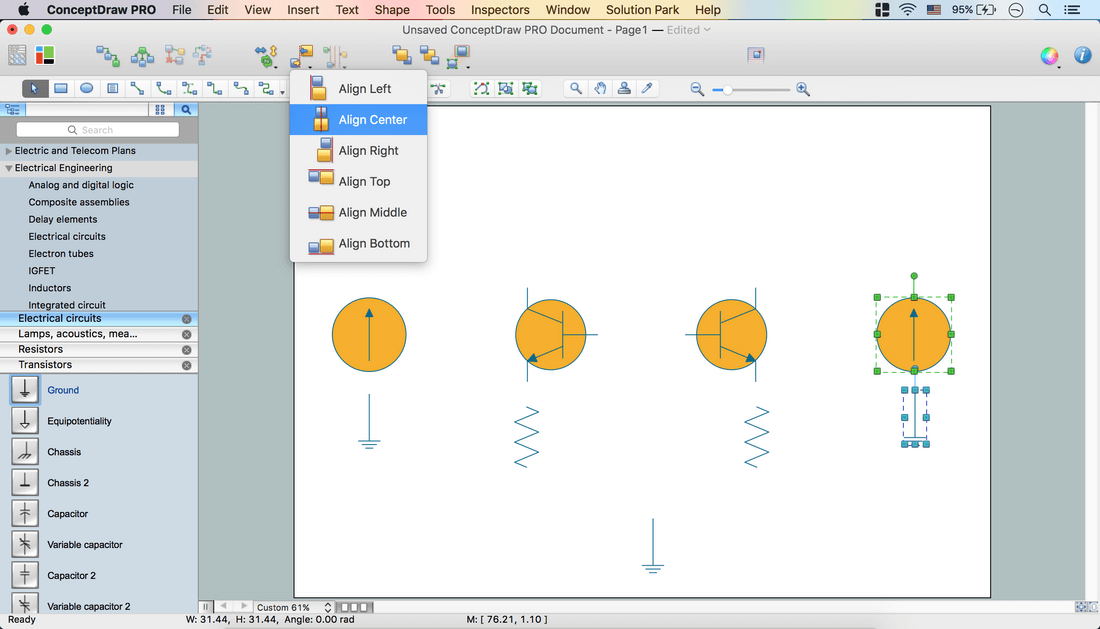
- From Electrical circuits library take out Ground object. Place it on the page.
- Make needed size using Control dots.
- Holding down Option button (ALT) copy the object. Place them on the page.
- Align Center Galvanometer and Resistors objects using Align option from the Toolbar.
- Select Direct Connector on the Toolbar. Use it to connect BJT, NPN, env objects.
- Open Inspectors – Line tab – Set Endpoints.
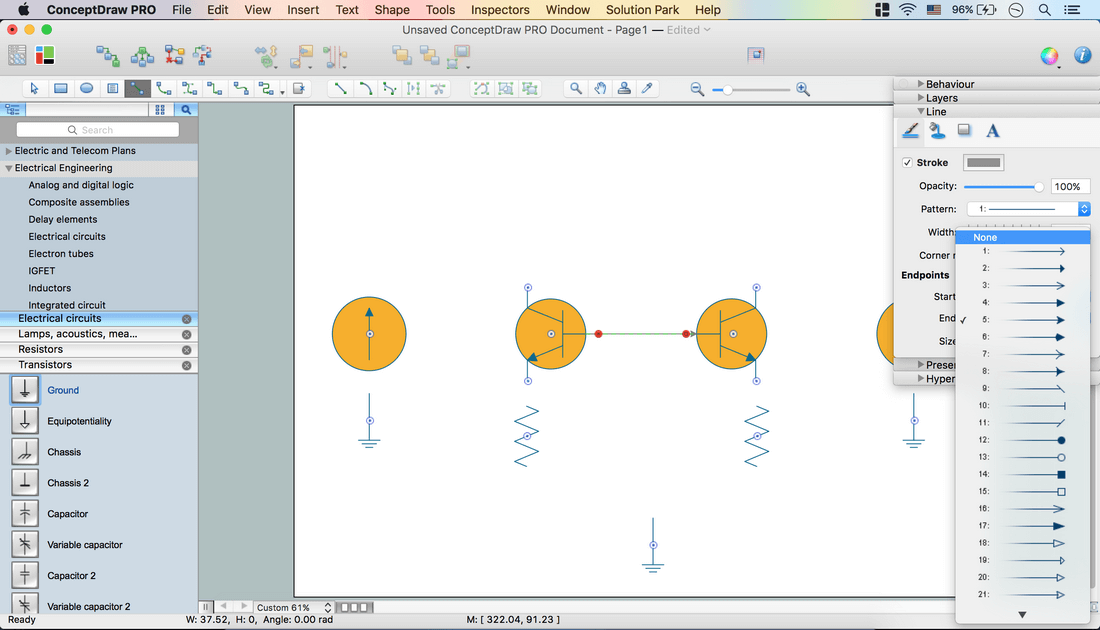
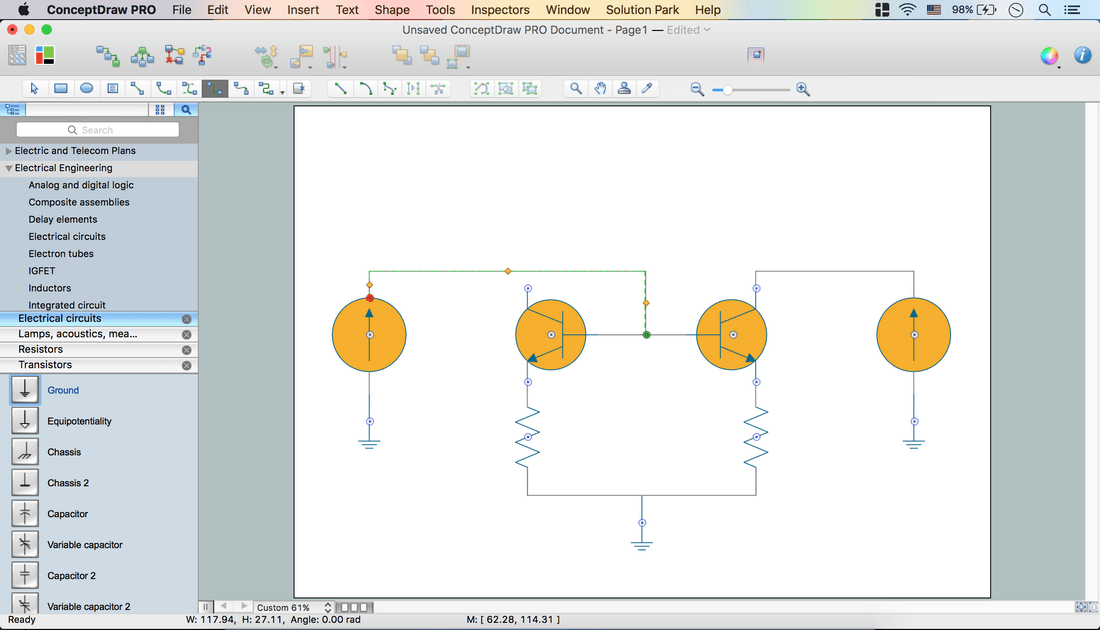
- Use Direct and Smart connectors from the Toolbar to connect all objects on the page.
- Using Yellow diamonds you may arrange Smart Connectors.
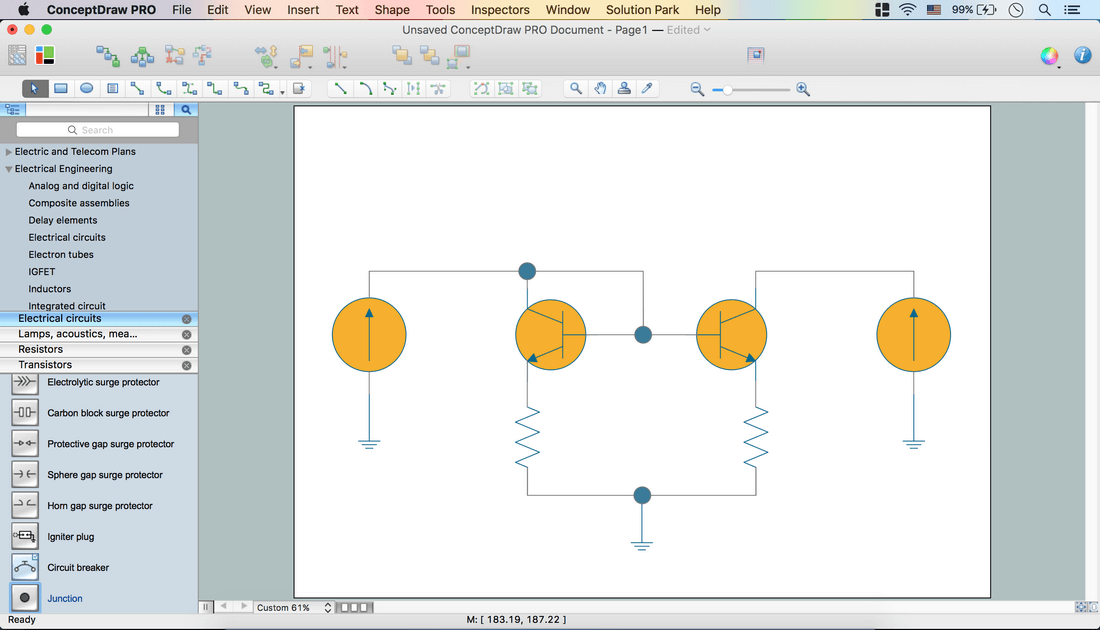
- From Electrical circuits library take out Junction object. Place it on the scheme.
- Adjust size using Control dots.
- Holding down Option button (ALT) copy the object. Place them on the scheme.
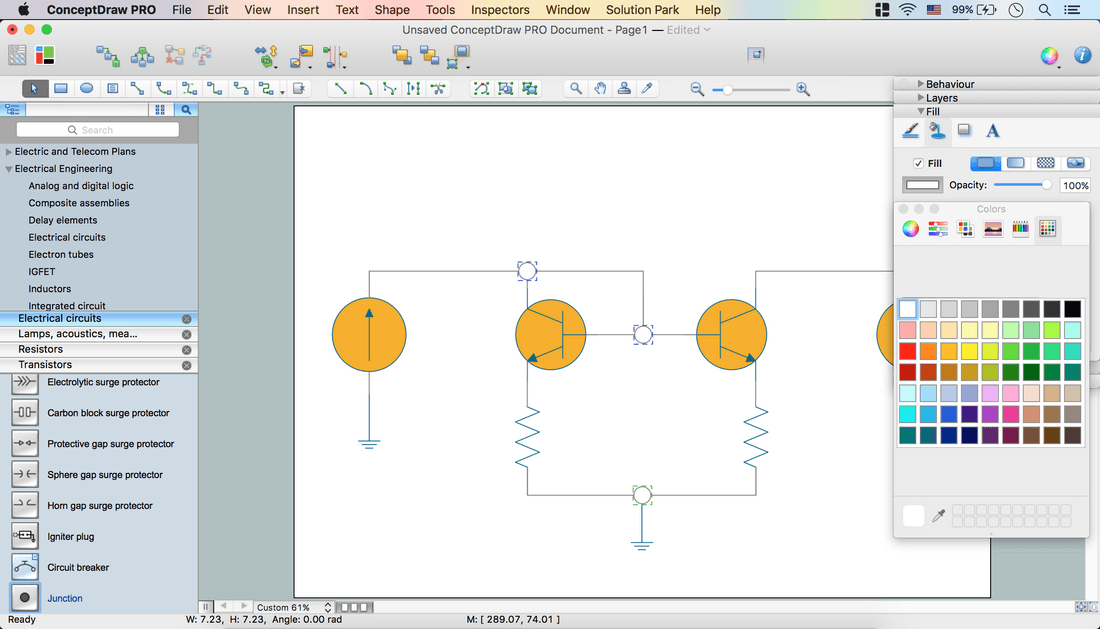
- Change color via Inspectors – Fill tab.
- Double click on the page – Add text - select it – open Inspectors – Text tab.
- Set Font and Font size. Make color same as Galvanometer objectusing Eyedropper.
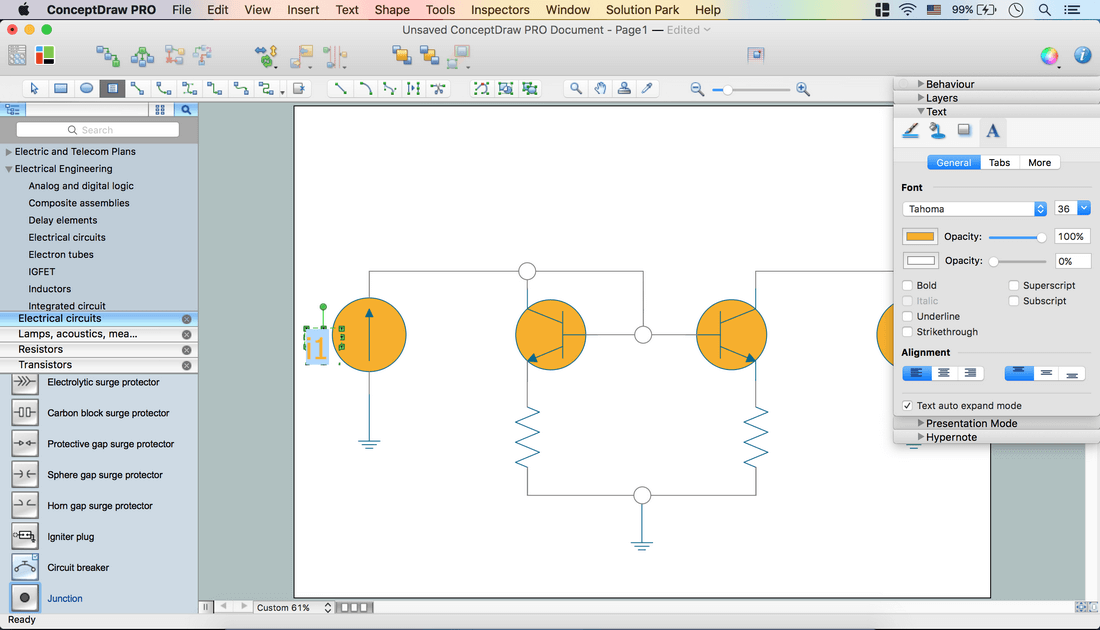
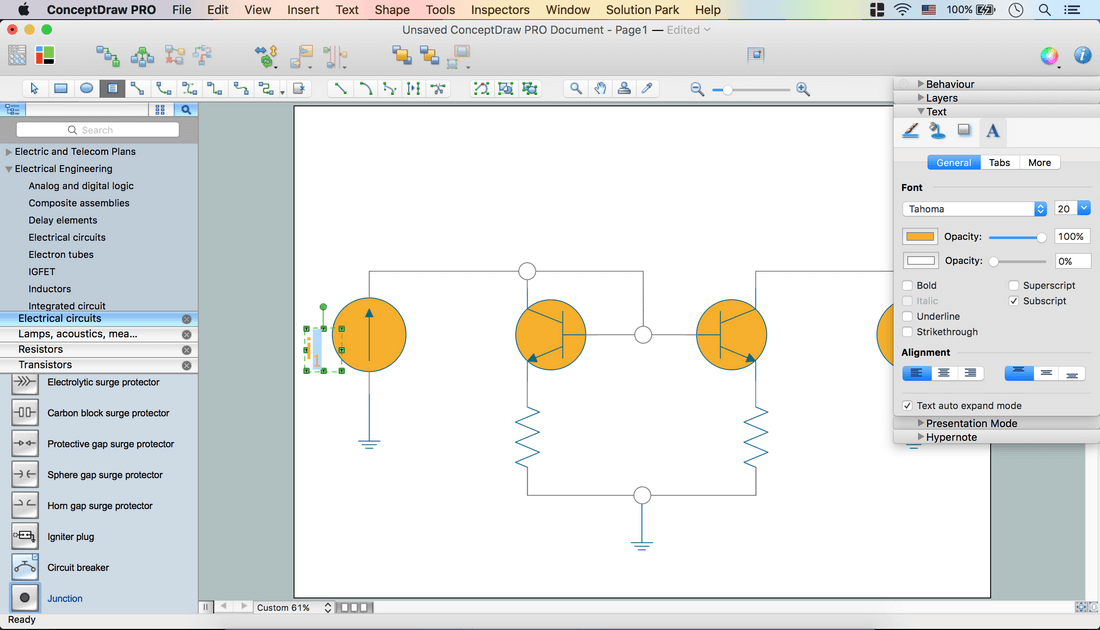
- Select needed part of the text and make it Subscript.
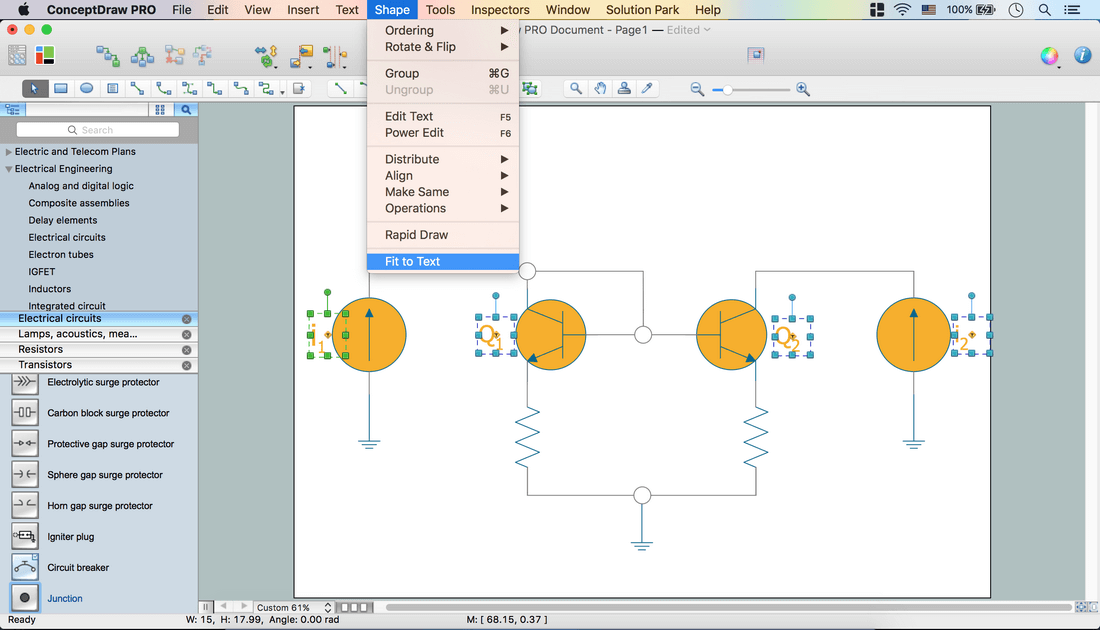
- Add text to all needed objects. Select all Text boxes - Shape Menu – Fit to text.
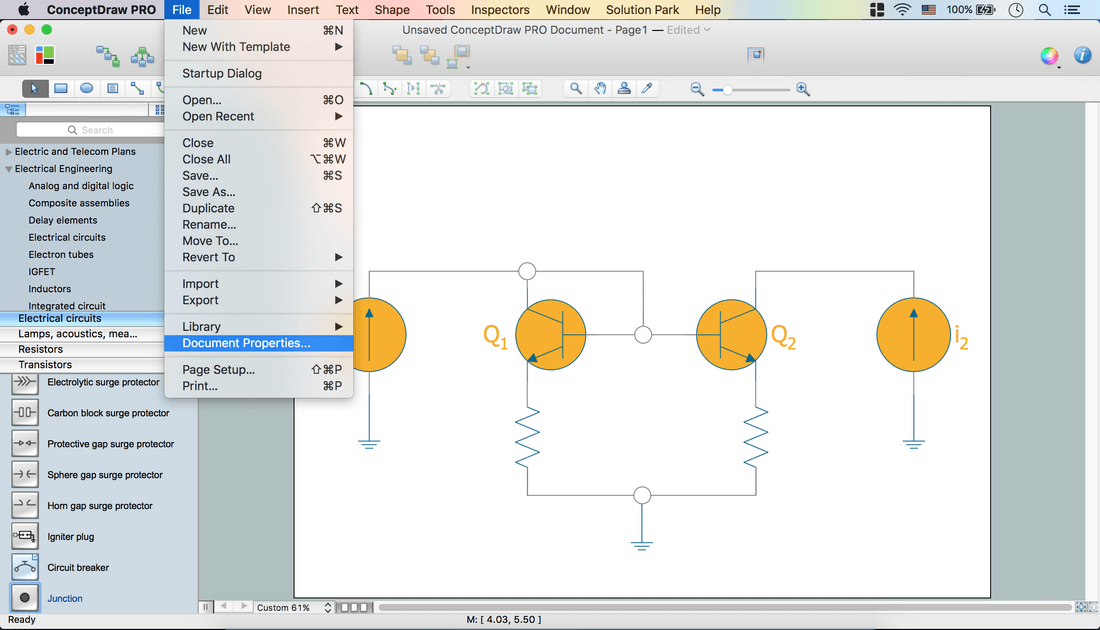
- File Menu – Document Properties – Page Size – Adjust to Drawing Contents – Ok.
- Inspectors – Layers tab - Select another layer for Background. Lock previous layer.
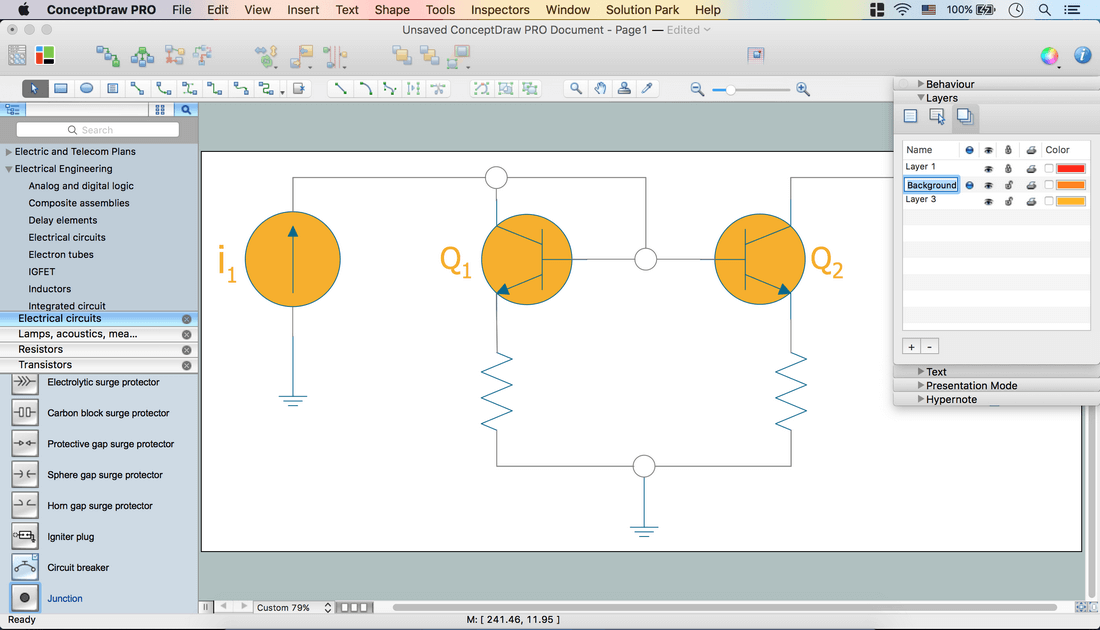
- Open Drawing Shapes library from Libraries panel. Take Rectangle object. Place it on the page.
- Using Control dots make size same as Page size.
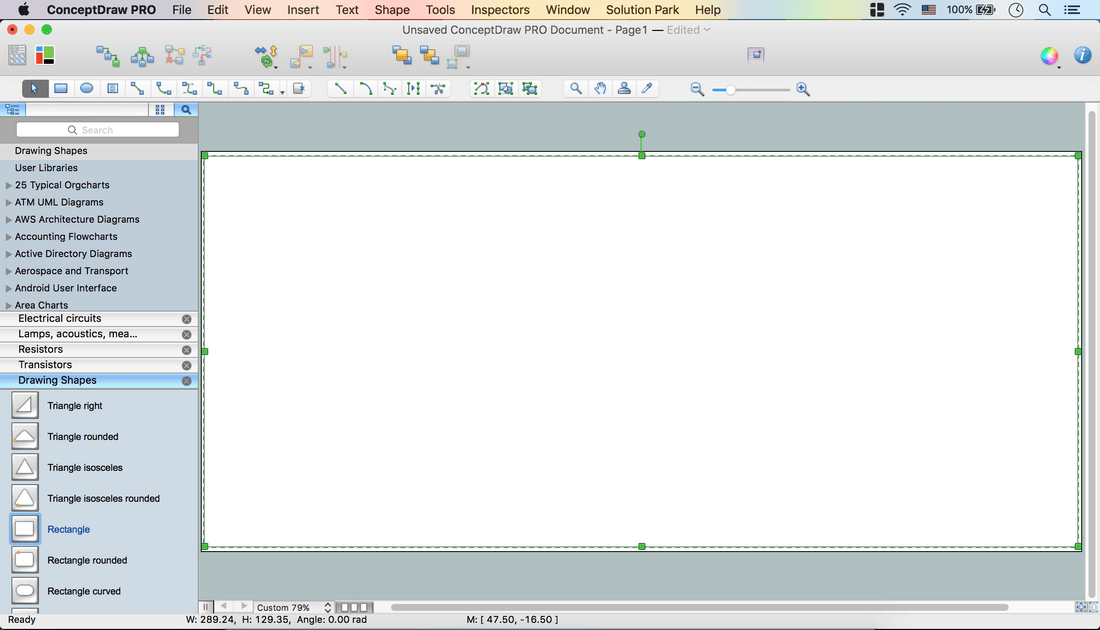
- Send it to Back using the option from the Toolbar.
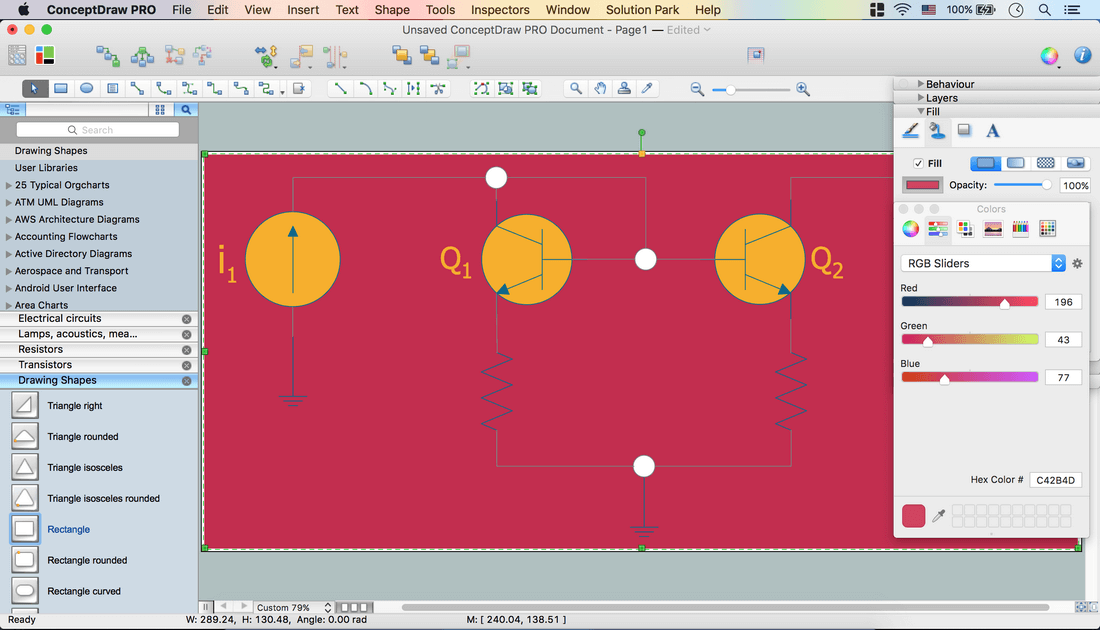
- Open Inspectors –Line tab – Deselect Stroke.
- Fill tab – Change color of the object.
- Inspectors - Layers tab – Go back to Layer 1 - Lock Background layer.
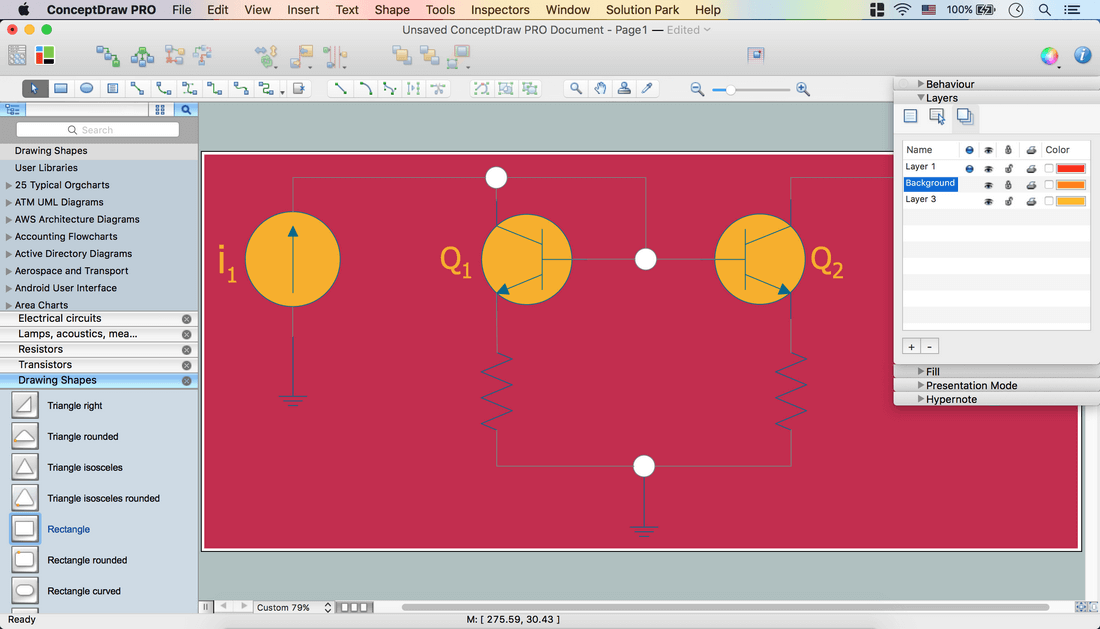
- Select all excluded text boxes. Inspectors – Line tab – Change color.
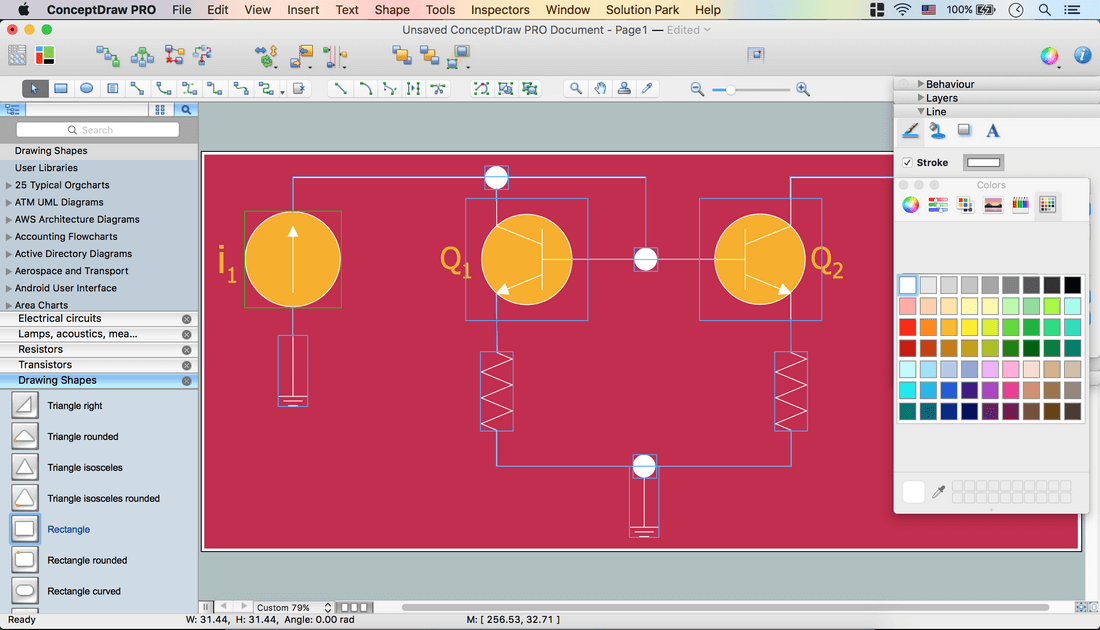
- Now your Drawing is ready.
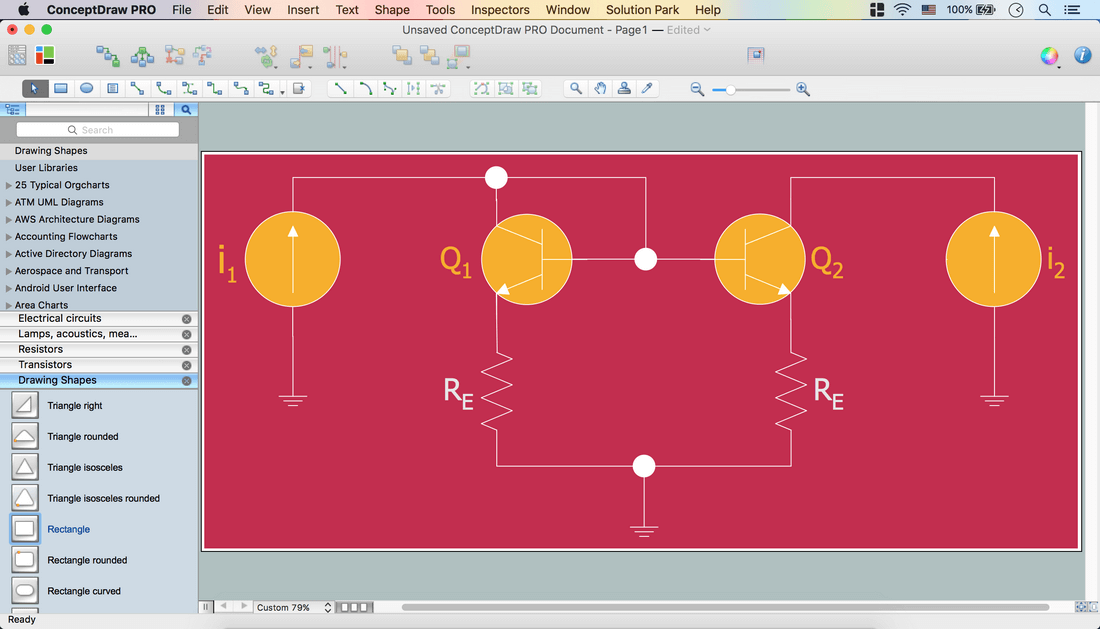
- You may save it or export to different formats via File Menu.
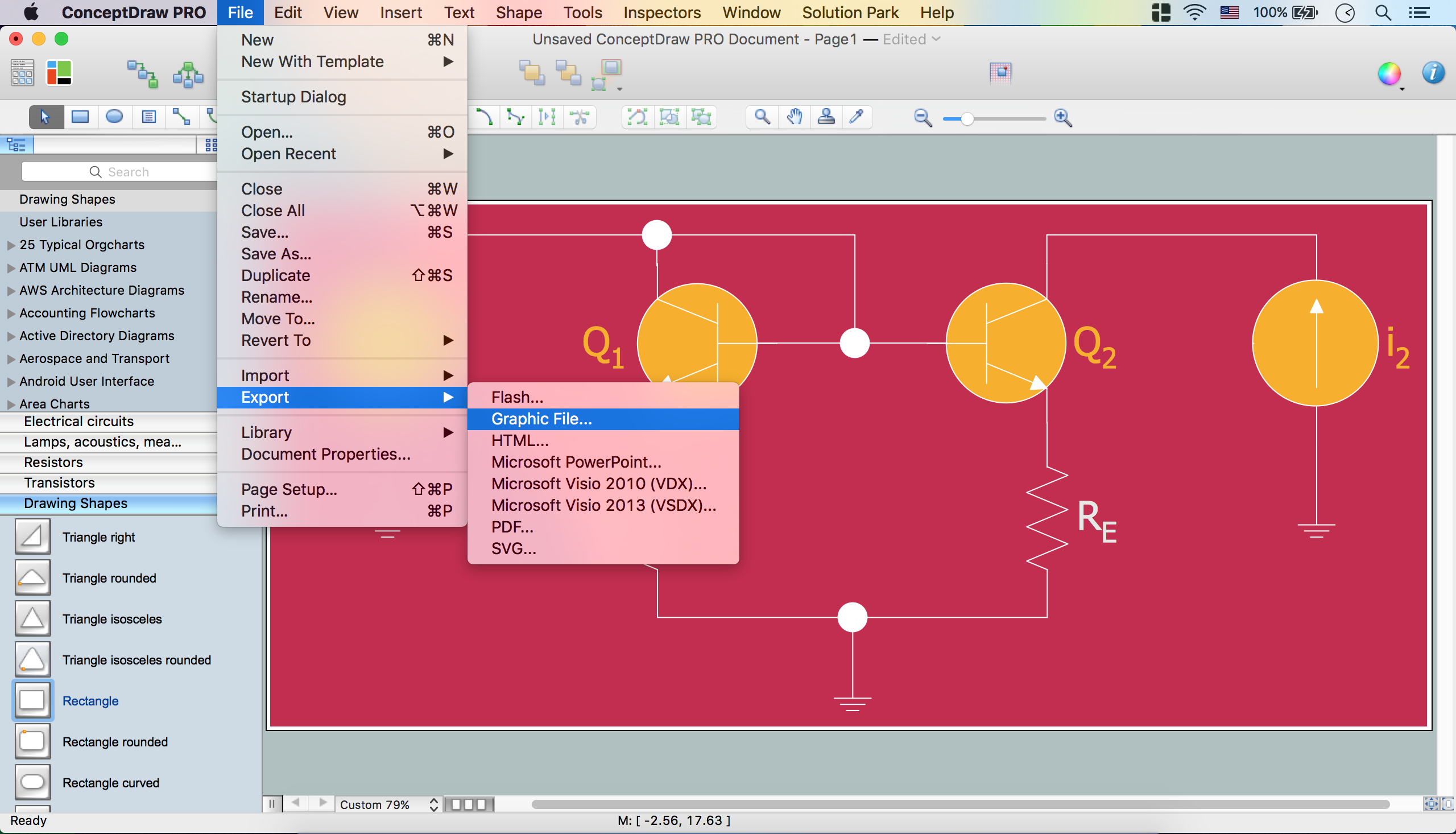
This example is a vector graphic document. It is available for reviewing, modifying, or converting to a variety of formats (PDF file, MS PowerPoint, MS Visio, and many other graphic formats) from the ConceptDraw Solution Park. The Electrical Engineering Solution is available for all ConceptDraw DIAGRAM users.
TEN RELATED HOW TO's:
A flowchart is a simple but very functional tool when it comes to understanding a workflow or to removing unnecessary stages from a process. When drawing flowcharts, keep in mind that there are four common types of flowcharts, like document flowcharts and data flowcharts that show control over a data or document flow over a system. To show controls on a physical level, use system flowcharts. In addition, to show controls in a program, you can draw a program flowchart.
This flowchart diagram represents the piece of an article editing process, that involves the author and editor. It was created using the Basic Flowchart notation that consists from the basic flowchart symbols. The start and the end of the process are indicated with "Terminator" symbols. The "Process" symbols show the action steps consisting from making edits and searching for a compromise, when the author does not agree with the suggestions of the editor. The "Process" symbol is the general symbol in process flowcharts. The "Decision" symbol indicates a branching in the process flow. There are two branches indicated by a Decision shape in the current flowchart (Yes/No, Disagree/Agree). This basic flowchart can be used as a repeating unit in the workflow diagram describing the working process of some editorial office.
Picture: Types of Flowcharts
Related Solution:
The Organizational Chart is a diagram that shows the structure of the organization and the relationships of its parts. There are many ways to present the Organizational Chart. One of them is the Horizontal Organizational Chart: the parts of the diagram are arranged from left to right, or from right to left.
This sample was created in ConceptDraw DIAGRAM diagramming and vector drawing software using the Organizational Charts Solution from the Management area of ConceptDraw Solution Park.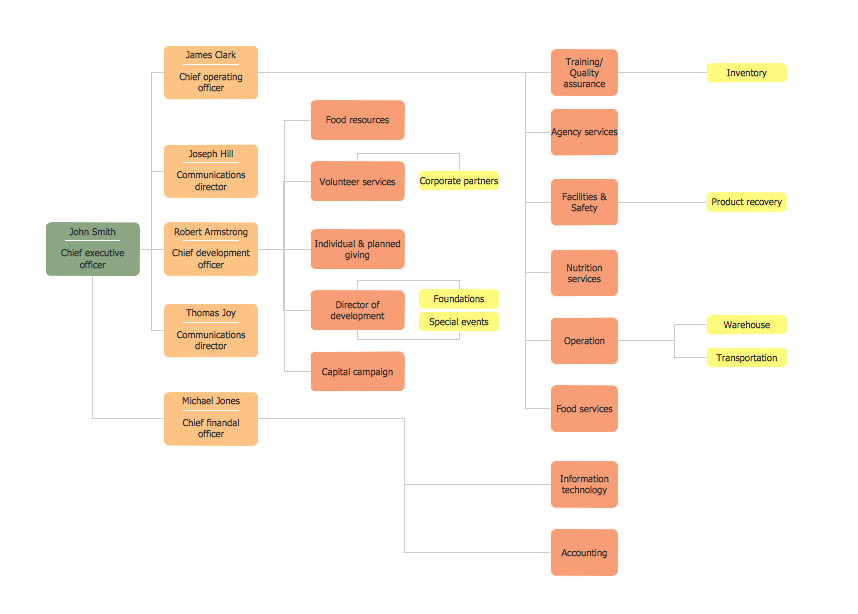
Picture: Horizontal Orgchart
Related Solution:
Create flowcharts, organizational charts, bar charts, line graphs, and more with ConceptDraw DIAGRAM.
Picture: Basic Diagramming
Related Solution:
The network architecture and design specialization will help you gain the technical leadership skills you need to design and implement high-quality networks that support business needs.
Picture: Computer Network Architecture. Computer and Network Examples
Architect Software — Create electrical diagrams, architectural designs using ConceptDraw.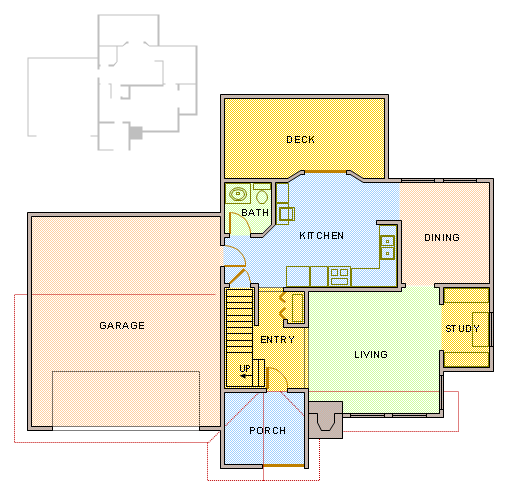
Picture: How To use Architect Software
Related Solution:
ConceptDraw DIAGRAM diagramming and vector drawing software extended with Security and Access Plans Solution from the Building Plans Area of ConceptDraw Solution Park is a powerful software for fast and easy drawing professional looking Physical Security Plan.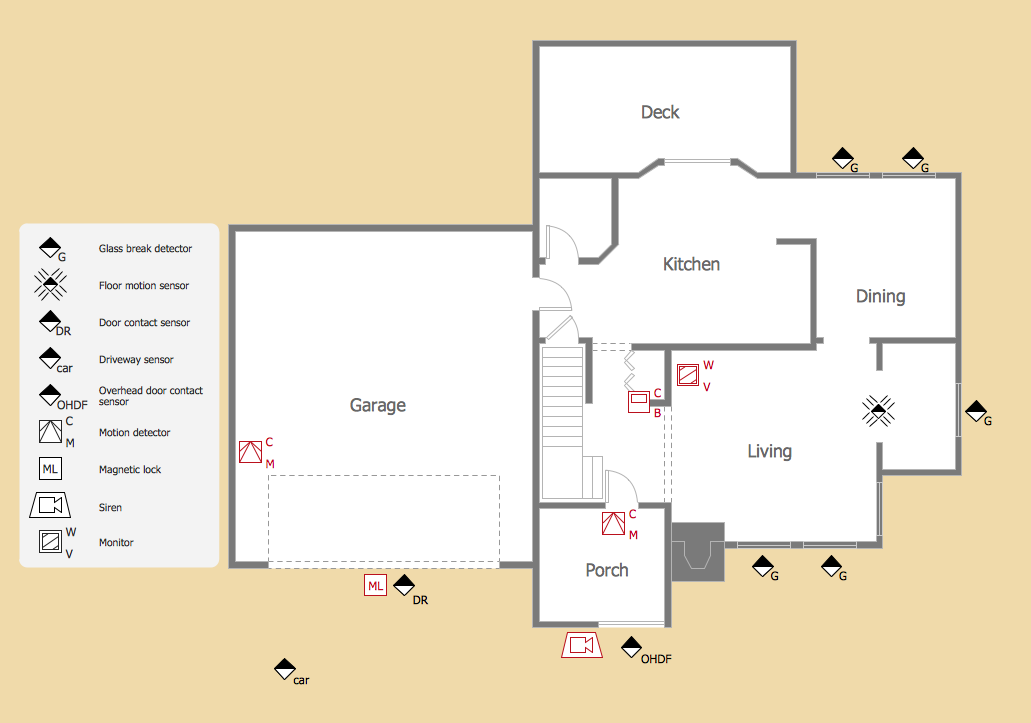
Picture: Physical Security Plan
Related Solution:
As restaurant industry is growing rapidly nowadays, researches show that almost half of the adults have worked in a restaurant or a cafe. Moreover, many of them dream to start their own someday. Unfortunately, it takes a lot of time to write a business plan and to find a great location, although some know how to create a restaurant floor plan in minutes or how to plan budget effortlessly. Hiring employees can also cause a lot of headache, but this is crucial for further success, because every guest comes to restaurant for a good service and delicious food. It is also worth noting that restaurant concept is also important, because it defines target audience and influences the menu.
This diagram represents the floor plan of an ongoing sports-theme establishment - restaurant, cafe, or other food service. A number of widescreen monitors installed along the perimeter provide visitors the opportunity to follow the course of a match from anywhere in the dining room of restaurant or cafe. The most of sports fans believe that food and alcohol is a big part of any sports show. That is why the dining room takes the most space - almost 60% of the total establishment space. Nearly all sports fans consume beverages while watching sports - beer, soda or water at least. Thus, the restaurant floor plan designers added a large lavatory there. Moreover, project developers considered unnecessary the gender division of such delicate place - perhaps they guess that only men are watching football, or believe that alcohol will eliminate the most of gender differences.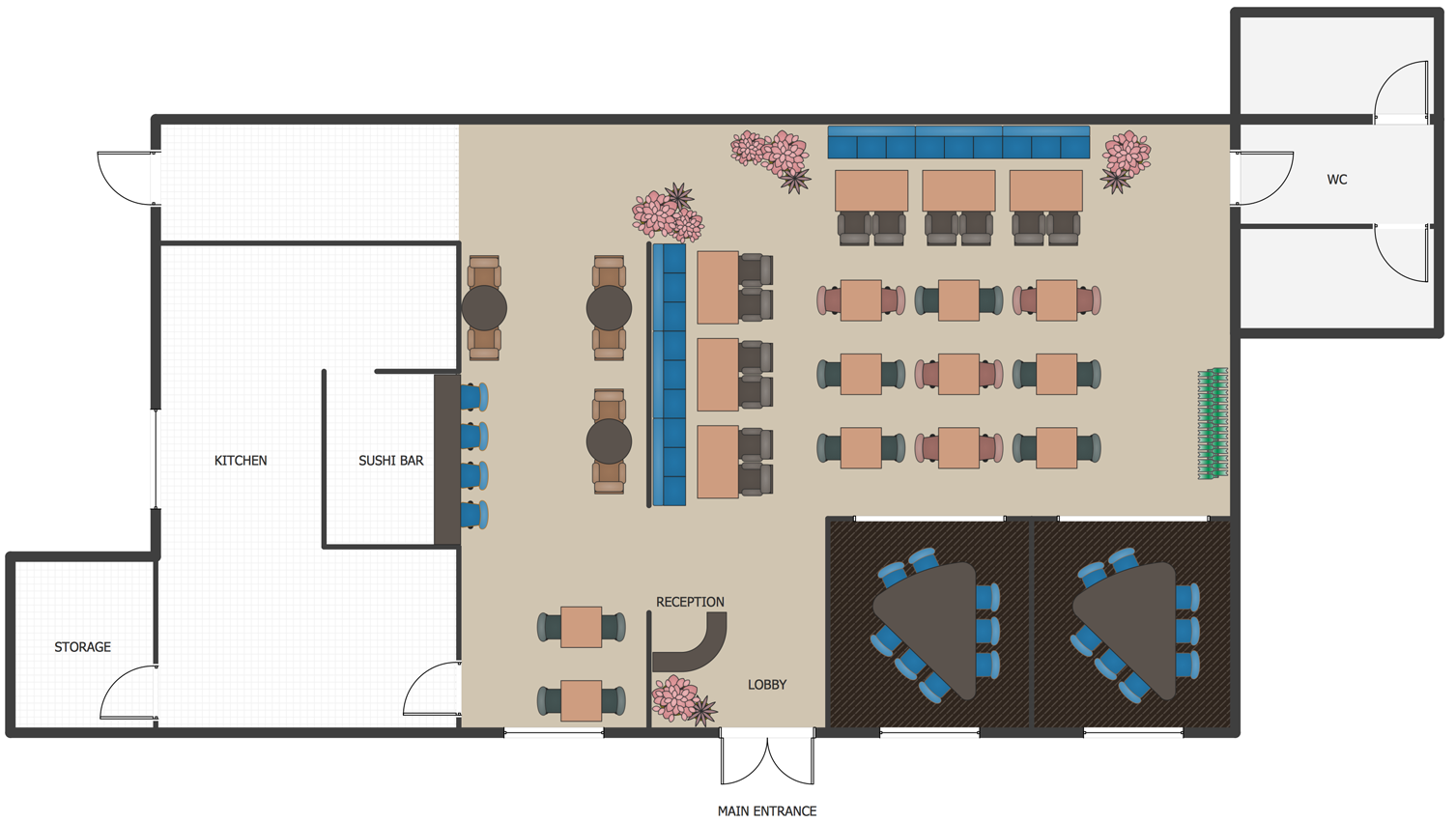
Picture: How To Create Restaurant Floor Plan in Minutes
Related Solution:
It’s not easy to plan all the details of your landscape at once. Therefore, you can use a bubble diagram to create a draft of the future project. You can develop any bubble diagrams and use them in your landscape design project with ConceptDraw DIAGRAM and it’s predesigned templates.
This bubble diagram can be applied while initiating the development of garden and landscape design. The bubble diagrams used for this purpose are different from the classic bubble diagrams. Being used in landscape and garden design, they obtain the quite another understanding. Bubbles in this diagram visualize some captured areas, which define the general spaces of a future garden: lawn, flower garden, pool, built-up area, lighting, etc. The bubble diagram represents the landscape project without any special expenses on its creation. It is better to make such simple sketch before you drill down into detailed project and cost estimates.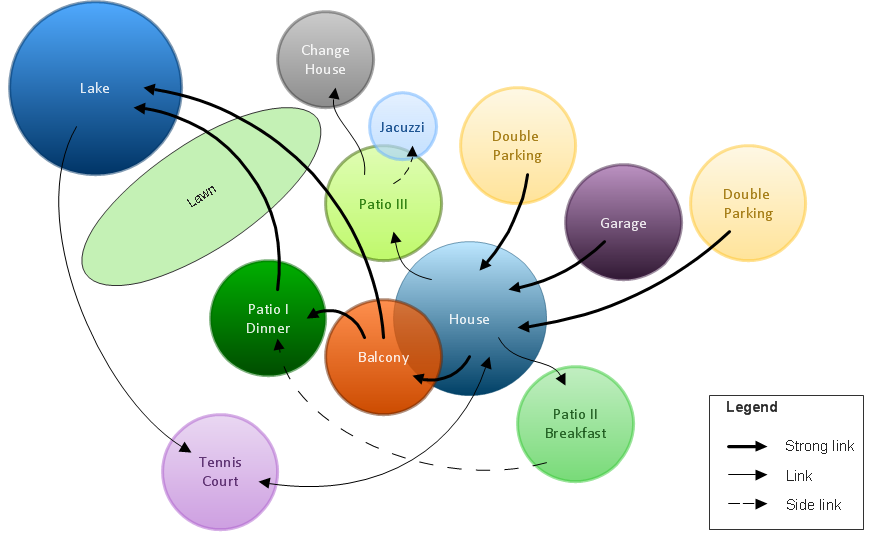
Picture: Bubble diagrams in Landscape Design with ConceptDraw DIAGRAM
Functional modeling allows to make complex business processes simple. One of the basic methods is IDEF0 and one of the most effective also. To create a business model, use flowchart symbols.
The IDEF0 library, supplied with ConceptDraw IDEF0 Diagrams solution contains 18 IDEF0 basic notation symbols. All symbols are the vector graphic images what means, that one can customize their size preserving the stable quality. Another library of IDEF0 symbols can be find out in the the Business Process Diagrams solution, included to the Business Processes section of ConceptDraw Solution Park. These libraries composed from just vector objects and are totally compatible. You can apply the IDEF0 symbols from both libraries at your flowcharts, if needed.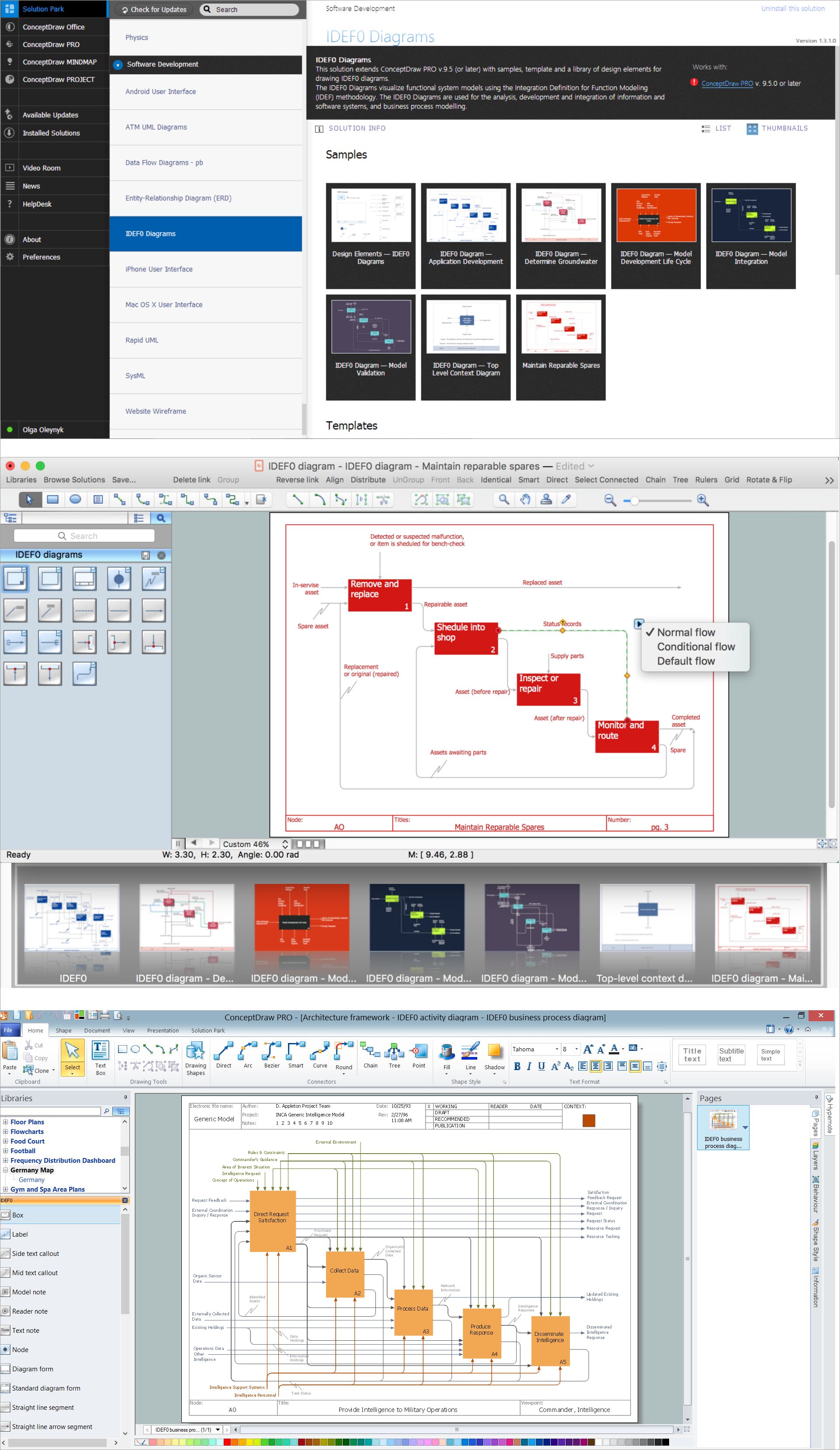
Picture: IDEF0 Flowchart Symbols
Related Solution:
Interior design is an art of planning and coordinating the space in a building or on a floor to produce a charming and convenient environment for the client. You can ask professionals for help, or you can create floor plans easily with ConceptDraw DIAGRAM , using diverse libraries or altering numerous templates. You don’t need no formal training anymore to be a designer, isn’t it great?
Using a ConceptDraw DIAGRAM floor plan software makes depicting of home or office layout ideas a simple task. It does not require special skills to make detailed and scaled floor plans. Adding furniture to design interior is also a breeze. You can draw and furnish your floor plans with a floor plan software. Moreover, using software for floor planning you gain an opportunity to share your plans and high-resolution images of your designs with clients or stakeholders.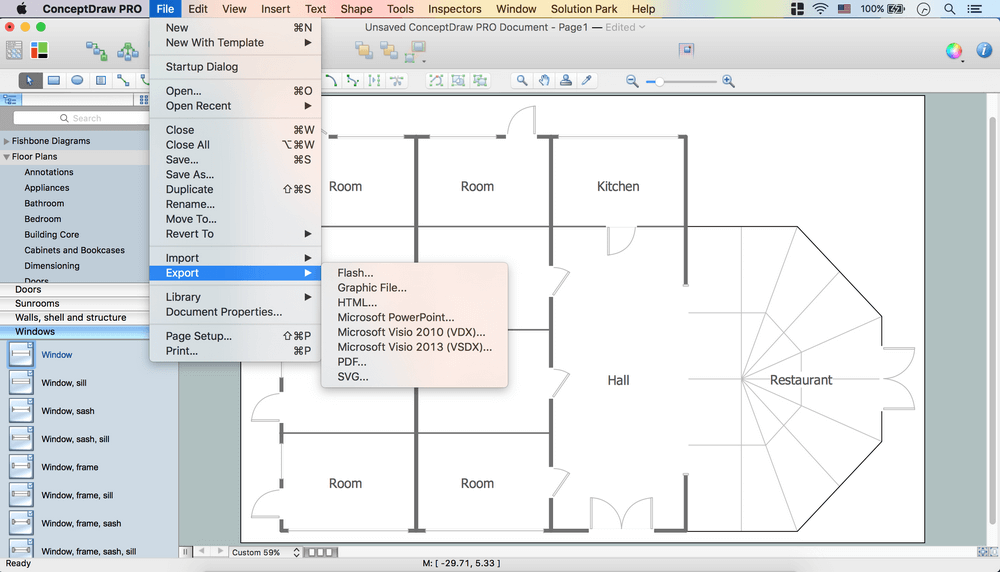
Picture:
Create Floor Plans Easily
with ConceptDraw DIAGRAM Floor Design Software
Related Solution:


























