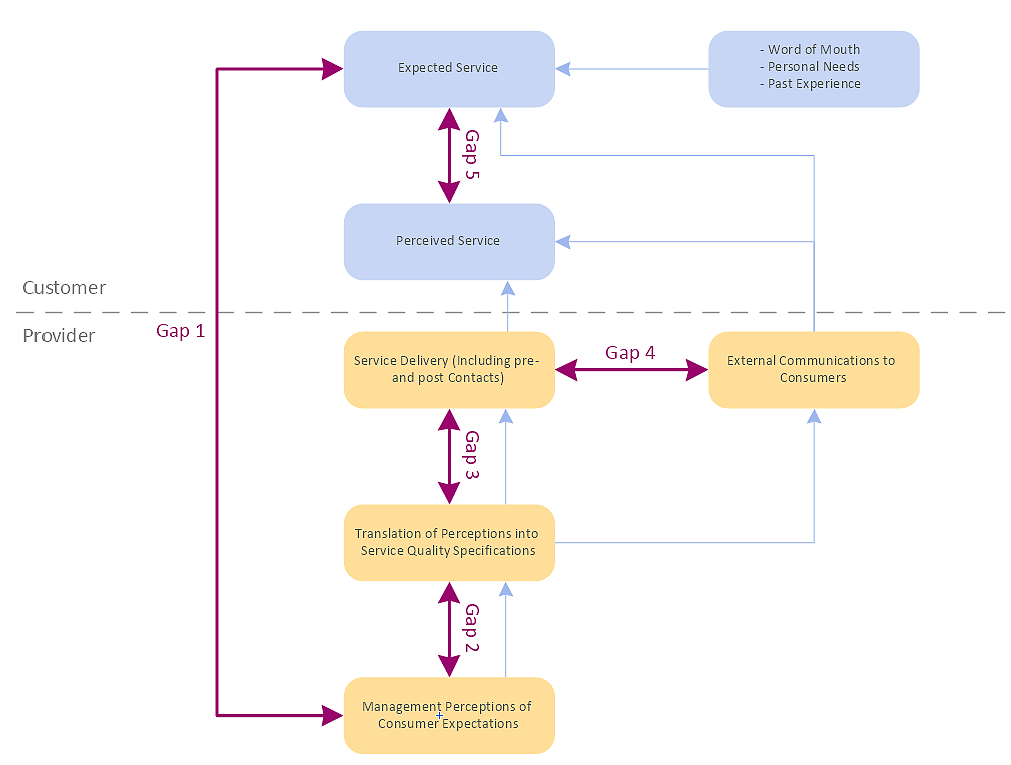
ConceptDraw DIAGRAM enables you to create a wide range of visual documents, including network diagrams, organizational charts, flowcharts, workflow diagrams, technical schematics, and building plans. While these diagram types serve different purposes, the process of creating them follows the same basic principles.
This tutorial demonstrates how to create a simple diagram using a template and how to add shapes to your drawing from libraries.
We recommend starting with the Default Blank Drawing option. This creates a blank document that includes the default settings for your drawing, such as measurement units, page size and orientation, drawing scale, and other document properties.
- Launch ConceptDraw DIAGRAM. On the File menu, click New, and then select Default Blank Drawing.
- A new drawing page opens together with the default set of libraries, providing everything you need to begin diagramming.
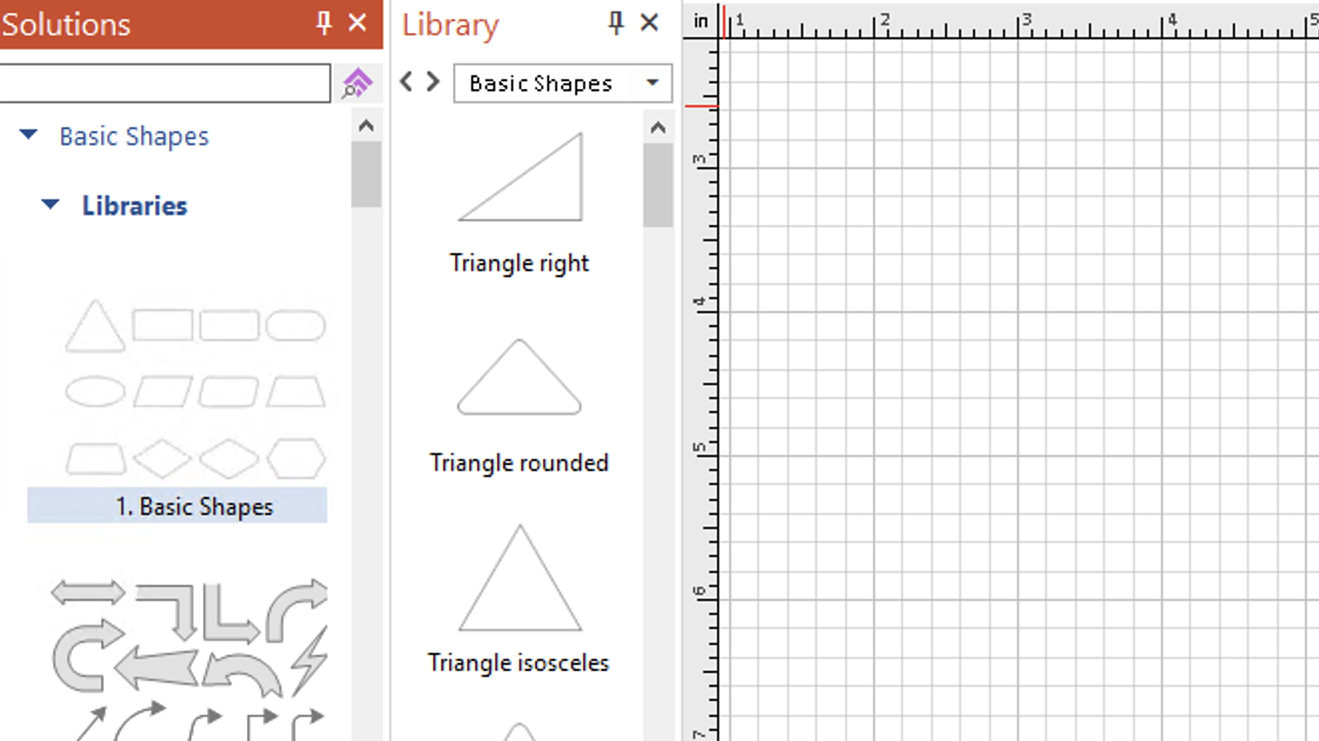
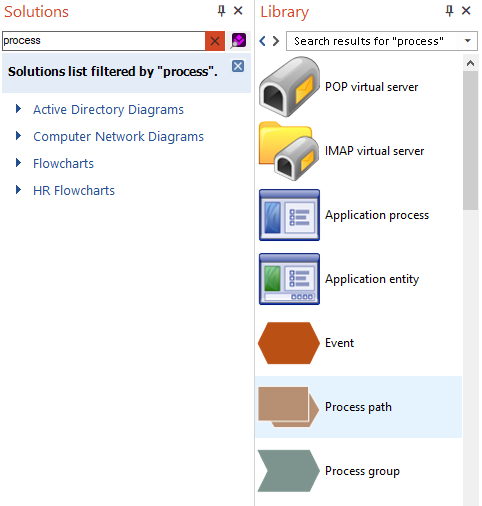
- To access additional shapes, open libraries from the Solutions pane on the left side of the window. You can also use the library search feature by entering a keyword or shape name in the search box. The search results are displayed in a new active library.
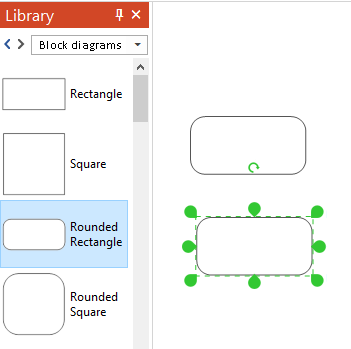
- Add shapes to your drawing using any of the following methods:
• Click a shape in the library and then click on the drawing page.
• Drag and drop a shape from the library onto the drawing page.
• Double-click a shape in the library to place it on the page.
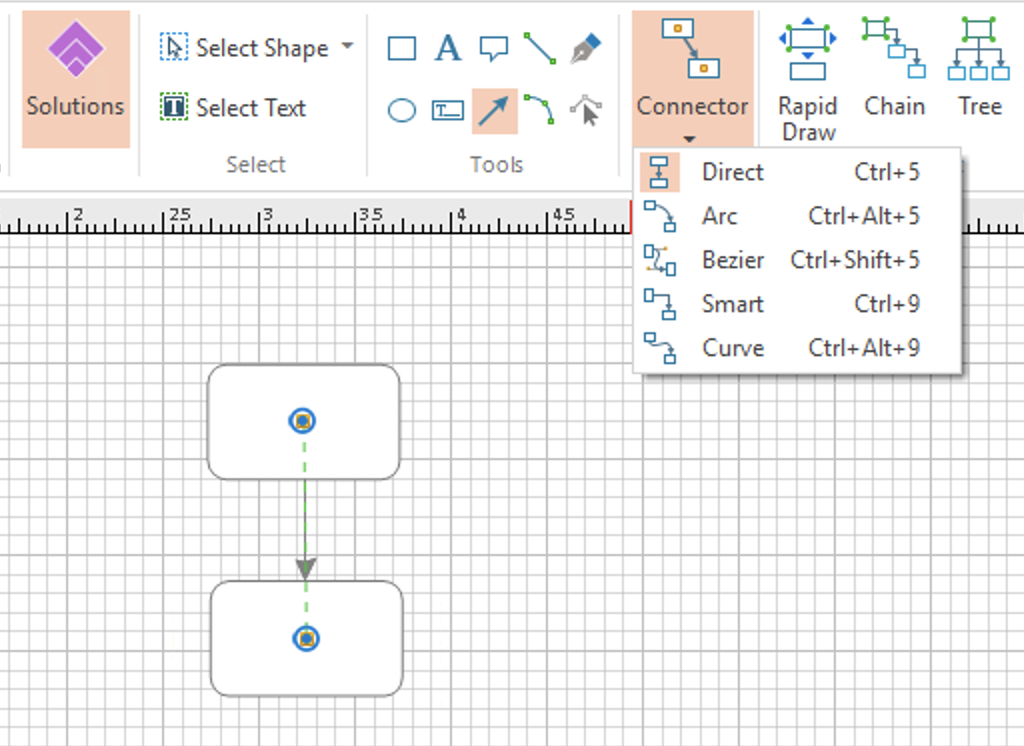
- Connect shapes when needed using connectors. Select the appropriate connector and drag it from one shape to another to create a connection.
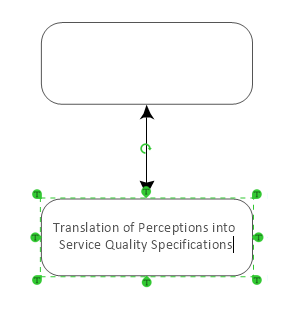
- Add text to shapes by selecting a shape and typing directly on the drawing page. When you finish, click an empty area of the page or press Esc. You can also add text to connectors by selecting a connector and typing.
Result: Using the intuitive tools available in ConceptDraw DIAGRAM, you can quickly create charts and diagrams of virtually any type. Even if you have never used diagramming software before, you can easily produce professional-quality visual documents with ConceptDraw DIAGRAM.
 Create Drawing