Products
Solutions
Samples
Contact Us
Buy
Helpdesk
✕
Sign In
Sign In
My ConceptDraw
Profile
Cart 
Activate
My Activated Licenses
Upgrade Information
Download Product
Open Support Ticket
Sign Out
This site uses cookies. By continuing to browse the ConceptDraw site you are agreeing to our Use of Site Cookies.
Helpdesk  >  ConceptDraw DIAGRAM  >    Edit Drawing

How to Resize Objects Disproportionately
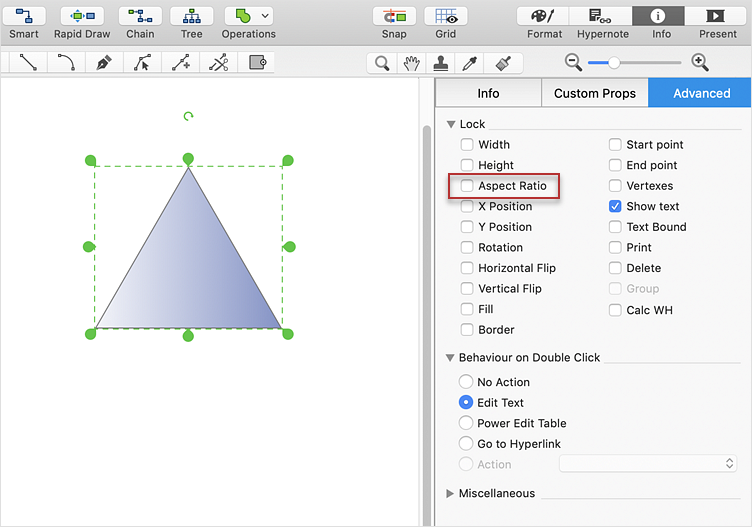
Resize objects disproportionately in ConceptDraw DIAGRAM

By default, objects in ConceptDraw DIAGRAM can be resized while maintaining their original proportions. If you need to adjust an object's width and height independently, you can disable the aspect ratio lock. This allows you to resize objects disproportionately and customize their dimensions to fit your diagram layout.

  1. Select the object you want to resize.
  2. In the Arrange & Size panel, click the Lock option.
  3. Clear the Aspect Ratio checkbox.
Arrange and Size panel with Aspect Ratio option in ConceptDraw DIAGRAM

Result: After disabling the Aspect Ratio option, you can resize the selected object freely by adjusting its width and height independently. This provides greater flexibility when creating and formatting diagrams.

How to Resize Objects Disproportionately *

Products

  • ConceptDraw OFFICE v11
  • ConceptDraw DIAGRAM v18
  • ConceptDraw MINDMAP v16
  • ConceptDraw PROJECT v15
  • ConceptDraw STORE
  • ConceptDraw BOOKS

Solutions

  • Free
  • Premium

Samples

Support

  • Technical Support
  • Upgrade Request
  • Visio File Conversion
  • System Requirements
  • Helpdesk
  • Students & Educators
  • Enterprise
  • Customer Service

Solutions

  • Free
  • Premium

Samples

Video Room

  • Products
  • Solutions

Ready To Buy

  • Buy Online
  • Reseller Partners
  • Manage Your Account
  • Download Your Software
  • CS Odessa

    • About Us
    • Contact Us
    • CS Odessa Identity
    • News
  • CS Odessa
    Plan. Do. Communicate.

    About Us | Contact Us | Feedback | EULA | Privacy | TOU | TOS
    © 1993 — 2026 CS Odessa Corp.