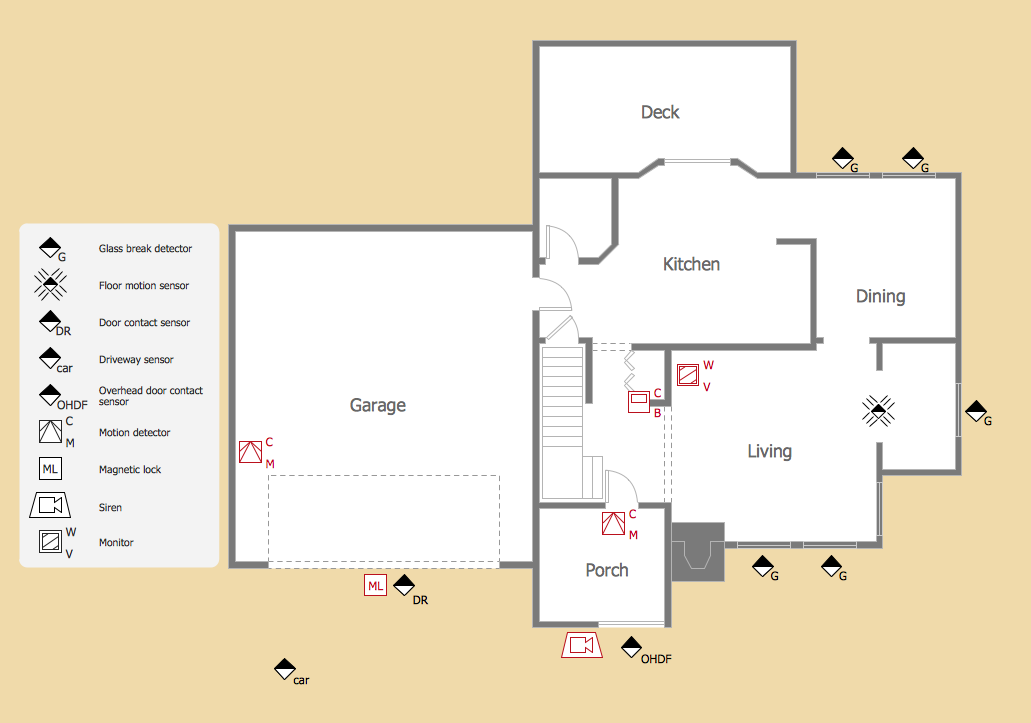
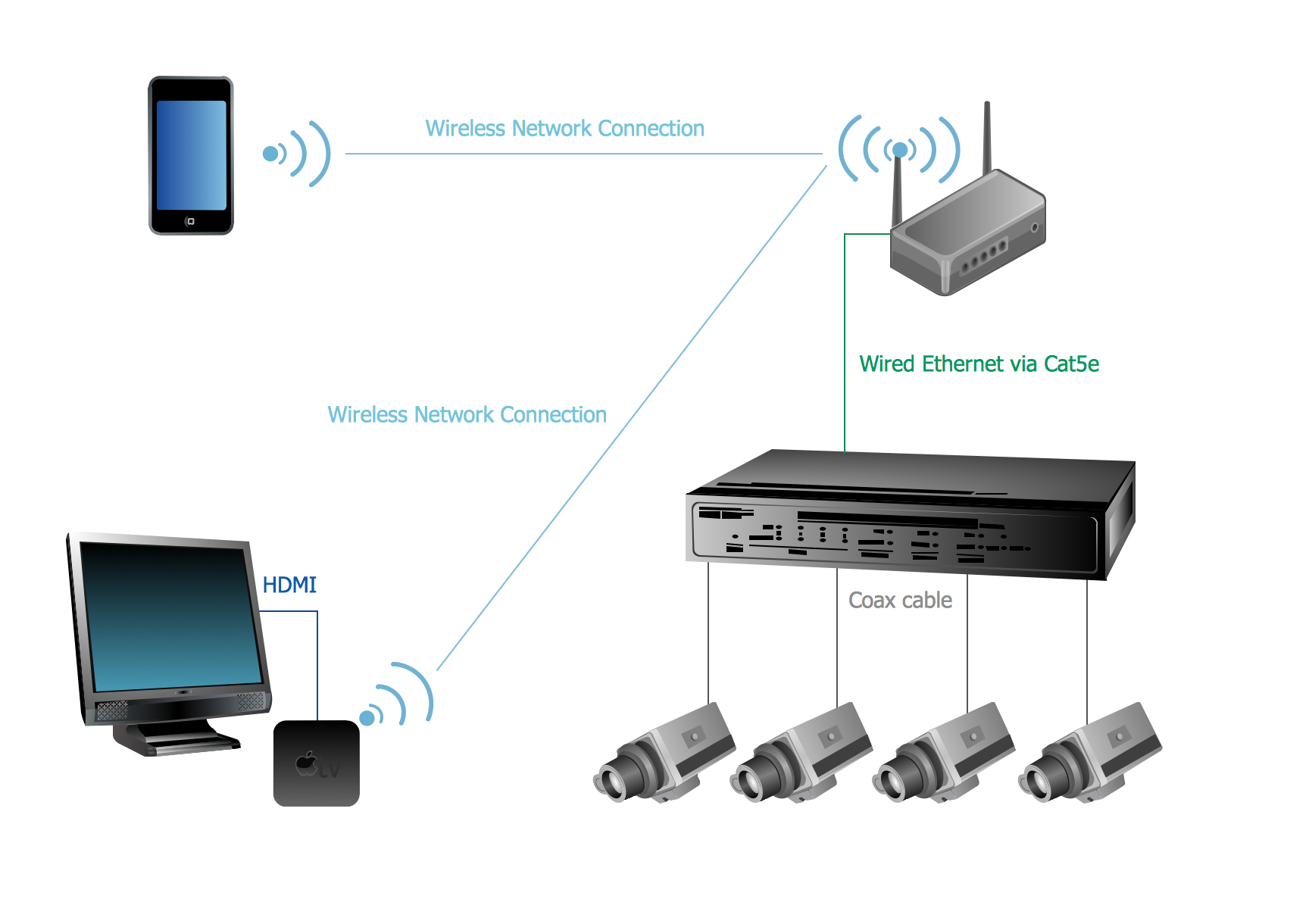
Closed-circuit television (CCTV) uses cameras and monitors to carry out video surveillance. Unlike broadcast television this system has only local signal. It is a feature of almost every video camera, yet CCTV is mainly a system for visual control of certain areas such as banks, airports, supermarkets, and other places for security reasons.
CCTV is often used to control production process, especially when people are recommended to stay away from the area (due to dangerous or unhealthy conditions). CCTV may work non-stop or during set periods of time, or watching a definite area and event. Another type of CCTV is digital video recorder (DVR). These devices vary in quality and features: motion detection, email or cell phone messaging etc. CCTV is widely used to observe public areas worldwide.
However, developing and installing CCTV system is a time-consuming process. It also requires certain knowledge and skills. ConceptDraw is a solution of setting video cameras rationally. You can achieve two aims at once: CCTV Design Tool saves your time and your money and helps you make professional video surveillance system.
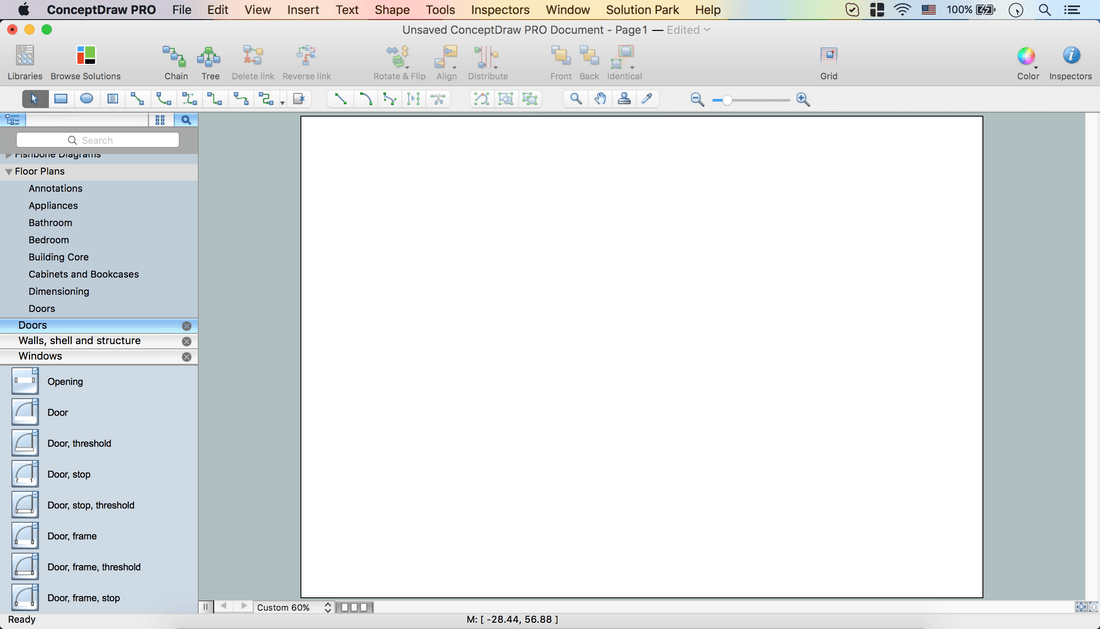
Launch ConceptDraw DIAGRAM
Set a page orientation: File – Page Setup – Horizontal Orientation – Ok.
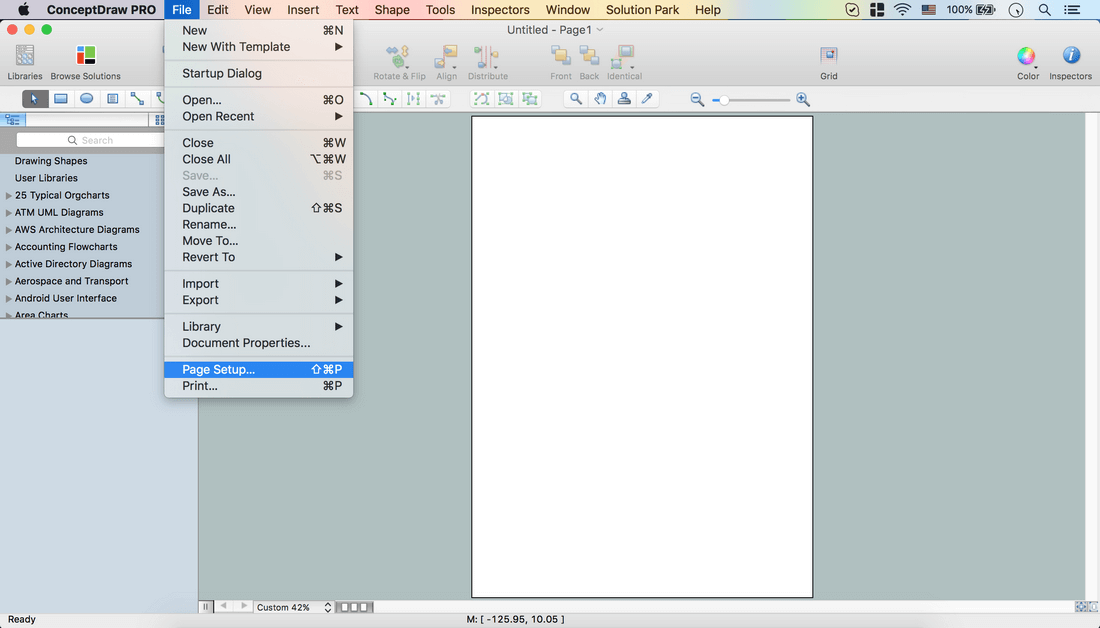
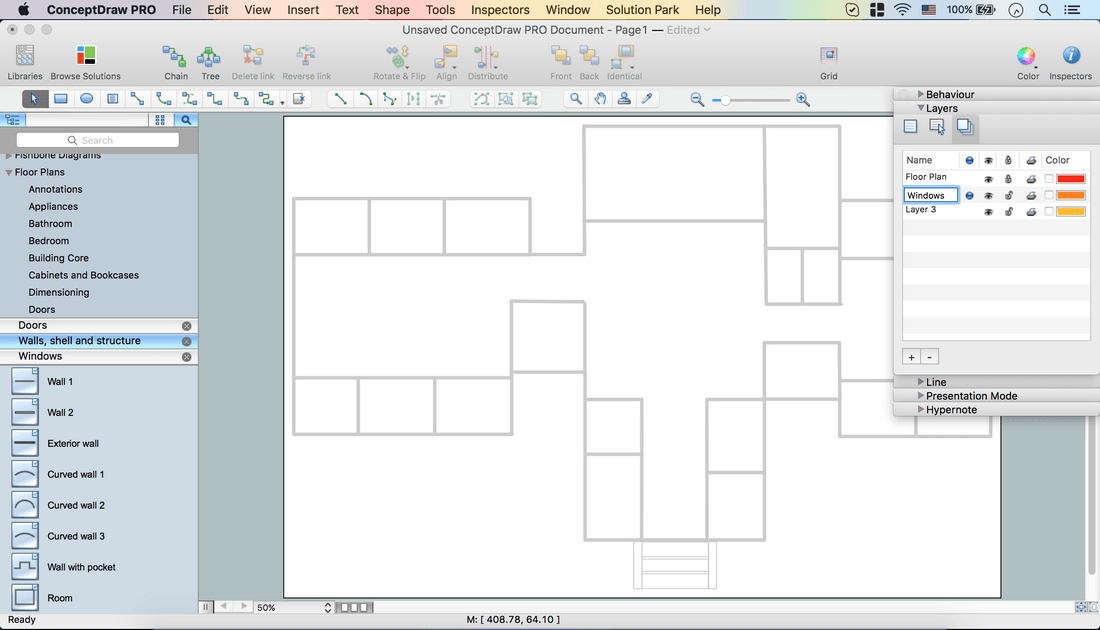
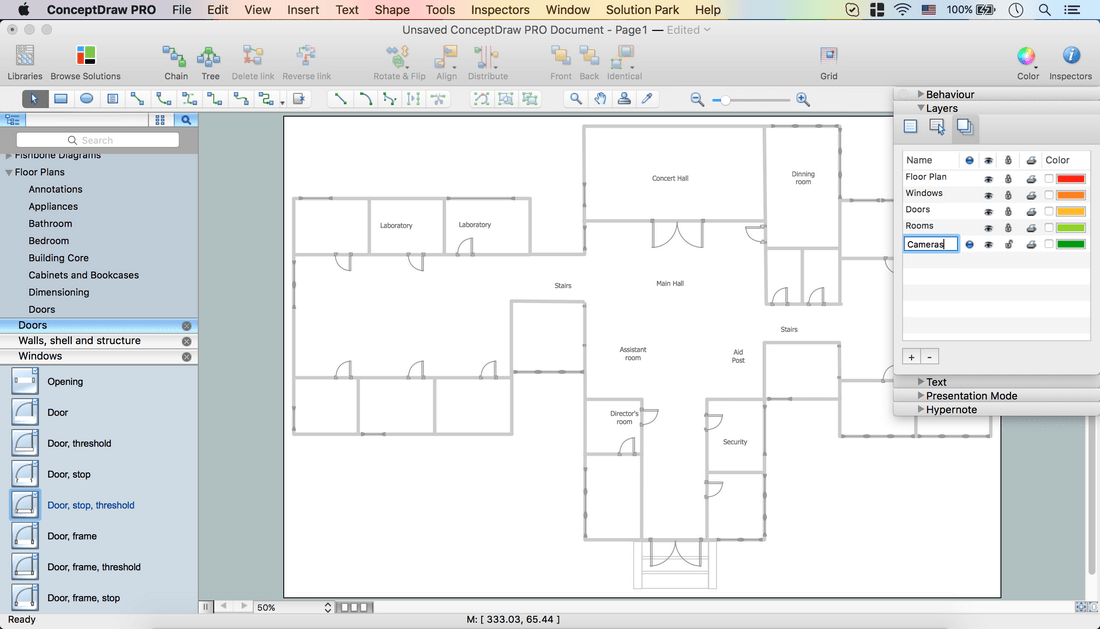
Floor Plan Layer.
Open Inspectors – Double click on the layer – Change name.
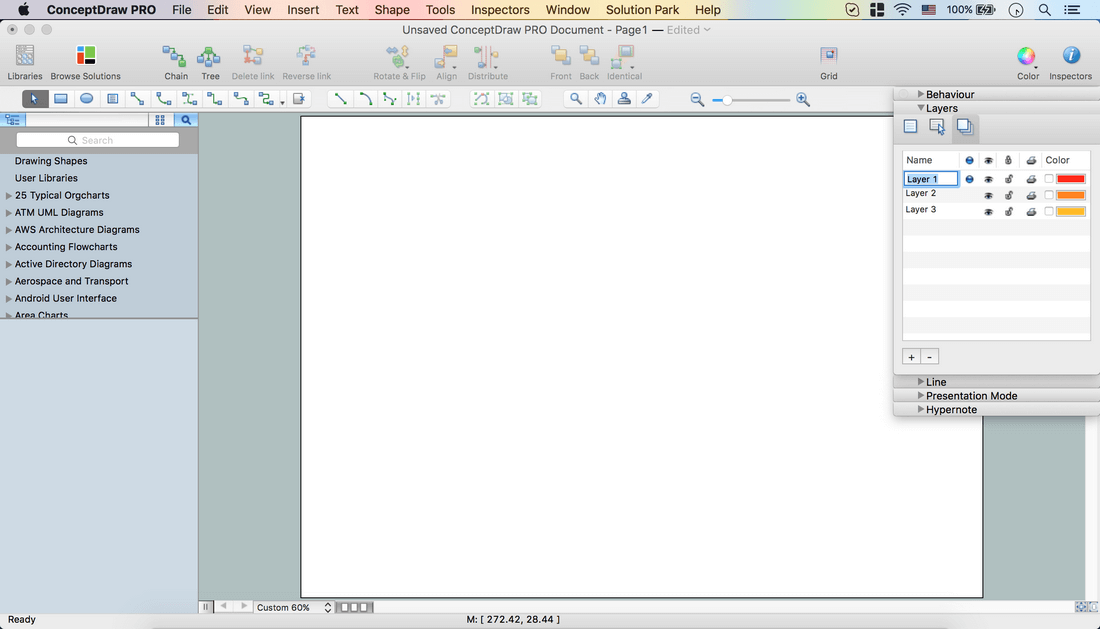
In the Floor Plans Solution open the libraries containing the necessary shapes:
Doors
Walls, shell and structure
Windows
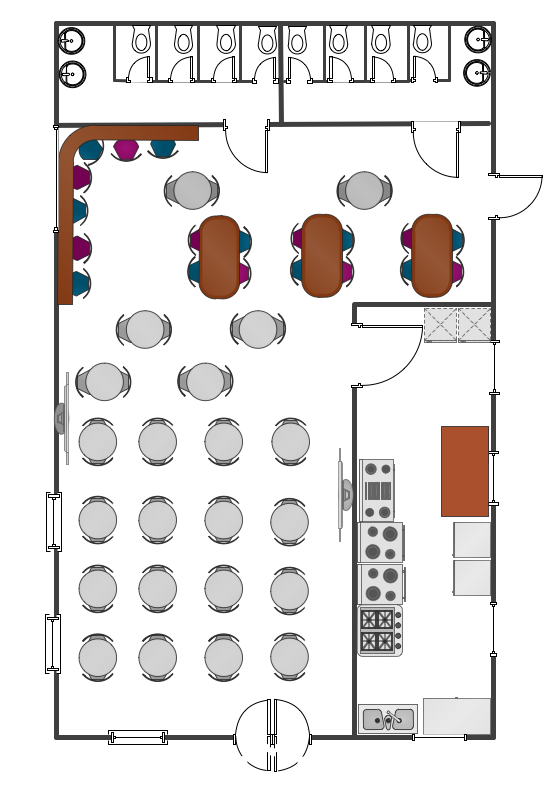
Using the necessary objects, create a floor plan.
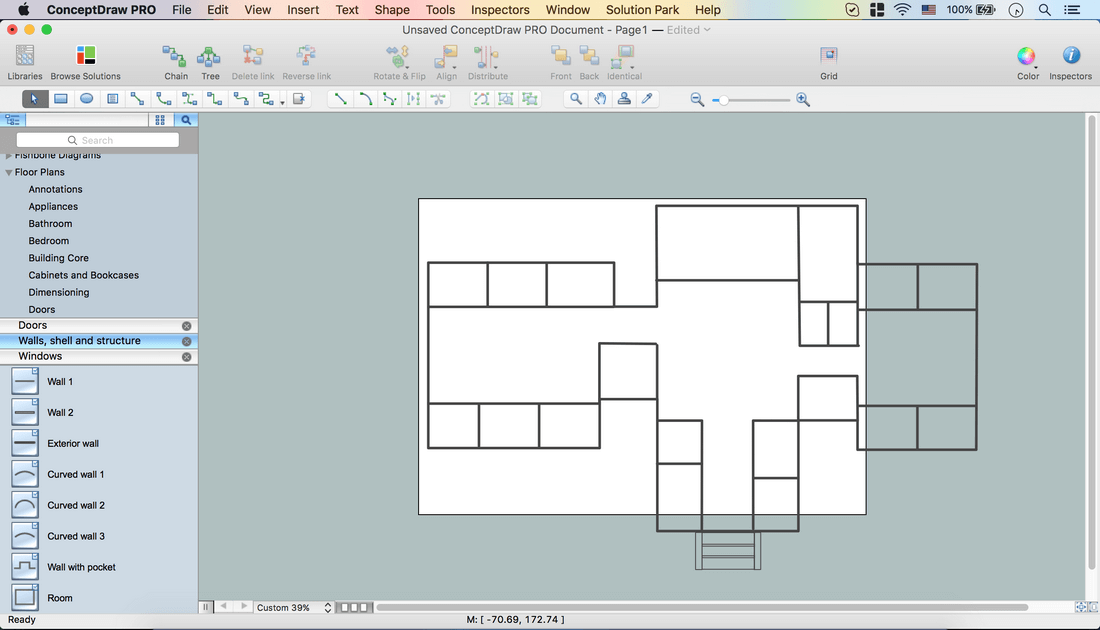
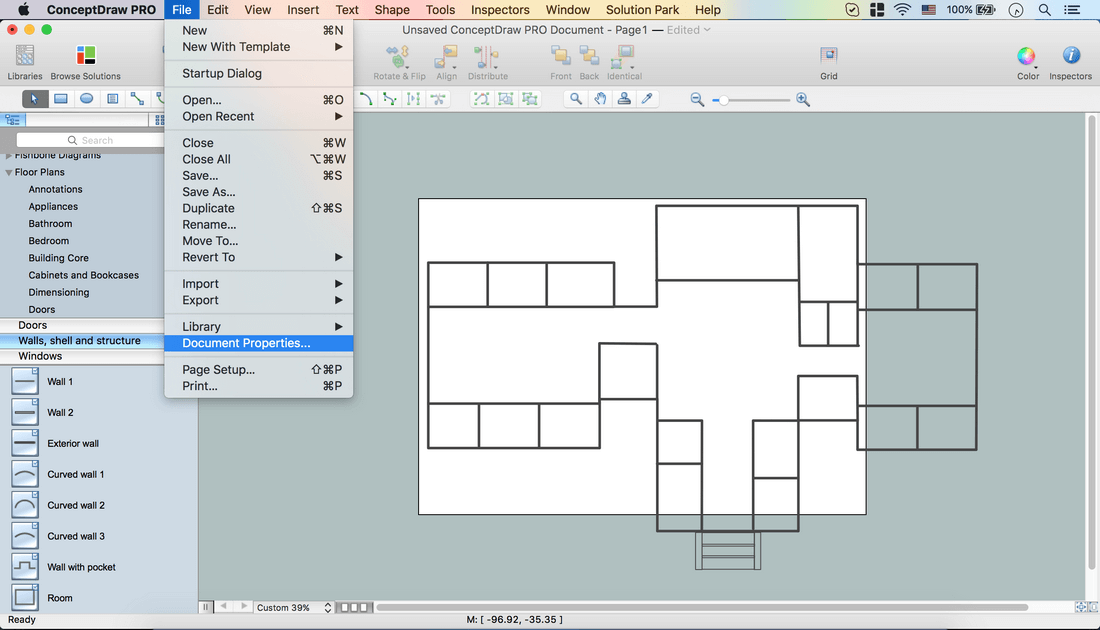
File – Document Properties – Page Size – Adjust to Drawing Contents – Ok.
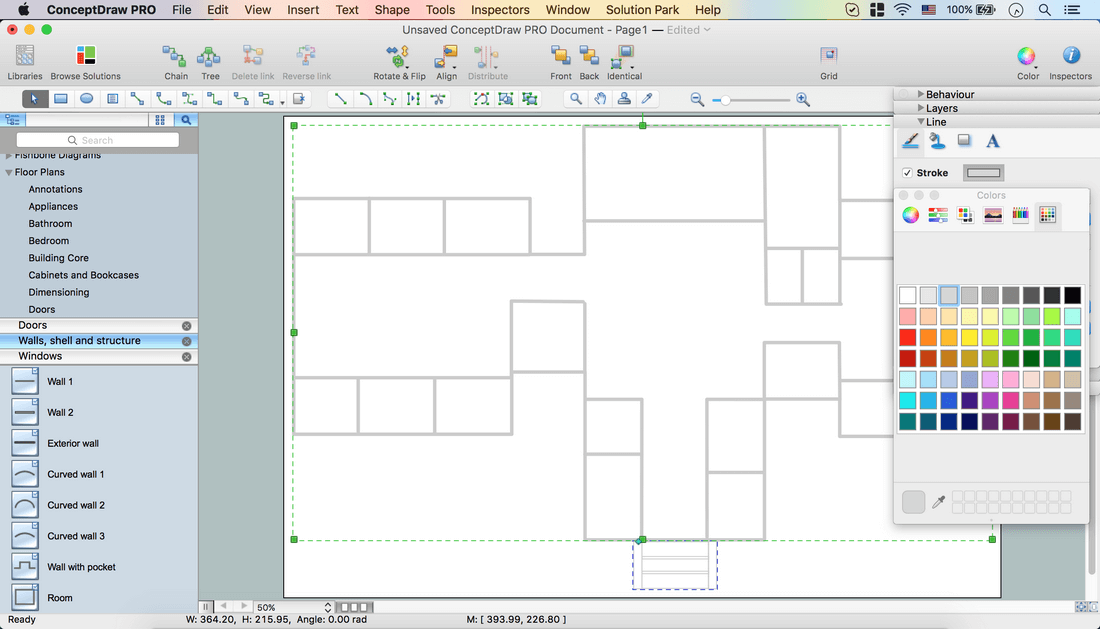
Select the floor plan (Cmd +A).
Open Inspectors – Line tab – Change color.
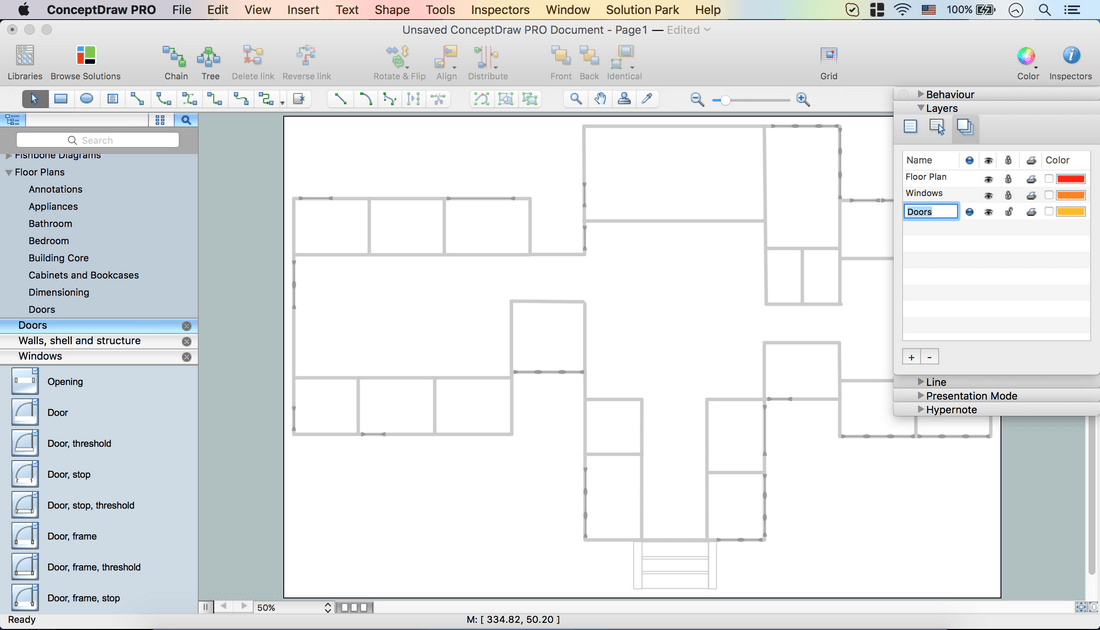
Windows Layer.
Inspectors – Layers tab – Select another layer for the next part of the drawing.
Lock the previous layer.
Open the Windows library. Place the Window objects on your floor plan.
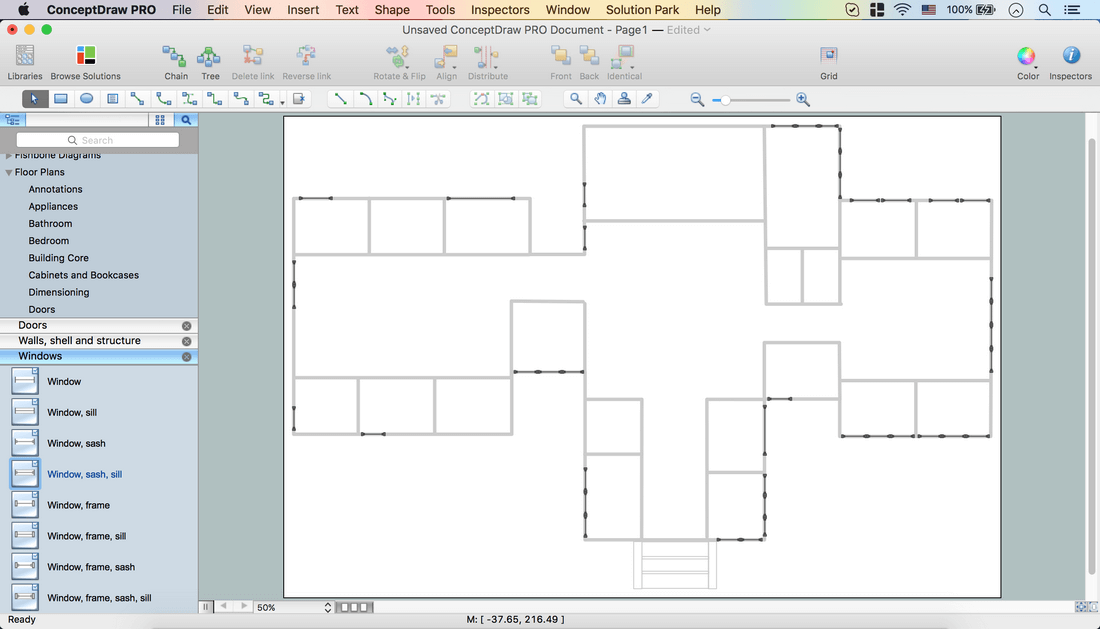
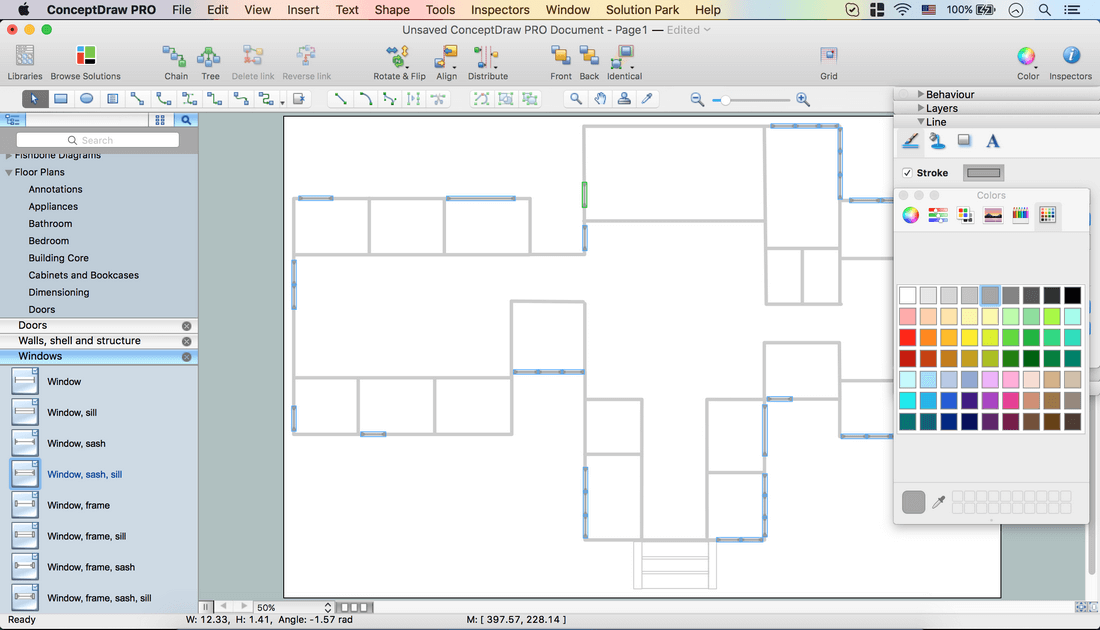
Select all windows (Cmd+A). Open Inspectors – Line tab – Change color.
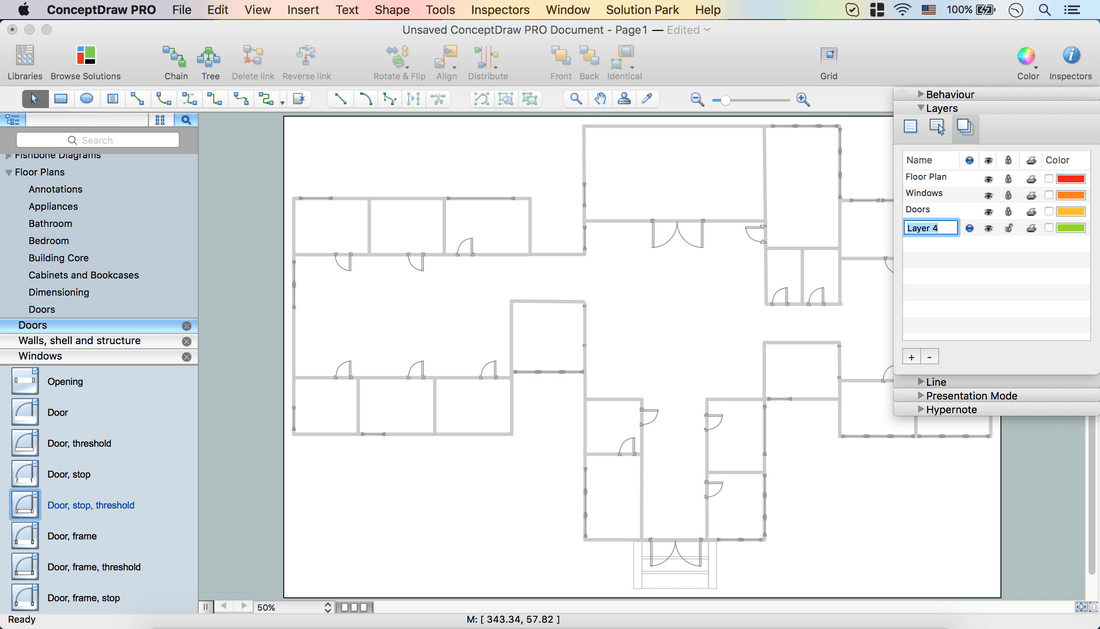
Doors Layer.
Inspectors – Layers tab – Select another layer for the next part of the drawing.
Lock the previous layer.
Open the Doors library. Place the Door objects on your floor plan.
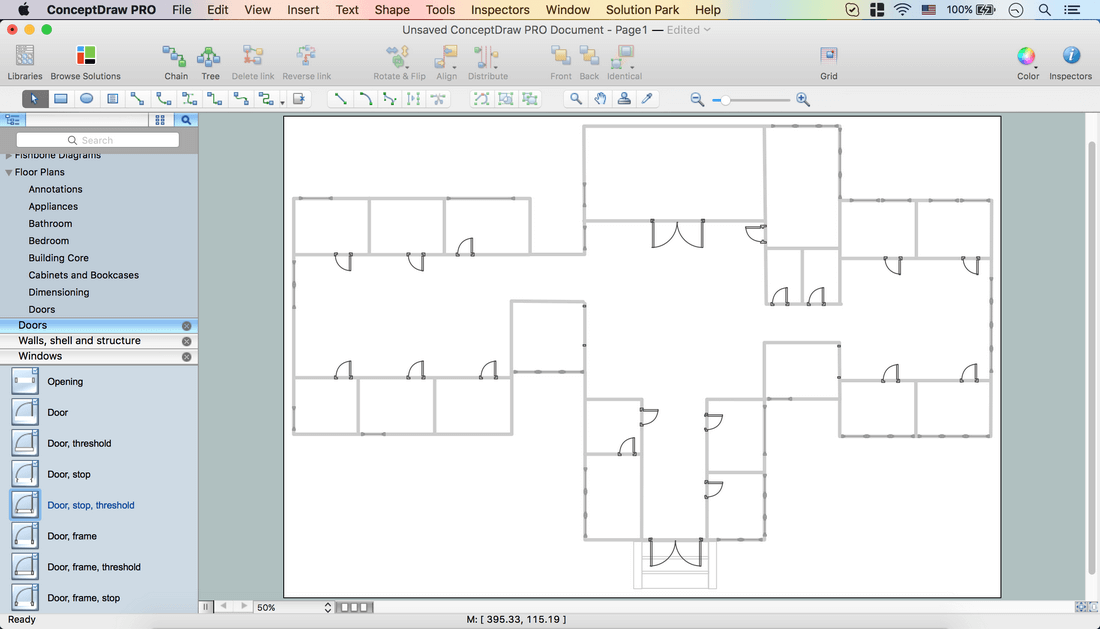
Use Action Menu of the object for easier work.
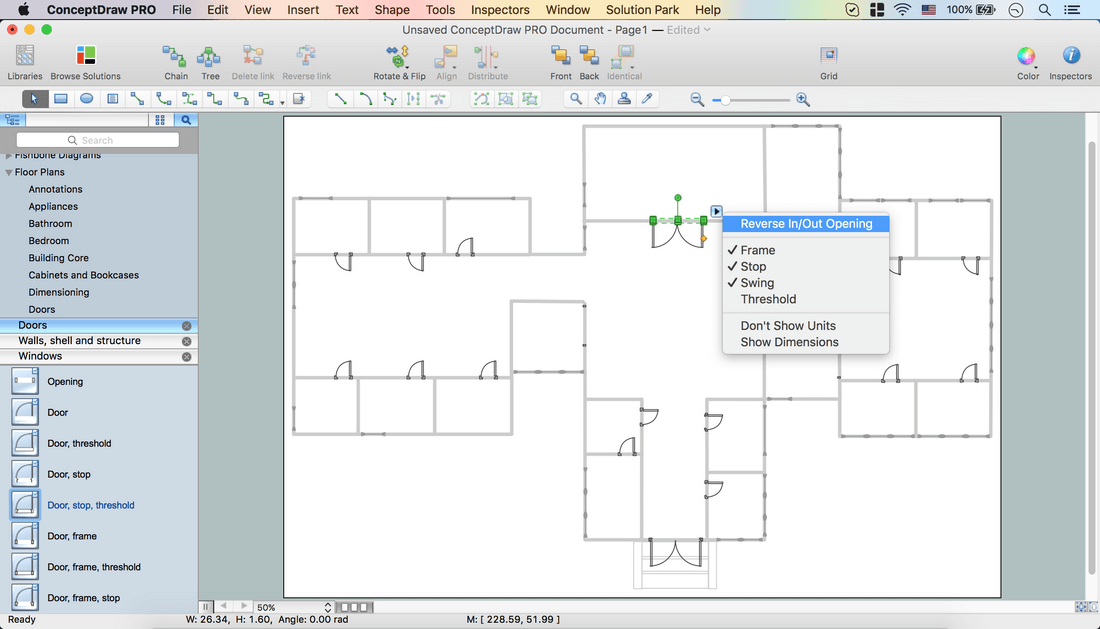
Select all the Door objects – Change color using Inspectors – Line tab.
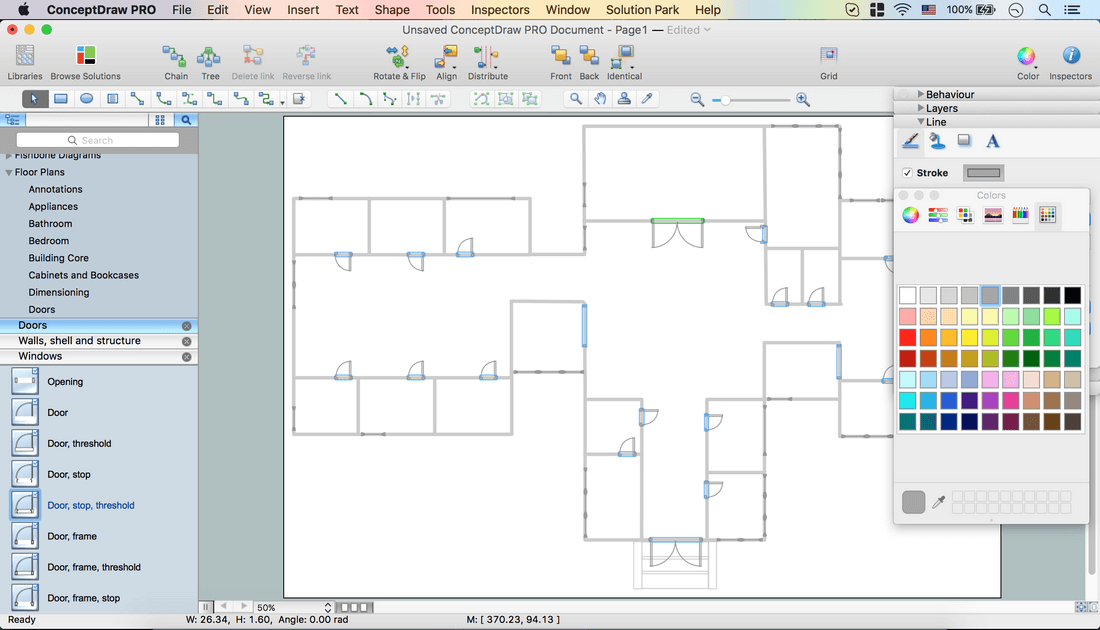
Rooms Layer.
Inspectors – Layers tab – Add a New Layer using plus icon (+).
Lock the previous layer.
Double click on the white space of the page – enter room name – move the Text box to the needed part of the floor plan.
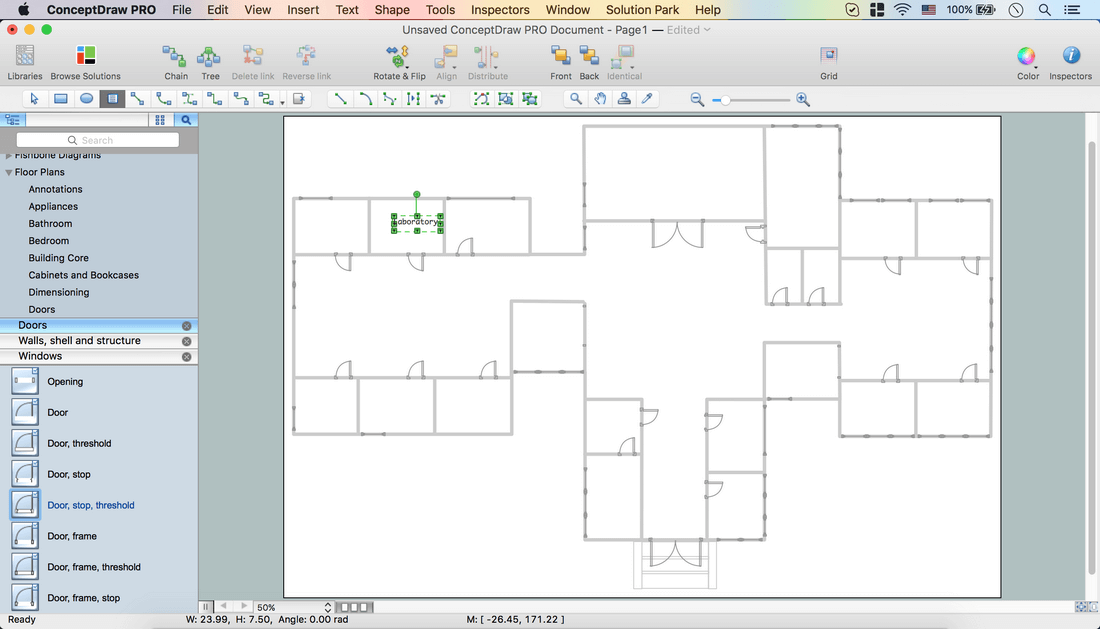
To edit text, select it and open the Text tab in Inspectors.
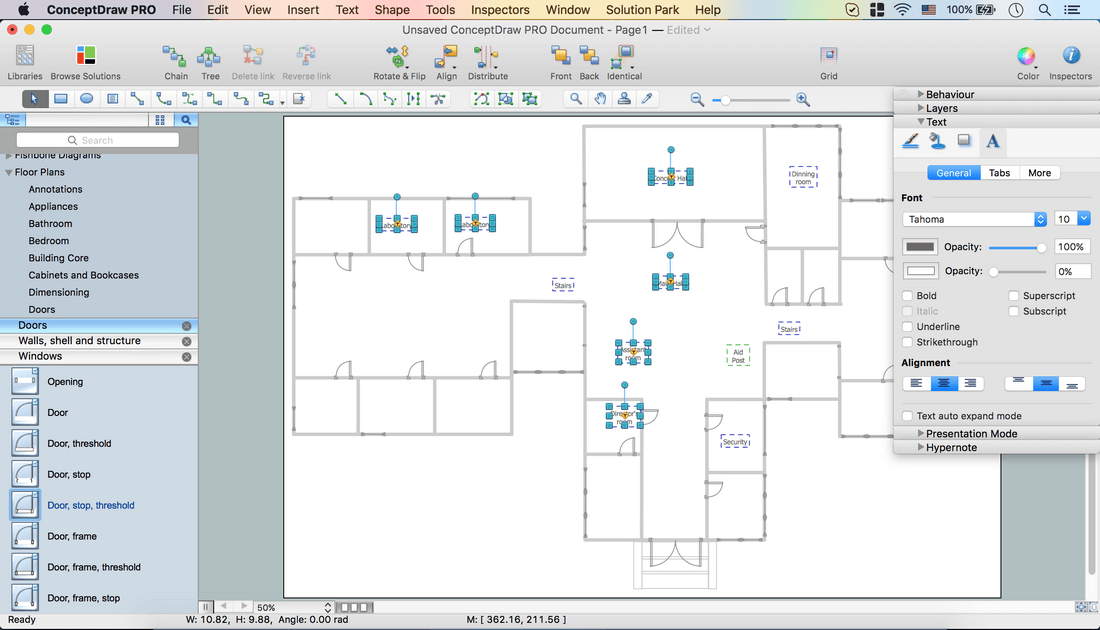
Cameras Layer.
Inspectors – Layers tab –Add a New Layer using plus icon (+).
Lock the previous layer.
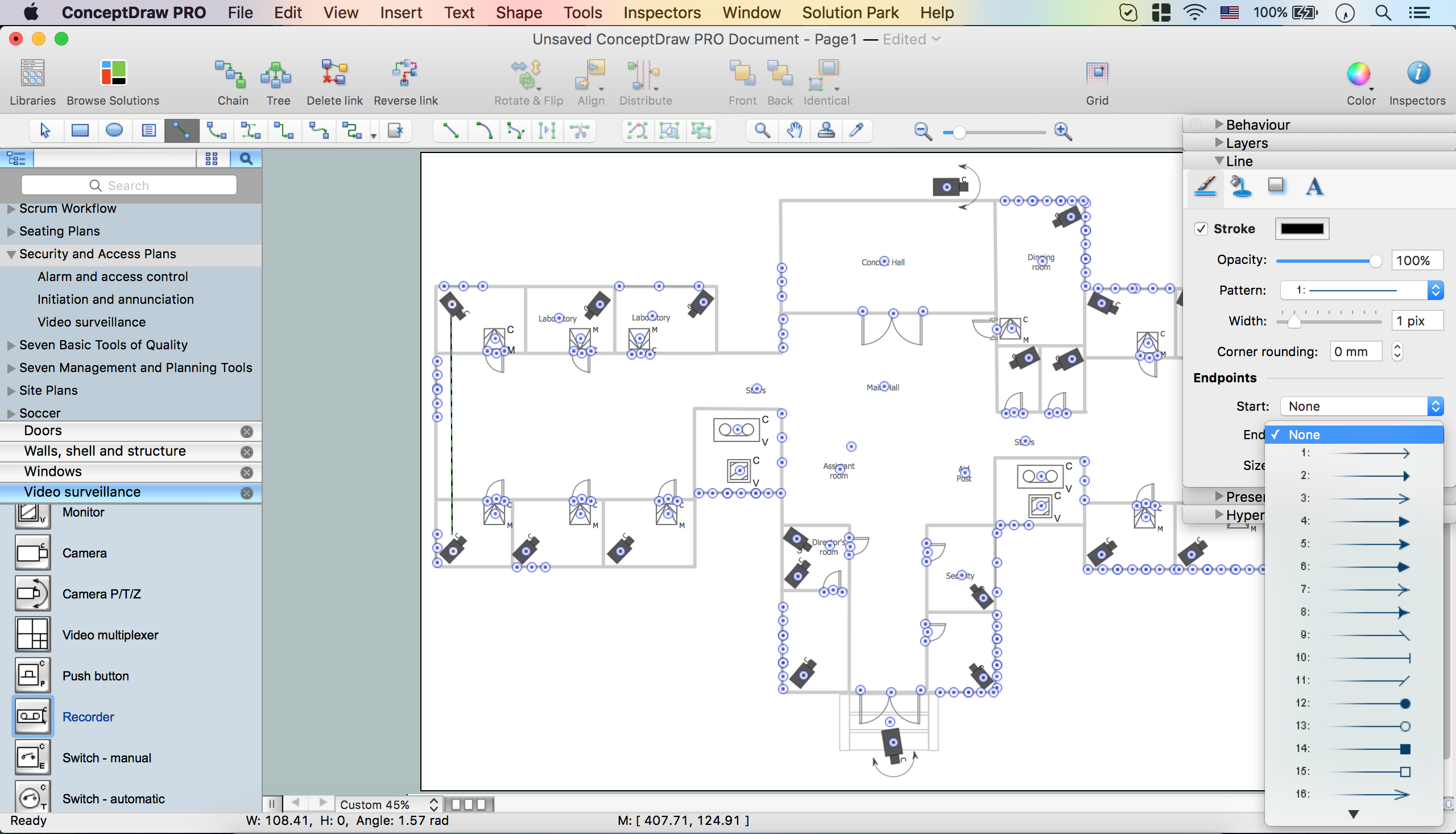
In the Security and Access Plans Solution open the Video Surveillance library.
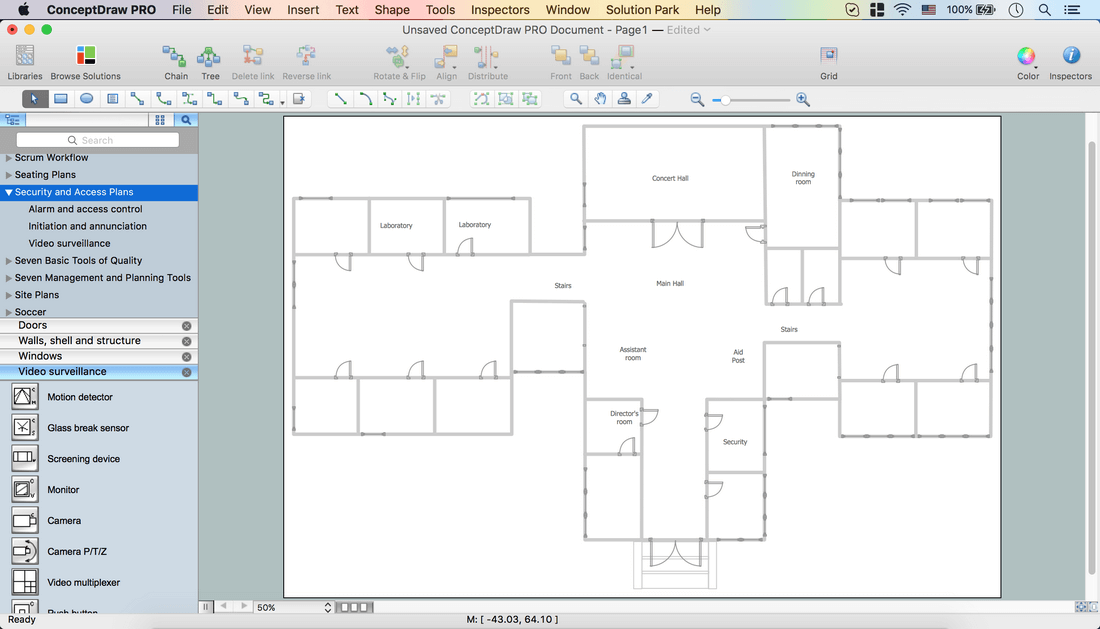
Take the Camera object – Place it on the floor plan.
Use Rotation dot to rotate the object. Use Control dots to resize it.
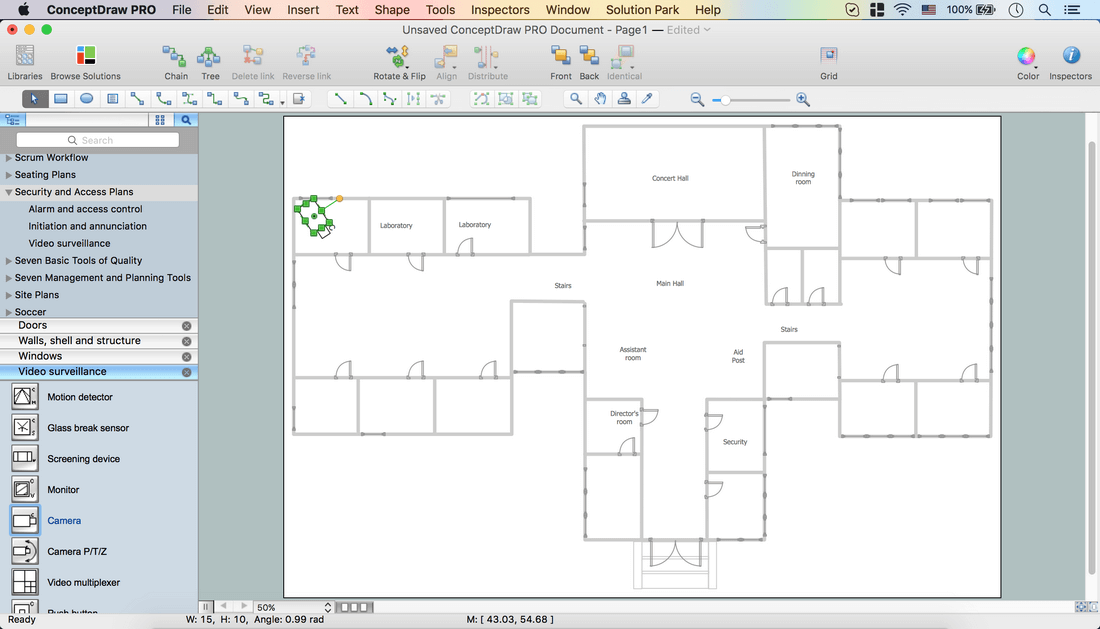
Open Color menu from the Toolbar – Shape Color – Change color.
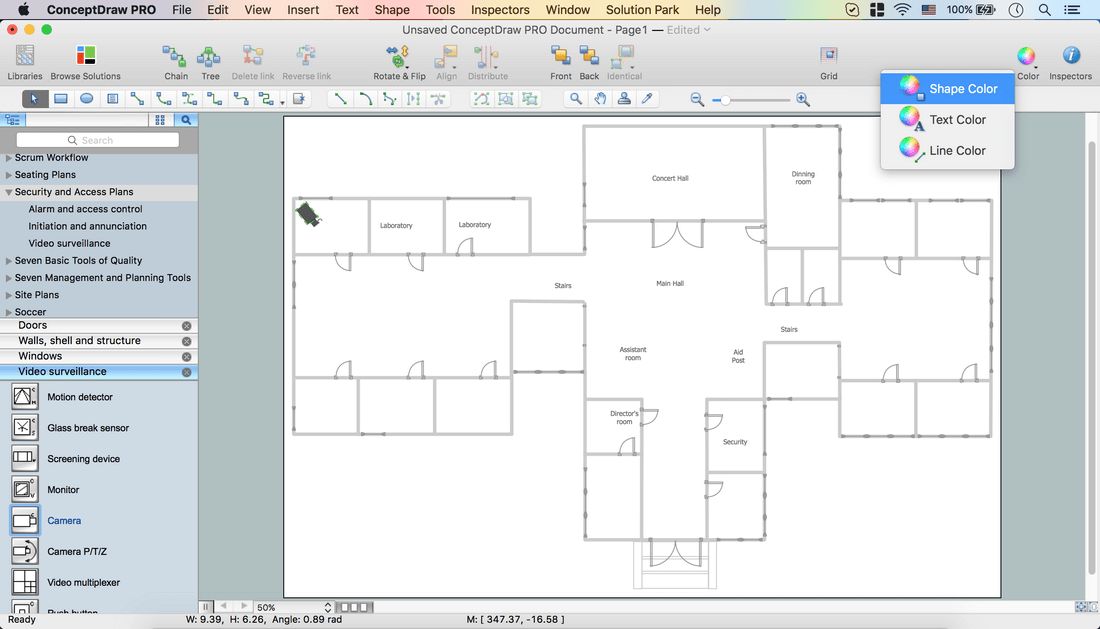
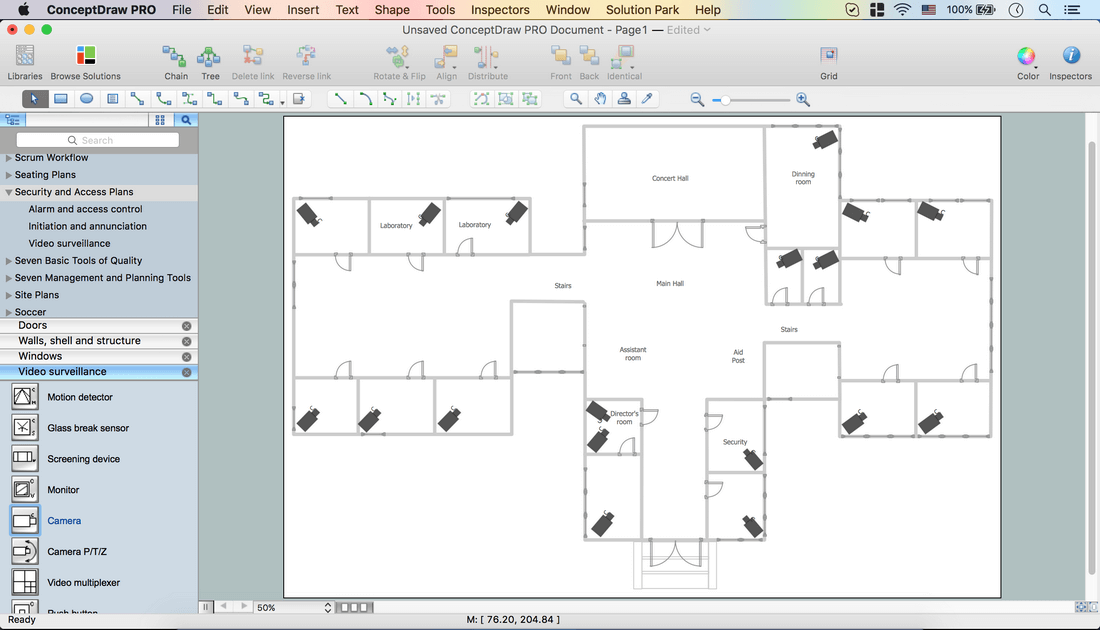
Holding down the Option key (ALT), copy the object. Place it on the diagram.
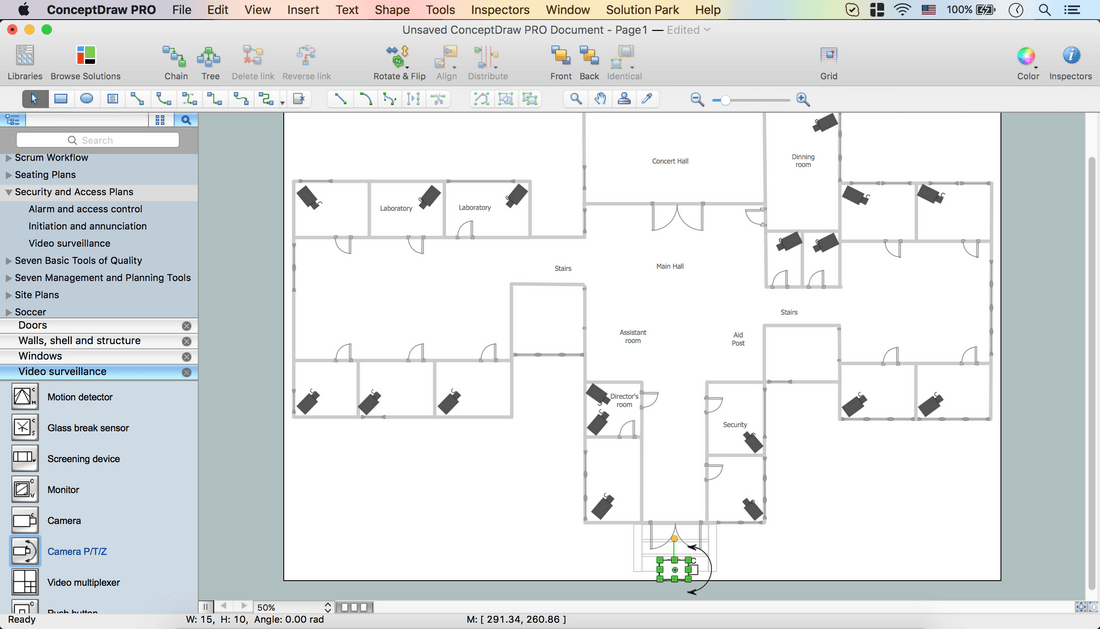
Take Camera P/T/Z object from the library. Place it on the floor plan.
Use Rotation dot to rotate the object. Use Control dots to resize it.
Open Color menu from the Toolbar – Shape Color – Change the color.
Holding down the Option key (ALT), copy the object. Place it on the diagram.
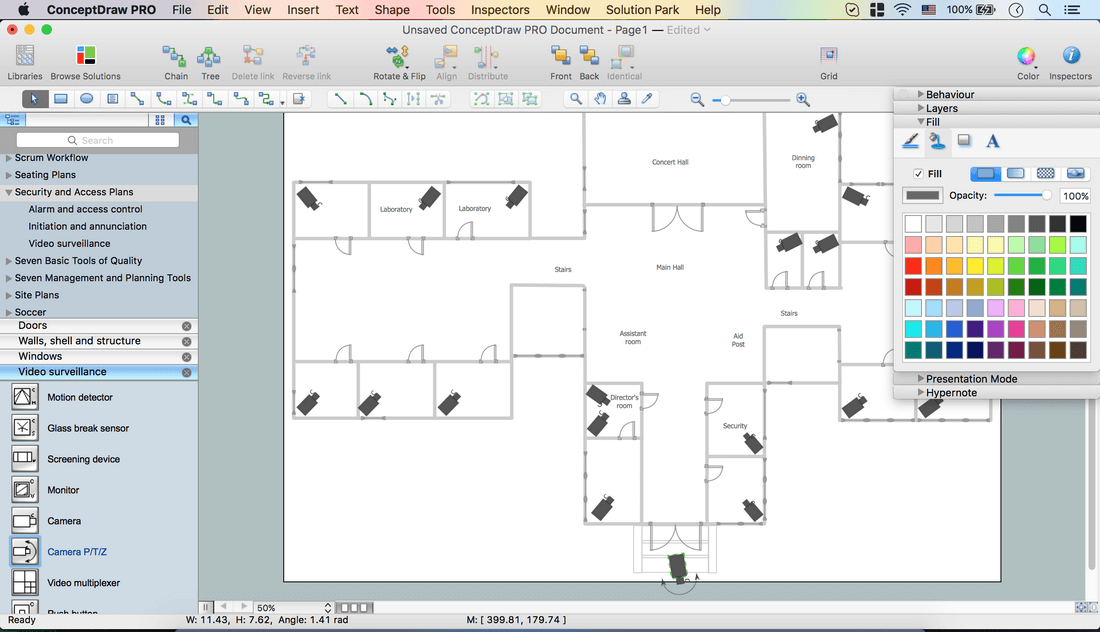
File – Document Properties – Page Size – Adjust to Drawing Contents – Ok.
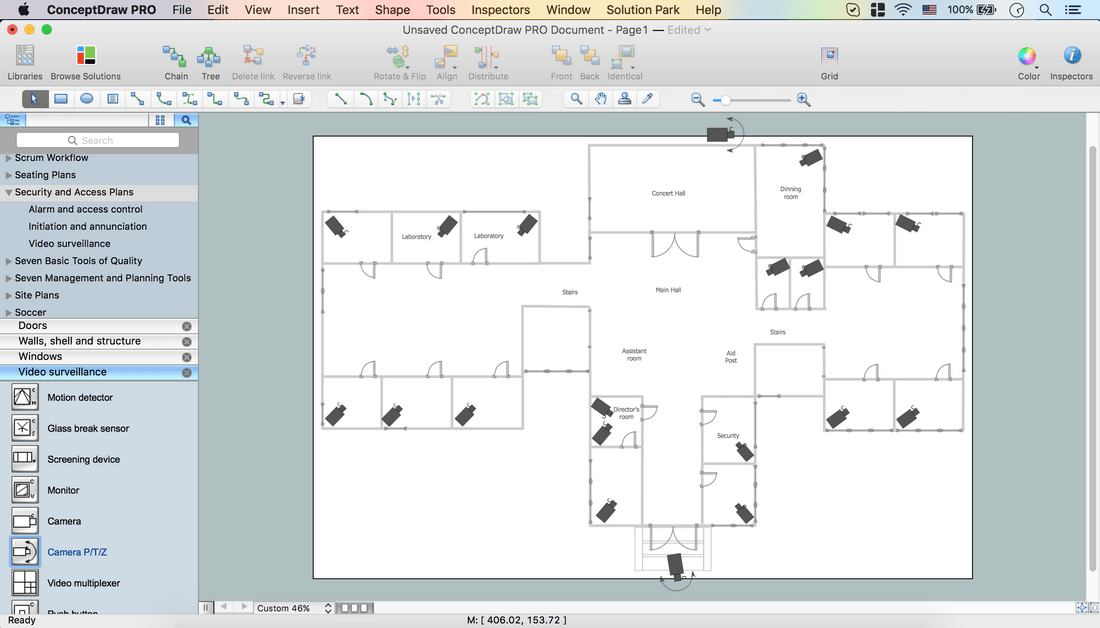
Use needed objects from the library, place them on the floor plan.
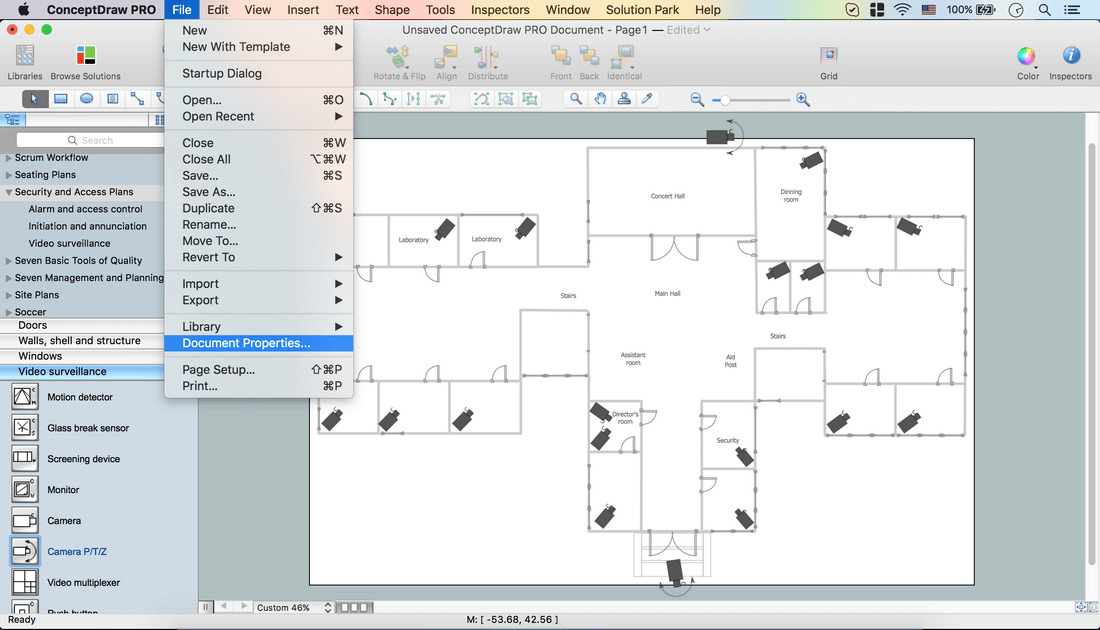
Select the objects, holding down the Shift key, click successively on the needed objects.
Open Inspectors – Line tab – Change color
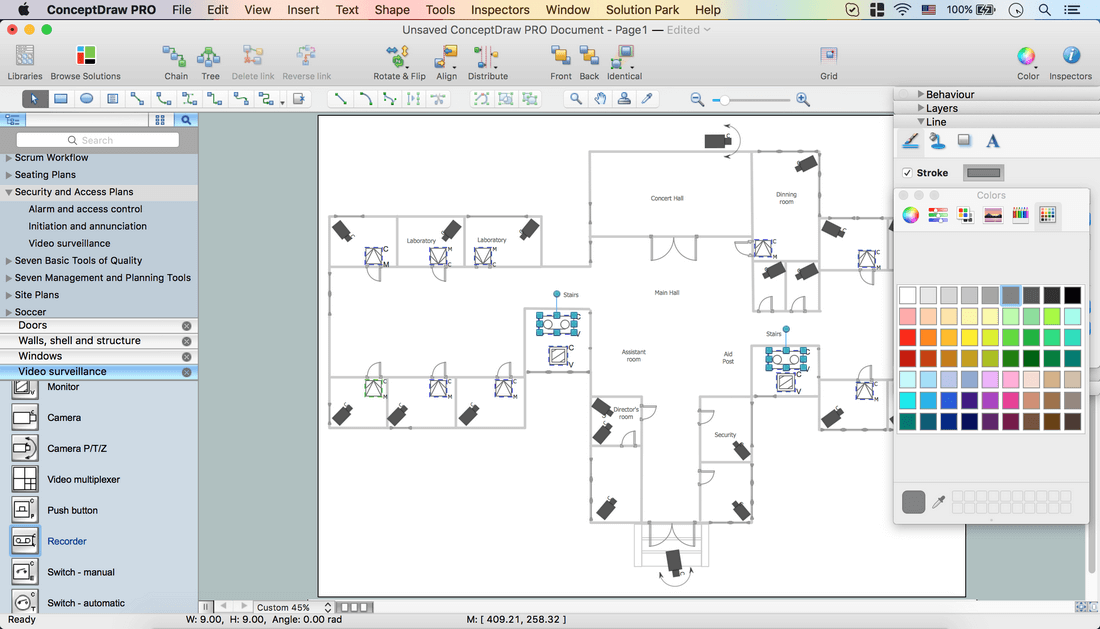
Using Direct and Smart Connectors from the Toolbar connect Camera objects.
Open the Line tab in Inspectors. Set End points, select color.

Using yellow dots on Smart Connector you can move it.
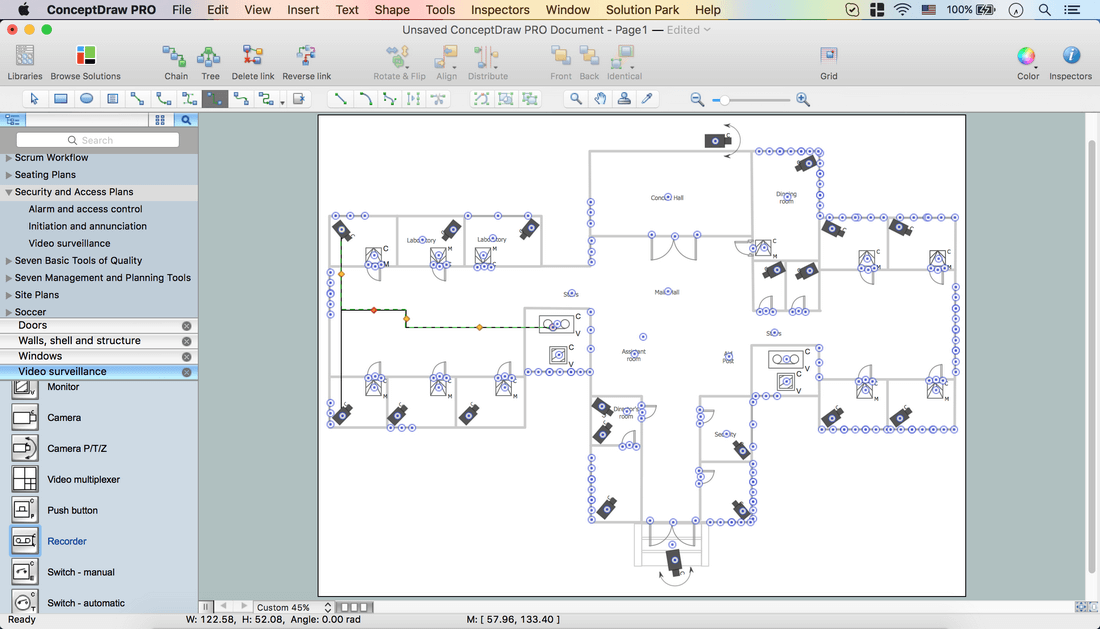
Now your Drawing is ready.
You may save it or export to different formats via the File menu.
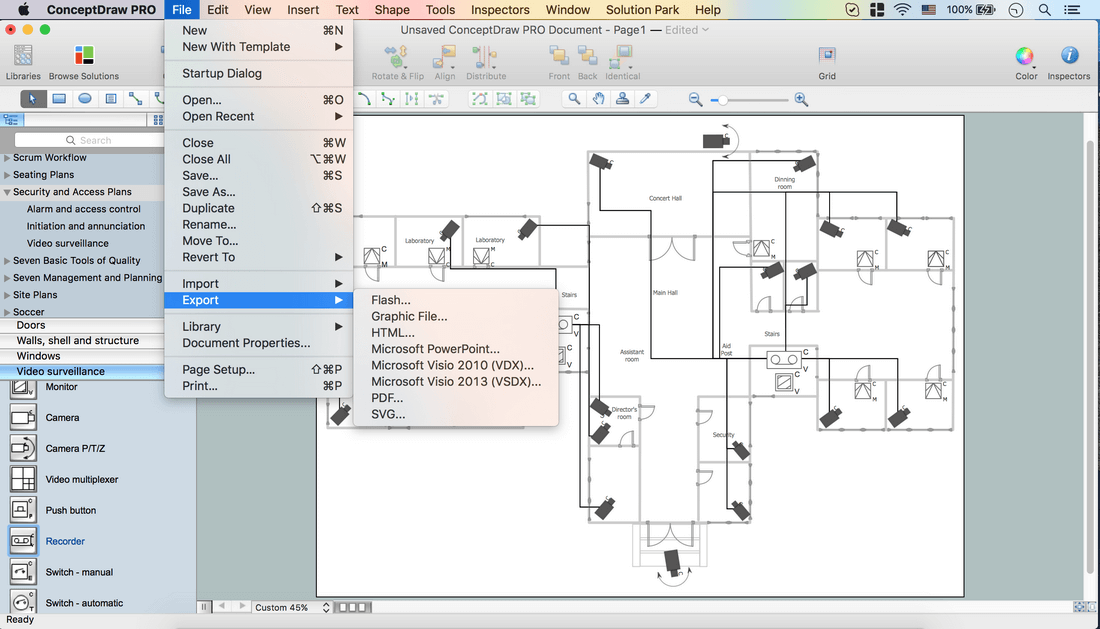
The possibility of exporting to variety of popular graphical formats (PNG, JPEG, JPG, GIF, TIF, TIFF, BMP, DIB, EMF, SVG) and file formats, such as Microsoft PowerPoint (PPT), Adobe Acrobat (PDF), Microsoft Visio (VDX, VSDX), Adobe Flash (SWF), Encapsulated PostScript (EPS), HTML, opens wide opportunities for you.
Video. How To Create CCTV Network Diagram (02 min 42 sec)
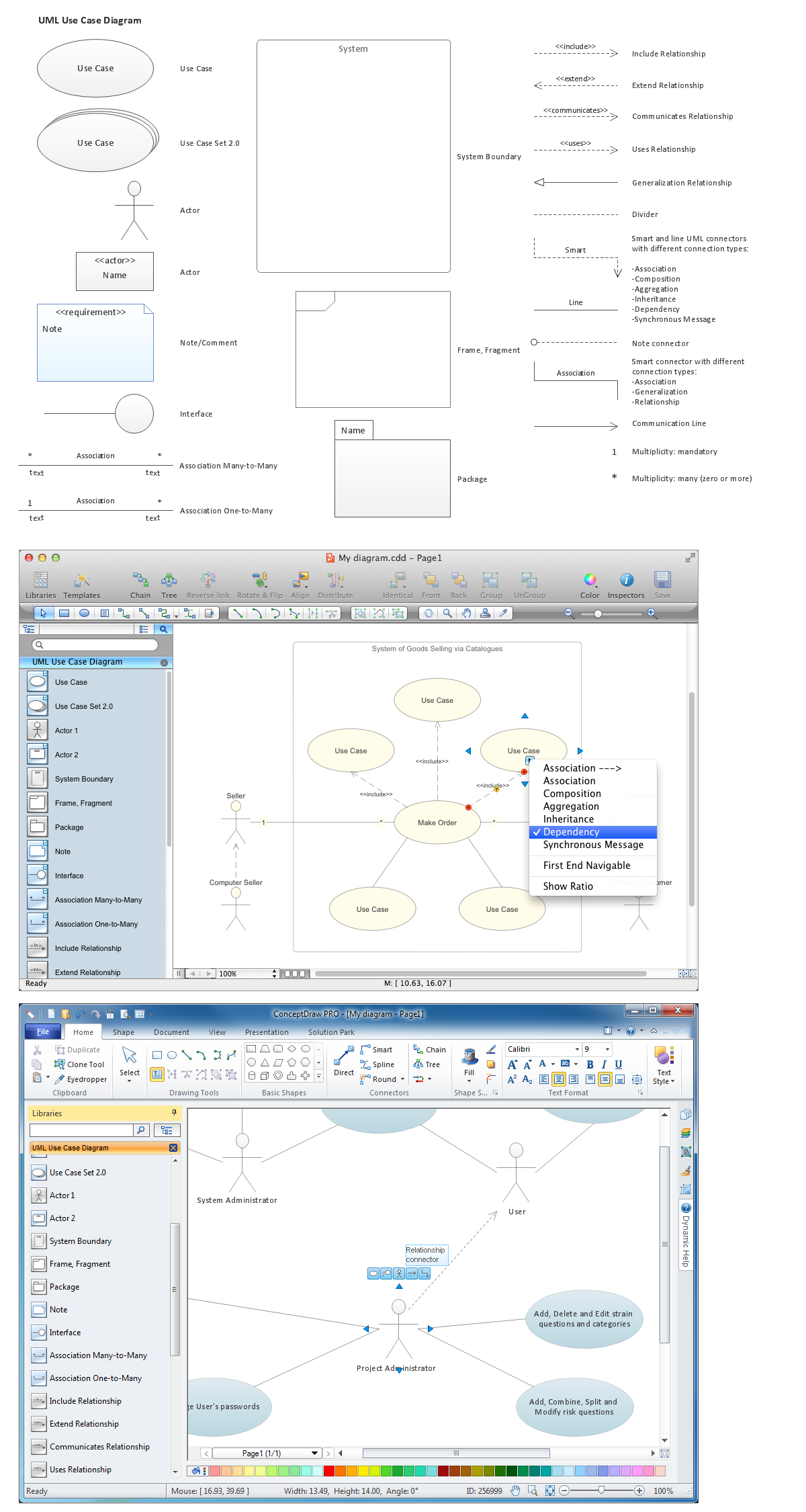
The UML diagram is a powerful tool which lets visually represent all system's components, the interactions between them and relationships with external user interface.
The Rapid UML solution for ConceptDraw DIAGRAM software offers diversity of UML flowchart symbols for drawing all types of UML diagrams.
There are many ways to describe a database structure. One of the most usual is to draw an entity relationship diagram (ERD) using a Crow’s Foot notation to represent database elements. If you don’t want to draw it on paper, you should use an appropriate software.
An entity-relationship (ER) diagram is used to show the structure of a business database. ERD represents data as objects (entities) that are connected with standard relationships symbols which Illustrate an association between entities. ERD, there is a wide range of ERD notations used by data bases architects for reflecting the relationships between the data entities. According to the crow’s foot notation relationships are drawn as single labeled lines designating a certain kinds of relationship. Crow foot notation is a most frequently used ERD standard, because of improved readability of diagrams, with a more accurate use of space on the page.
Picture: Entity Relationship Diagram - ERD - Software for Design Crows Foot ER Diagrams
It's no secret that there is a list of skills that every average system administrator should have. And it's important to be able to manage domains via active directory technologies. The best way to keep all the details in mind is to draw a diagram representing users, groups and domains.
This diagram represents an Active Directory Services (Active Directory Domain Services). It can be helpful for system and network administrators to organize a network physical and logical elements (domains, data bases, servers, network equipment, end-user computers etc.) into a secure and logical structure. The logical structure of Active Directory is a hierarchical organization of all network components. The data that is stored in Active Directory comes from some diverse sources. The Active Directory diagram created using ConceptDraw Active Directory Diagram solution. It shows allocating group policies and functions assigned to end users. It helps to plan, manage and maintain the certain user access scenario.
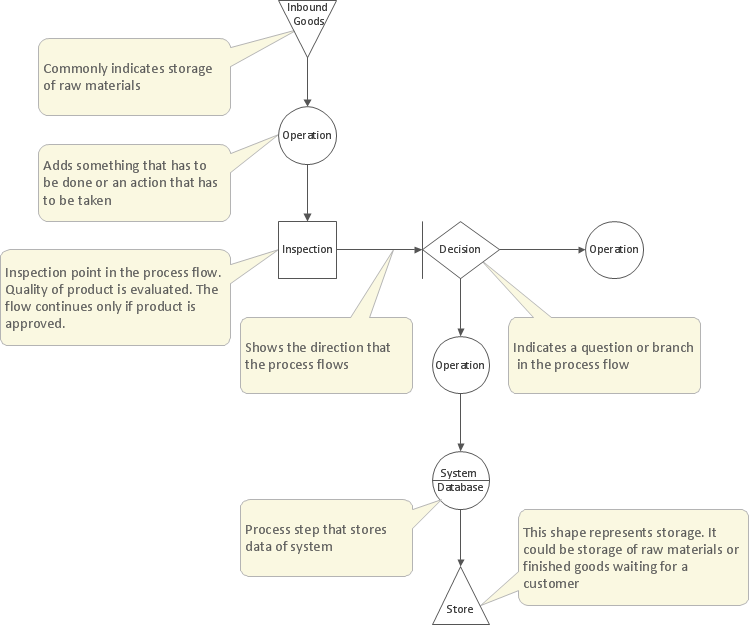
VSM symbols are the best for a production process designing. The entire Value Stream Mapping method uses a graphical representation of the manufacturing process, factors' pros and cons, that all stakeholders can easily understand. Value Stream Mapping is a graphical technique that provides possibilities to improve analysis of a manufacturing process, at the stage of the transferring information or materials that required to deliver a product or service to the customer.
Structured-systems analysis and design method uses data flow diagrams to represent the process of data flowing through a system. Talking about this might be useless without a proper example of DFD for online store (Data Flow Diagram). This DFD example shows all the distinctness that a diagram can bring into a scattered data structure.
Data flow diagrams are used to show how data is processed within some business processes. Making DFD is a common practice for business process modeling and analysis. This diagram represents the online store business flow. It describes inputs and outputs within online selling process and depicts the interactions between its participants. This DF diagram can be used by system analysts to create an overview of a business, to study and discover its inherent strengths and weak points.
Picture: Example of DFD for Online Store (Data Flow Diagram)
Using the ready-to-use predesigned objects, samples and templates from the Business Diagrams Solution you can create your own professional-looking Venn Diagrams quick and easy.
To visualize the relationships between subsets of the universal set you can use Venn diagrams. Сreate your own professional-looking Venn Diagrams quick and easy.
The term “cloud” is very popular and widely used now, it is a server, data processing centre, or a network which lets to store the data and software, provides access to them, allows to run applications without installation and gives the possibility to process data hosted remotely via the Internet connection.
For documenting the Cloud Computing Architecture with a goal to facilitate the communication between stakeholders are successfully used the Cloud Computing Architecture diagrams. It is convenient and easy to draw various Cloud Computing Architecture diagrams in ConceptDraw DIAGRAM software with help of tools of the Cloud Computing Diagrams Solution from the Computer and Networks Area of ConceptDraw Solution Park.
Picture: How to Build Cloud Computing DiagramPrincipal Cloud Manufacturing
Voice-over-Internet protocol (VoIP) is a protocol of the voice communications and multimedia sessions through the Internet or other packet-switched networks. VoIP systems use the data compression techniques, encapsulated in a data-packet stream over IP. They allows users to use regular telephone networks through any internet service provider and anywhere. VoIP is also called IP telephony, Internet telephony, Voice over broadband (VoBB).
This example was created in ConceptDraw DIAGRAM using the Computer and Networks Area of ConceptDraw Solution Park and shows the VoIP Network.
Picture: Network VOIP. Computer and Network Examples
Job duties in small companies are usually spread randomly among workers, causing lots of problems and misunderstanding. One of the ways to restore order in business processing is to create a cross-functional flowchart with swim lanes that would represent every step in production system. Another advantage of using swim lanes flowchart is that it represents not only processes, but people responsible for them.
Swim lane diagram is a kind of a process flow diagram. Its special feature is that it joins the features of process flow diagrams with organizational charts. Thus, a swim lane diagram display a participant of the business process in a conjunction with general flow of the business system. A swim lane diagram is looks similar to a swimming pool's lanes. Lanes can be horizontal and vertical. The lanes are pointed out relatively to resource name, which is assigned on implementation of the given part of the business process. ConceptDraw Business Process Mapping solution delivers the ability to design develop swim lanes flowcharts using the vector graphic objects of Swim Lanes library.